

Creating Reports via Links
Make a link that opens a new JetTime report with your filters, dates and view.
A link can open a new time report in JetTime with its filters, dates and view already set, and build it at once. The link carries a report's settings, not the report: everyone who opens it gets a new report of their own. Share it with a colleague, keep it on a Confluence page, or have an ERP or a reminder service send people straight to the right report: say, a weekly reminder that takes a team lead to their team's hours for last week. Copy such a link with any report's settings, or build it yourself from the parameters below.
Copy a Link with a Report's Settings
Set Up the Report
In the main menu, select Reports, then open a report or create one. Set its filters and dates, then its view in the Customize Report panel.
Open the Dialog
In the report, select … › Copy Link with Report Settings.
Choose the Dates
In the Dates list, keep the report's own dates, or pick a preset such as Last month. A preset is counted from the day someone opens the link, so a link kept on a team's page shows last month's hours every month.
Choose Whether the Report Builds
With the Build Report on Open checkbox selected, the report builds as soon as the link opens. Clear it for a heavy report, say a year across the whole company: the report opens with everything set, and builds once the person who opened it selects the Build Report button.
Copy the Link
Select Copy.
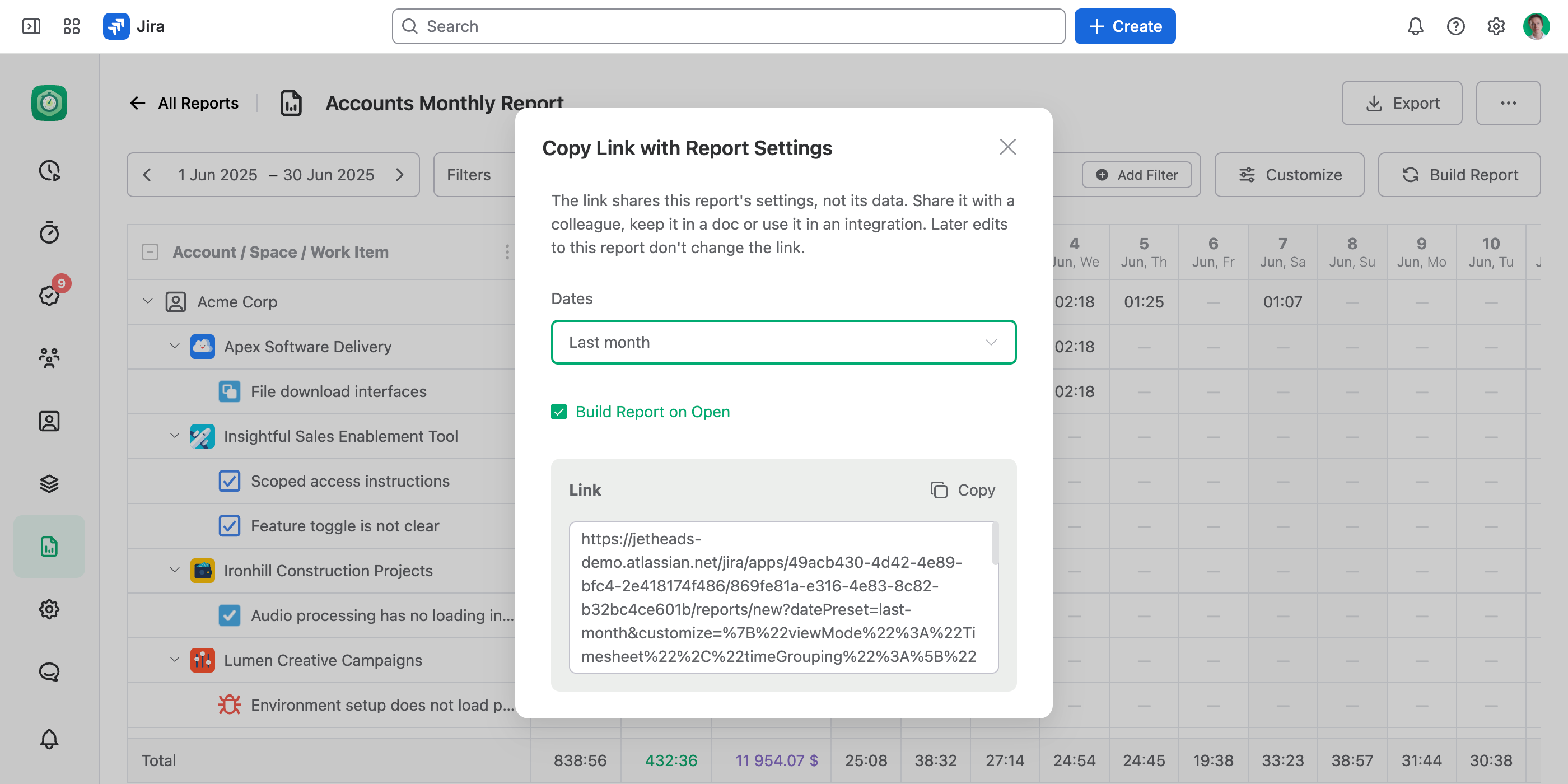
The same link starts a new report from these settings, which you can adjust and save as your own: see Duplicating a Report.
Build a Link Yourself
Another system, such as an ERP, can build the link itself. The quickest way to start: set up a report on screen, copy a link with its settings, then have your system change the dates and the IDs. Every ID the link needs is already there, written the way the link expects.
When JetTime can't read a part of a link, the report still opens with the rest. The sections below say what happens to each part.
The Link
Every link has this form:
https://<your-site>.atlassian.net/jira/apps/49acb430-4d42-4e89-bfc4-2e418174f486/869fe81a-e316-4e83-8c82-b32bc4ce601b/reports/new?<parameters>Only <your-site> changes: JetTime's two IDs in the path are the same on every Jira site.
These are the parameters you can add to the link, after ?, joined with &:
| Parameter | What it sets | Value |
|---|---|---|
filters | The report's filters | JSON, see Filters |
dateStart, dateEnd | The report's dates | YYYY-MM-DD |
datePreset | The dates, by a preset | last-month and others, see Dates |
customize | The report's view: what the Customize Report panel sets | JSON, see The View |
intent | Builds the report as the link opens | build-report |
Every parameter is optional, and the order doesn't matter. A parameter the link doesn't give takes its default, the same as in a new report you create with the Create Report button on the Reports page:
- no filters;
- the current month;
- the default view, listed in The View;
- no build until the person who opened the link selects the Build Report button.
Give each parameter once: a repeated one is ignored.
Encoding
filters and customize take JSON. Write it in one line and URL-encode the whole value, for example with encodeURIComponent in JavaScript. An unencoded + reads as a space.
The JSON:
{"Worklog::account":[{"id":"ACME","name":"Acme Corp"}]}The parameter, encoded:
filters=%7B%22Worklog%3A%3Aaccount%22%3A%5B%7B%22id%22%3A%22ACME%22%2C%22name%22%3A%22Acme%20Corp%22%7D%5D%7DDates
Set the dates in one of two ways:
- Fixed dates. Set both
dateStartanddateEnd, asYYYY-MM-DD. The report includes both days:dateStart=2026-11-13&dateEnd=2026-11-13is one day. - A preset. Set
datePresetto one ofthis-week,last-week,this-month,last-month,this-quarter,last-quarter,this-year,last-year. It is counted from the day someone opens the link, in their browser's time zone. A week starts on the First Day of the Week set in Settings › Date and Time.
Which dates the report takes:
- Fixed dates and a preset: the fixed dates.
- No fixed dates: the preset, or the current month if the link has no preset either.
- Fixed dates JetTime can't read count as no fixed dates: one date alone, a date not written as
YYYY-MM-DDor not a real day such as2026-02-30, ordateStartafterdateEnd. - An unknown preset counts as no preset.
Filters
filters is a JSON object. Each key names a filter, and each value lists that filter's values:
{
  "Issue::project": [
    {
      "id": "10000",
      "name": "ACME: Acme Website"
    },
    {
      "id": "10001",
      "name": "ACMEAPP: Acme Mobile App"
    }
  ],
  "Worklog::account": [
    {
      "id": "ACME",
      "name": "Acme Corp"
    }
  ]
}- A work log must match every filter, and any one value of each. In this example, a work log counts when it is in the Acme Website space or the Acme Mobile App space, and is logged to the Acme Corp account.
ididentifies the value, and it is always a JSON string:"10000", never10000.nameis only a label: the text of the filter's tag in the report's filters section, above the report in JetTime. Leave it out and the tag shows theid. A wrong name changes no figure.
Each filter you can put in a link, its key, and what its id holds:
| Filter | Key | id |
|---|---|---|
| Work Item | Issue::issue | The work item's numeric ID in Jira, not its key |
| Space | Issue::project | The space's numeric ID in Jira |
| Work Item Type | Issue::issuetype | The type's name, such as Story |
| Status | Issue::status | The status's name, such as In Progress |
| Organization | Issue::sd-customerorganization | The Jira Service Management organization's numeric ID |
| Jira Filter | Issue::filter | The saved Jira filter's numeric ID |
| Assignee, Reporter, Creator | Issue::loaded::assignee, Issue::loaded::reporter, Issue::loaded::creator | The person's Atlassian account ID |
| A select custom field | Issue::loaded::customfield_<number>, such as Issue::loaded::customfield_10050 | The option's numeric ID |
| Work Log User | Worklog::worklog-user | The person's Atlassian account ID |
| Account | Worklog::account | The account's Key |
| Team | Worklog::team | The team's Key |
| Role | Worklog::function-role | The function role's Key |
| A select work log field | Worklog::worklog-field::<field key> | The option's text, such as Development |
| A checkbox work log field | Worklog::worklog-field::<field key> | "true" or "false" |
Where to find what goes into the link:
- An account, a team or a function role. Its key is the
idof the filter value. It is in the Key column of the Accounts and Teams lists, and of Settings › Function Roles. - A work log field. Its key is part of the filter key:
Worklog::worklog-field::<field key>. It is in the Key column of Settings › Work Log Fields. Theidis then the option's text, or"true"or"false"for a checkbox. Only single-select, multi-select and checkbox fields work as filters: text and number fields don't. - Jira's numeric IDs. They come from the Jira REST API.
If something in filters is wrong:
- A filter your site doesn't have, such as a deleted work log field or a mistyped key, is ignored. The other filters apply.
- Every filter of the link is ignored when
filtersholds a value in the wrong shape (a numberid, or noid), a filter with no values, or JSON that doesn't parse. - A wrong
idis not ignored: JetTime can't tell it from one that matches no work. The report comes out empty, or fails to load. Check the IDs before you send a link.
The View
customize is a JSON object of what the Customize Report panel sets. Give any of its settings. A setting the link doesn't give takes a new report's default, in the last column.
| Key | Setting | Value | If not given |
|---|---|---|---|
viewMode | View Mode | Timesheet for Worksheet, or Table | Worksheet |
timeGrouping | Grouping | A list of field IDs, the top level first | Space › Work Item |
defaultCollapse | Default Collapse | expand-all, collapse-all, or a grouping field's ID for Collapse Below that field | Expand All |
columns | Columns | A list of field IDs | Key |
totalColumns | Total Columns | A list of metric IDs | Regular Time |
timesheetMetric | Worksheet Metric | One metric ID | Regular Time |
timesheetBreakdown | Worksheet Breakdown | Days, Weeks, Months or Quarters | Days |
timeFormat | Duration Format | Human, Time, Minutes, Hours or Man-Days | The one set in Settings › Date and Time |
isDurationUnitHidden | Hide Unit | true or false | Off |
These defaults can change: with the Duration Format set in Settings › Date and Time, or in a later version of JetTime. A link that must look the same for years gives every setting. The dialog's link always does.
If something in customize is wrong:
- An unknown setting, or a value outside its list, is ignored on its own. The other settings apply.
- A
customizethat isn't a JSON object is ignored whole. - A field or a metric your site doesn't have, such as a deleted time category, is ignored without a message, as a saved report ignores it.
- A
defaultCollapsenaming a field outside the grouping turns into Expand All.
Field and Metric IDs
The Grouping, Columns and Default Collapse settings take field IDs:
| Field | ID |
|---|---|
| Work Item | Issue::issue |
| Key | Issue::key |
| Space | Issue::loaded::project |
| Any other Jira field a report offers, standard or custom | Issue::loaded::<Jira field id>, such as Issue::loaded::status, Issue::loaded::customfield_10050 |
| A level of the work item hierarchy | Issue::hierarchy::<level>: 1 for epics, 0 for stories and tasks, -1 for sub-tasks, 2 and up for the levels above epic |
| Work Log | Worklog::worklog |
| Work Log User | Worklog::worklog-user |
| Work Log Date | Worklog::worklog-date |
| Work Log Date and Time | Worklog::worklog-date-time |
| Work Log Month | Worklog::worklog-month |
| Work Log Year | Worklog::worklog-year |
| Work Log Time Zone | Worklog::worklog-time-zone |
| Work Log Created | Worklog::worklog-created |
| Work Log Updated | Worklog::worklog-updated |
| Work Description | Worklog::work-description |
| Account | Worklog::account |
| Team | Worklog::team |
| Role | Worklog::function-role |
| A custom work log field | Worklog::worklog-field::<field key> |
The Total Columns and Worksheet Metric settings take metric IDs:
| Metric | ID |
|---|---|
| Regular Time | Worklog::time-category::REGULAR |
| A custom time category | Worklog::time-category::<category key>, such as Worklog::time-category::BILLABLE |
| A number work log field | Worklog::worklog-field::<field key>, such as Worklog::worklog-field::EXPENSE |
A time category's key is in the Key column of Settings › Time Categories.
Build Report on Open
Add intent=build-report to build the report as the link opens. Without it, the report opens with everything set, and builds once the person who opened it selects the Build Report button. An unknown intent is ignored.
A link with an ignored filter doesn't build at once, even with intent=build-report. Without that filter, the report could cover the whole site.
Examples
Each example shows its parameters, then the whole link, encoded.
Hours in One Space for a Date Range
October's work logs in one space, grouped by Space › Work Log User › Work Item › Work Log in the Table view, built at once:
filters:
{
  "Issue::project": [
    {
      "id": "10000",
      "name": "ACME: Acme Website"
    }
  ]
}customize:
{
  "viewMode": "Table",
  "timeGrouping": [
    "Issue::loaded::project",
    "Worklog::worklog-user",
    "Issue::issue",
    "Worklog::worklog"
  ]
}
The other parameters: dateStart=2026-10-01, dateEnd=2026-10-31, intent=build-report. The whole link, encoded:
https://<your-site>.atlassian.net/jira/apps/49acb430-4d42-4e89-bfc4-2e418174f486/869fe81a-e316-4e83-8c82-b32bc4ce601b/reports/new?filters=%7B%22Issue%3A%3Aproject%22%3A%5B%7B%22id%22%3A%2210000%22%2C%22name%22%3A%22ACME%3A%20Acme%20Website%22%7D%5D%7D&dateStart=2026-10-01&dateEnd=2026-10-31&customize=%7B%22viewMode%22%3A%22Table%22%2C%22timeGrouping%22%3A%5B%22Issue%3A%3Aloaded%3A%3Aproject%22%2C%22Worklog%3A%3Aworklog-user%22%2C%22Issue%3A%3Aissue%22%2C%22Worklog%3A%3Aworklog%22%5D%7D&intent=build-reportOne Person's Worksheet for One Day
Your system sends this link in a reminder to someone who logged fewer hours than their day requires. It opens their work logs of that day in the Worksheet view:
filters:
{
  "Worklog::worklog-user": [
    {
      "id": "5b10ac8d82e05b22cc7d4ef5",
      "name": "Mia Krause"
    }
  ]
}customize:
{
  "viewMode": "Timesheet",
  "timeGrouping": [
    "Issue::loaded::project",
    "Issue::issue",
    "Worklog::worklog"
  ],
  "timesheetBreakdown": "Days"
}
The other parameters: dateStart=2026-11-13, dateEnd=2026-11-13, intent=build-report. The whole link, encoded:
https://<your-site>.atlassian.net/jira/apps/49acb430-4d42-4e89-bfc4-2e418174f486/869fe81a-e316-4e83-8c82-b32bc4ce601b/reports/new?filters=%7B%22Worklog%3A%3Aworklog-user%22%3A%5B%7B%22id%22%3A%225b10ac8d82e05b22cc7d4ef5%22%2C%22name%22%3A%22Mia%20Krause%22%7D%5D%7D&dateStart=2026-11-13&dateEnd=2026-11-13&customize=%7B%22viewMode%22%3A%22Timesheet%22%2C%22timeGrouping%22%3A%5B%22Issue%3A%3Aloaded%3A%3Aproject%22%2C%22Issue%3A%3Aissue%22%2C%22Worklog%3A%3Aworklog%22%5D%2C%22timesheetBreakdown%22%3A%22Days%22%7D&intent=build-reportLast Month's Hours of One Account
A link kept on a Confluence page your team reads. It groups the account's hours by role and person, shows Regular Time week by week, and totals Regular Time and Billable Time. Each month it opens on the month before:
filters:
{
  "Worklog::account": [
    {
      "id": "ACME",
      "name": "Acme Corp"
    }
  ]
}customize:
{
  "timeGrouping": [
    "Worklog::function-role",
    "Worklog::worklog-user"
  ],
  "totalColumns": [
    "Worklog::time-category::REGULAR",
    "Worklog::time-category::BILLABLE"
  ],
  "timesheetBreakdown": "Weeks",
  "timeFormat": "Hours"
}
The other parameters: datePreset=last-month, intent=build-report. The whole link, encoded:
https://<your-site>.atlassian.net/jira/apps/49acb430-4d42-4e89-bfc4-2e418174f486/869fe81a-e316-4e83-8c82-b32bc4ce601b/reports/new?filters=%7B%22Worklog%3A%3Aaccount%22%3A%5B%7B%22id%22%3A%22ACME%22%2C%22name%22%3A%22Acme%20Corp%22%7D%5D%7D&datePreset=last-month&customize=%7B%22timeGrouping%22%3A%5B%22Worklog%3A%3Afunction-role%22%2C%22Worklog%3A%3Aworklog-user%22%5D%2C%22totalColumns%22%3A%5B%22Worklog%3A%3Atime-category%3A%3AREGULAR%22%2C%22Worklog%3A%3Atime-category%3A%3ABILLABLE%22%5D%2C%22timesheetBreakdown%22%3A%22Weeks%22%2C%22timeFormat%22%3A%22Hours%22%7D&intent=build-reportGood to Know
- A link shares settings, not data. Anyone who can open Reports can open it, and sees only the work logs their permissions allow.
- A link is a snapshot. It holds the settings as they were when you copied it: later edits to the report don't reach it. Copy a new link.
- A link's report is new and unsaved. It opens untitled. To keep it as it opened, select its title, enter a name in the Rename Report dialog and select Save. After a change, select the Save Report button to keep it. It is saved as the report of whoever opened the link; the report the settings came from stays its owner's alone.
- A link works on one site. It opens on the Jira site it was made for.