
Customizing Reports
Tailor report columns, grouping, and layout to your needs.
JetTime provides powerful customization options for creating and tailoring reports to meet your specific needs. These settings allow you to configure how data is displayed, organized, and analyzed. Whether using worksheets or table reports, customization helps you extract valuable insights efficiently.
Accessing Report Customization Settings
To customize a report:
Open the desired report in JetTime.
Select Customize to open the Customize Report panel.
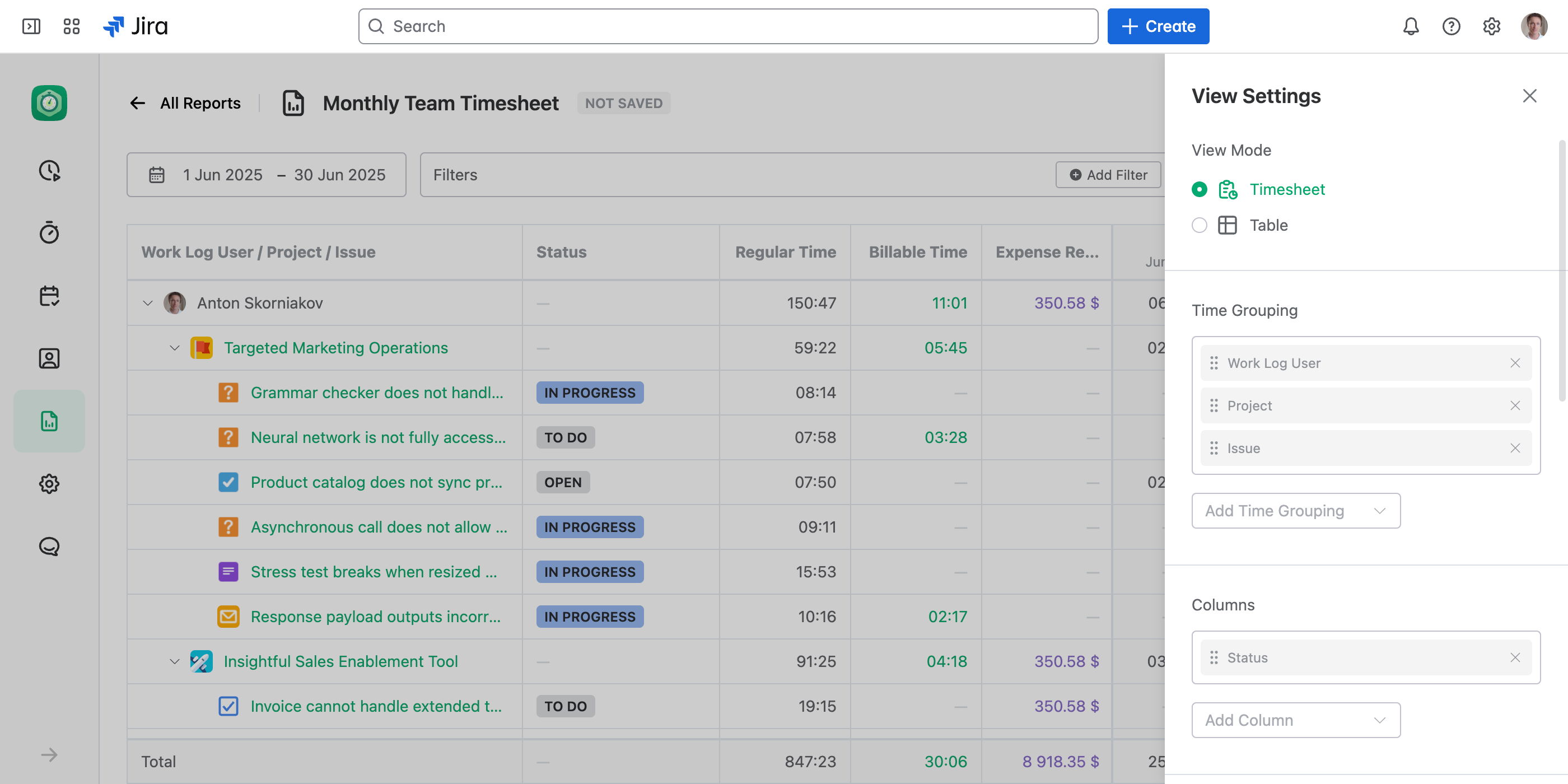
Customization Options
JetTime offers two primary report view modes: Worksheet and Table. Customization settings are divided into general options (available in both modes) and worksheet-specific options for enhanced flexibility.
General Customization Options (Applies to Both Views)
-
View Mode. Choose between Worksheet (tabular plus grid layout) or Table (tabular layout) to define how the report data is visually structured.
-
Time Grouping. Organize your data hierarchically by fields such as space, work item, account, team, role, custom fields, and more. With JetTime, you can create nested groupings to categorize data into logical, expandable sections for better organization and analysis. This flexibility allows you to drill down into the details while maintaining an overview of higher-level summaries.
Grouping by Team gives a team's output across every space, and grouping by Role totals the hours worked in each role, whoever worked them — see Reporting on Teams and Roles.
You can also group by any level of your Jira work item hierarchy — sub-task, story or task, epic, and every custom level above epic (initiative, portfolio, and beyond). Time and custom metrics logged deep in a tree roll up to the level you choose, not just the direct parent, and it works across all your spaces.
-
Columns. Add or remove columns to control the details shown in the report, whether standard fields (for example, spaces, users, or the work log's account, team, and role) or custom fields defined by your organization.
Column data is taken from work item fields or work log fields, so it only appears for rows that represent a work item or a work log.
-
Total Columns. Include totals for specific metrics, such as total hours worked, overall costs, or custom numeric metrics.
-
Duration Format. Choose how tracked time is presented in your report:
- Human (3h 45m)
- Time (3:45)
- Minutes (225 min)
- Hours (3.75 h)
- Man-Days (0.47 d)
A new report starts with the Duration Format set in Settings › Date and Time.
Additional Options for Worksheet View
Worksheet reports provide advanced options suited for more granular customizations:
- Worksheet Metric. Select the metric that fills the worksheet cells. The list has two groups:
- Time Categories. Tracked time — Regular Time or a custom time category, such as Billable Time or Overtime.
- Work Log Numeric Fields. Your number work log fields — costs with the currency format, or any other metric, such as mileage or item quantity.
- Worksheet Breakdown. Define the date-based segmentation of your worksheet. For instance, break data down by:
- Days. A daily overview of work log data.
- Weeks. Weekly breakdowns for grouped insights.
- Months. Summarized data over months for long-term tracking.
- Quarters. High-level segmentation for quarterly reviews and assessments.
Filtering Options
JetTime provides robust filtering options to refine your reports and focus on specific data. Filters allow you to apply conditions based on:
- Custom and standard work item fields
- Work log fields
- Accounts or clients
- Teams and roles
- Saved Jira filters
- And more…
Filtering enables you to tailor reports for precise analysis. Learn more in the Using Filters in Reports article.
Saving Your Customizations
JetTime saves your customized settings for each report when you select Save Report. This ensures that your changes persist when you revisit or regenerate the report, eliminating the need to redo customizations repeatedly.
Next Steps
Explore additional functionality in related articles, such as Introduction to Reporting, to further unlock the power of JetTime's reporting features.