
Introduction to Work Approvals
Learn how work approvals get worksheets signed off before invoicing and payroll.
Before hours go into an invoice or a payroll run, someone should check them. With work approvals, each person submits their worksheet (what other tools call a timesheet) for a period — a week, two weeks or a month — and approvers approve or reject it. Once submitted, the work is locked, so the invoice and the hours behind it stay the same.
Approvals aren't only for hours: they sign off any metric you track, from costs and expenses to mileage.
Run Approvals per Team, Account and Workstream in Parallel
Approvals don't have to be one process for the whole company. Turn them on for a team, an account, a workstream, or for everyone at once, and each one runs on its own:
- Its own work. A team approves the work logged under it, an account the work logged to it, a workstream the work its rules match, and the company-wide approvals every hour anyone logs.
- Its own cycle. The developers submit monthly while the design studio submits weekly.
- Its own approvers and rules. A team lead approves the team's hours, and each account manager signs off their own client's hours.
One work log can belong to several of them at once — logged under the Developers team to the Acme Corp account — and each approves its own part. A work log stays locked while any of them holds it.
Submit Many Worksheets in One Click
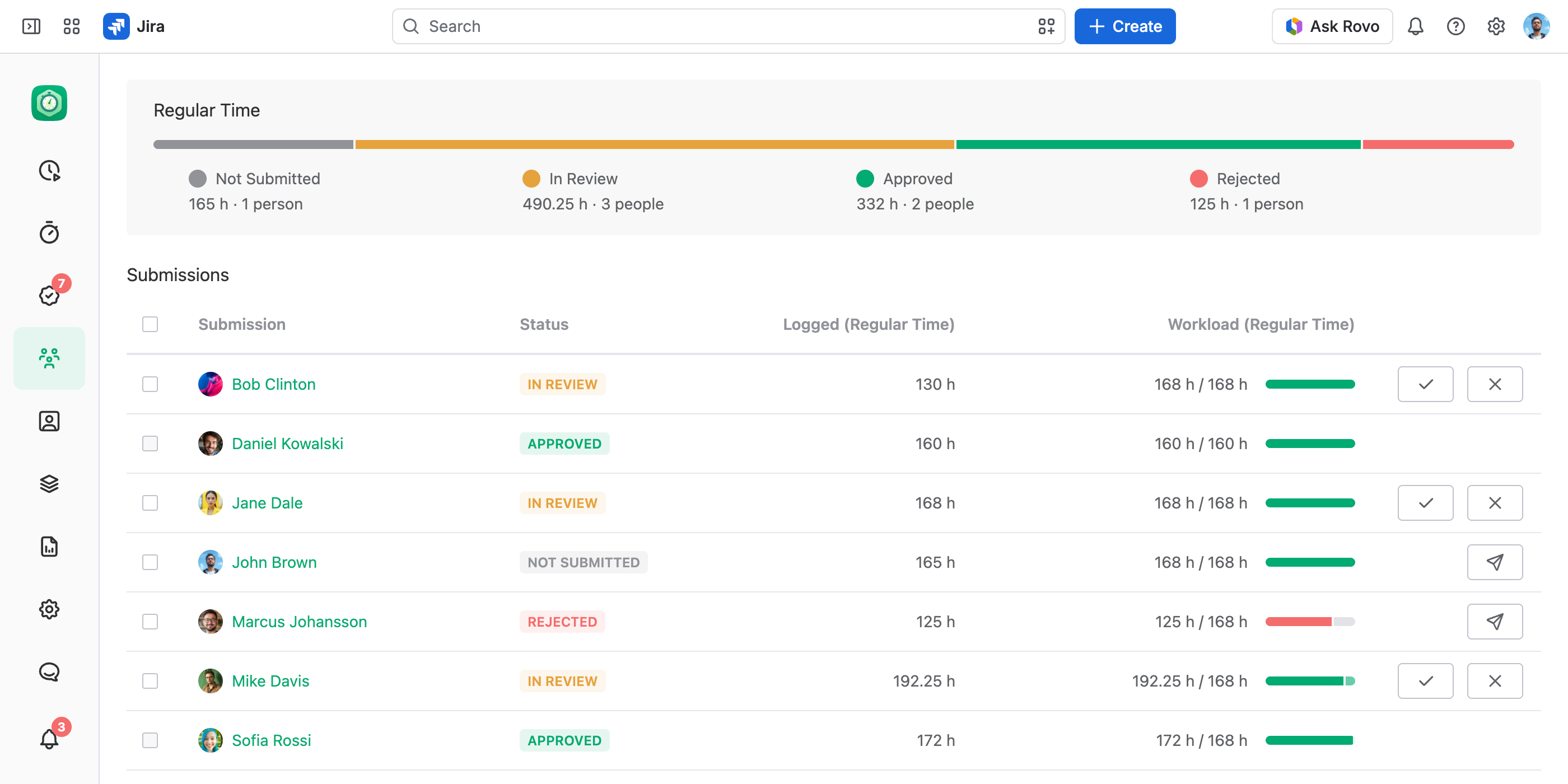
Parallel approvals mean more worksheets to send, but not more work. Say every client account runs its own approvals, each signed off by its account manager. Someone who worked for 14 clients last month owes 15 worksheets: one for their team and one per account. Approvals › Submitting lists them all — select them, and one Submit sends them together. See Submitting Worksheets.
Approve in Several Steps
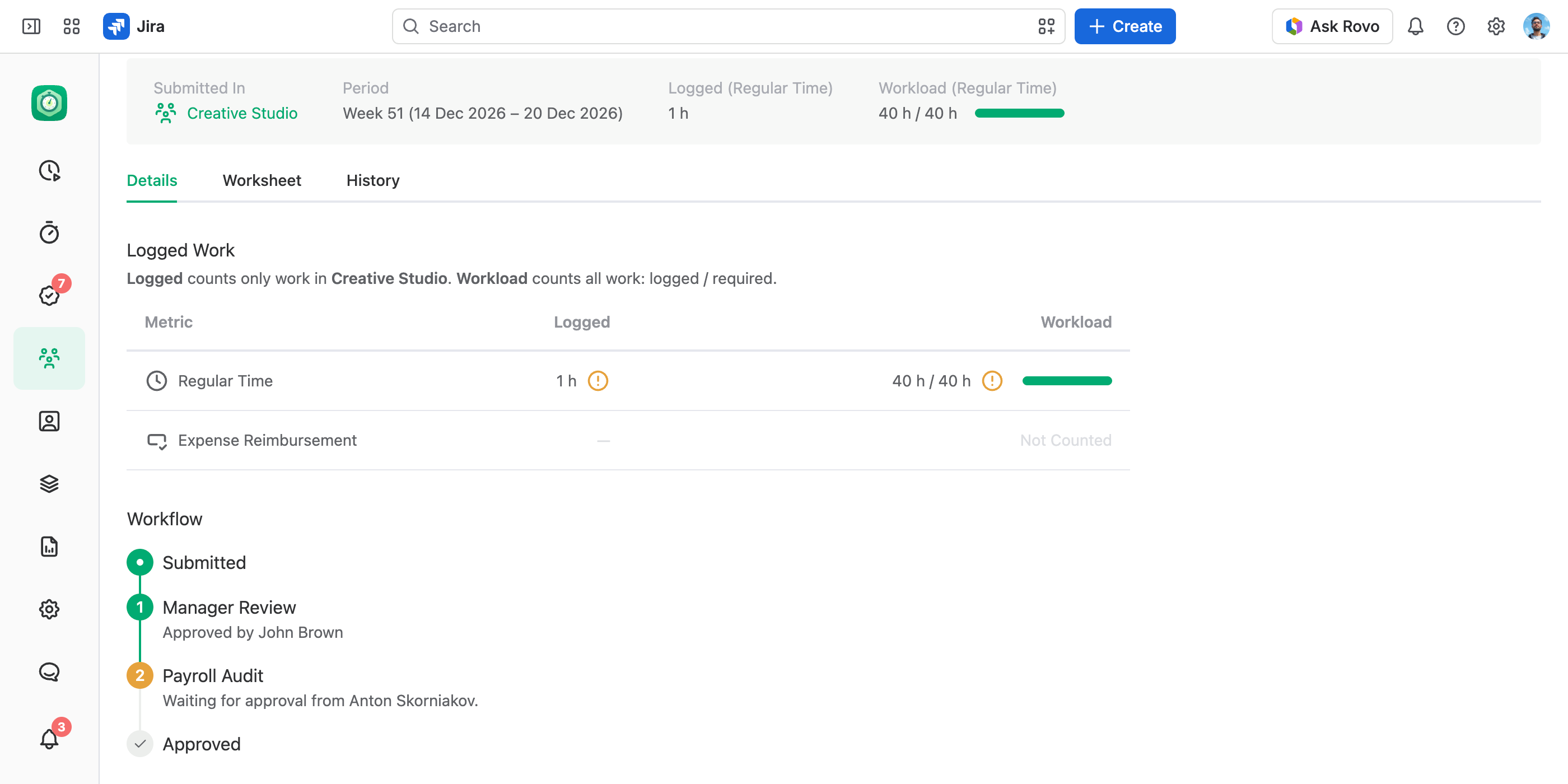
A worksheet can pass through several approvals in order — the team lead checks the work, then payroll checks the hours. Each step:
- names who can approve it;
- can need more than one approval, from two managers, for example;
- decides whether approvers may approve their own work.
So a worksheet reaches payroll only after every required approver has signed it off. See Approval Policies.
Approve More Than Hours
The approval policy picks the figures to sign off — any time category or numeric work log field, such as billable hours or a fixed price — and the totals of every submit stay on record.
How Work Approvals Work
An approval process is built from these parts:
- An approval policy. Who submits, who approves at each step, and which figures get signed off. One policy serves any number of teams and accounts.
- A period scheme. How often worksheets are submitted: weekly, every two weeks or monthly.
- Workload. Switched on in the approval policy, and a feature in its own right: beside each worksheet, approvers see what the person had to log in the period against what they logged, a part-time week or a public holiday included. Whoever runs payroll sees at once who worked short and who worked over.
- Where it runs. A team, an account, a workstream or the whole company. Each runs its own approvals, in parallel and independently of the others. See Setting Up Work Approvals.
Submission Statuses
A submission is the record of one person's worksheet for one period: its status, its figures, and the history of who did what.
| Status | What it means | The person's work logs in that period |
|---|---|---|
| Not Submitted | Not sent yet: the period is owed or still running, or the submission was recalled or reset. | Editable |
| In Review | Submitted and waiting for approvals. The submission shows which step it is on and who is next. | Locked |
| Approved | Fully approved: the approvers of every step have approved it. | Locked |
| Rejected | An approver sent it back with a message saying what to fix. | Editable |
A whole period can also be closed — on a team, account or workstream, or company-wide. Then nothing in that period changes where it was closed, whatever its statuses.
What Gets Locked
- Submitted and approved work. While a submission is In Review or Approved, nobody can create, edit or delete its author's work logs in that period. That covers the work logged under that team, to that account or matching that workstream — for the company-wide approvals, all of it.
- Closed periods. A closed period locks the work logs it covers for everyone.
- Moves into a locked period. An edit that would move a work log into a locked period is refused too.
- The reason, on screen. In work log lists a padlock replaces the edit button, and its tooltip names the period and the team, account or workstream that holds it.
To change locked work, the author recalls the submission before anyone approves it. After that, an approver recalls their approval or rejects the worksheet.
The lock covers everything logged through JetTime, including the Log Work dialog on a work item's screen once JetTime is your time tracking provider. The Jira REST API can still change a work log, and deleting a work item in Jira deletes its work logs. A submission whose figures changed that way shows a warning icon.
To freeze a finished month without running approvals, use a Lock Date.
Next Steps
- Setting up approvals. Start with Setting Up Work Approvals.
- Submitting your worksheet. See Submitting Worksheets.
- Approving other people's worksheets. See Approving Worksheets.