
Workload Schemes and Calendars
Set how much each person should log, in hours or any other metric, day by day.
A workload is how much a person is required to log on each day of the week. Two settings make it up: a workload scheme sets a normal week, and a workload calendar changes particular days — public holidays, short days, a working Saturday. Approvers then see each person's logged time for the period against their workload, so a short month or a week of overtime stands out before anyone signs.
One person can have a series of workload schemes and calendars, each from its own start date — full time until March, part time from April. Every period counts by the schedule that was in force on each of its days.
Workload Schemes
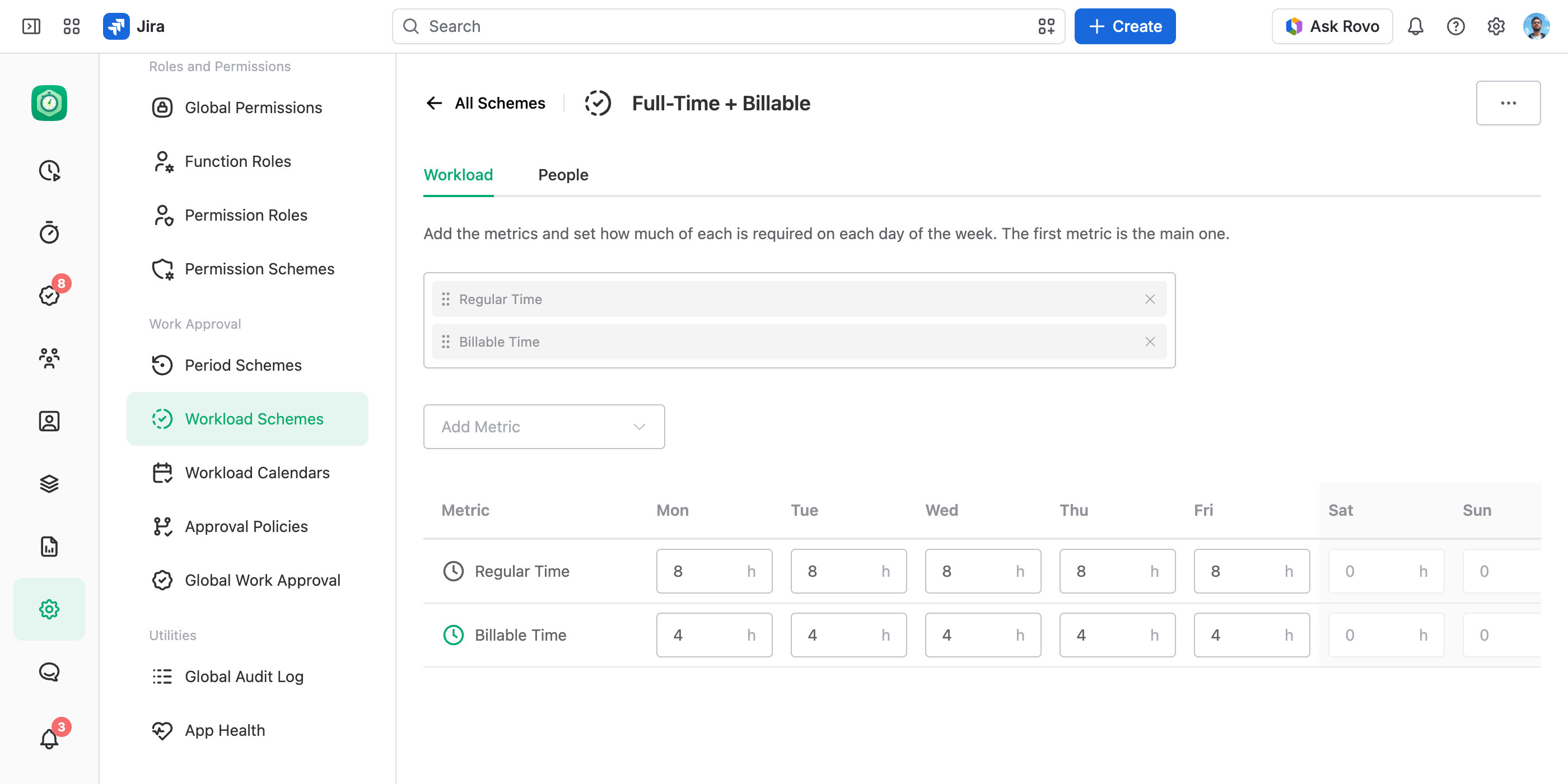
A workload scheme sets what is required on each day of the week. It isn't limited to time: add any metrics — time categories and numeric work log fields — and set each one per weekday. Eight hours of Regular Time a day, four of them billable; a daily target in money; a field crew's mileage.
- The main metric. The first metric is the main one, the workload the approval lists show. Drag the metrics above the table to reorder them.
- The default scheme. The default workload scheme applies to everyone on the days they aren't on another one. It comes as Default Workload Scheme: 8 h of Regular Time, Monday to Friday. These are only its starting settings: change them to fit your company.
To create a workload scheme:
Open Workload Schemes
In the JetTime app, go to Settings › Workload Schemes (under Work Approval).
Create the Workload Scheme
Select Create Workload Scheme. In Name, enter a name such as Part-Time 20h, and select Create.
Add the Metrics
On the Workload tab, add each metric with Add Metric, type what each weekday requires, and select Save.
Workload Calendars
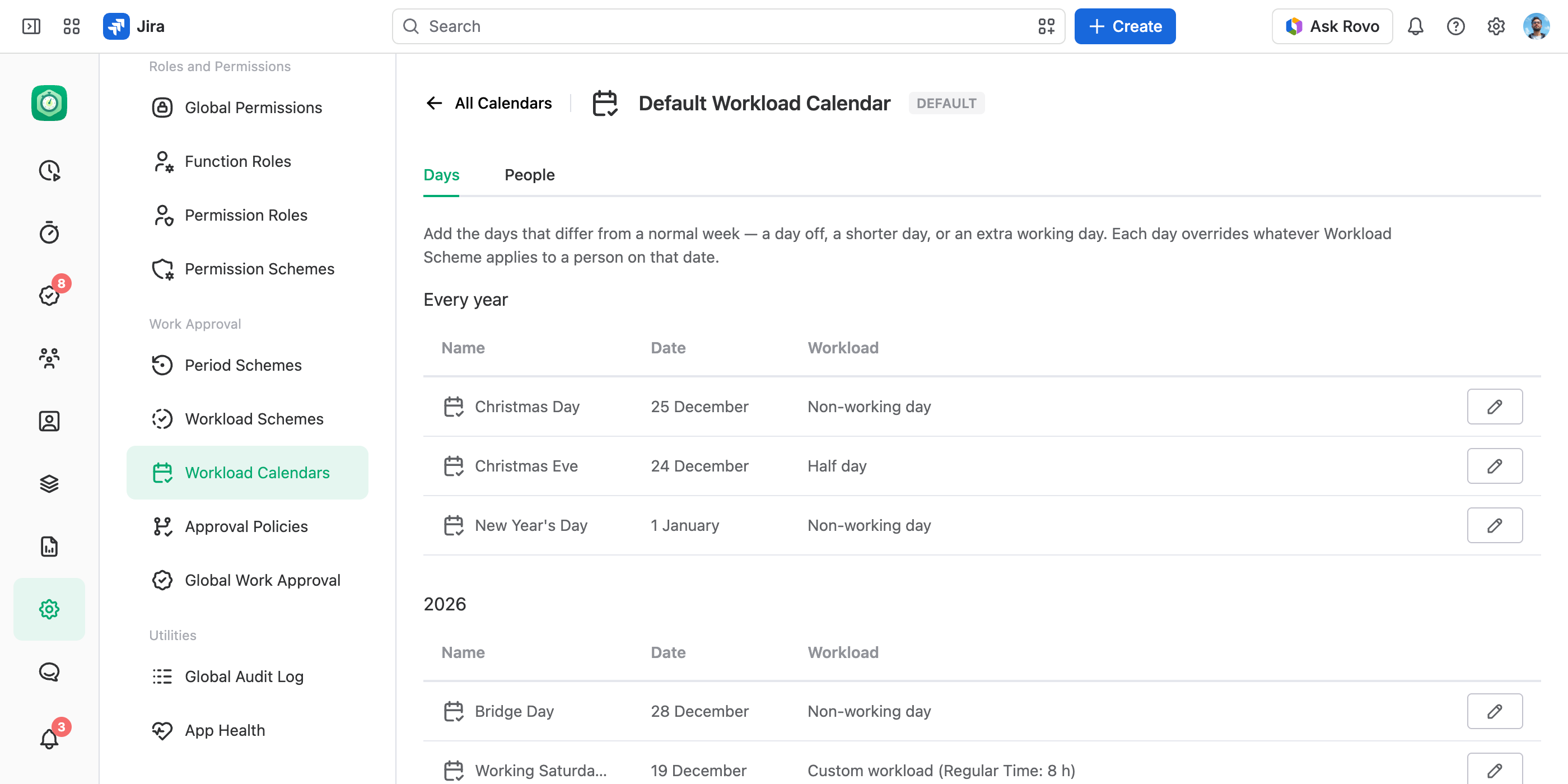
A workload calendar holds the days that differ from a normal week. Each day overrides the person's workload scheme on that date:
- Non-working day. Nothing is required — a public holiday.
- Half day. Half of what the person's workload scheme requires on that weekday, such as Christmas Eve.
- Custom workload. The figures you type for the metrics you list. Metrics you don't list keep the workload scheme's figures.
A day Repeats Every year, like New Year's Day, or falls on a Specific date, like this year's Easter Monday. On a day that has both, the specific date wins.
Moving a working day. When a Friday off is worked back on a Saturday, add the Friday as a Non-working day and the Saturday as a Custom workload with a full day's figures. The week's requirement stays the same, and both days stand out in the worksheet grid.
The default workload calendar applies to everyone not on another one. It comes as Default Workload Calendar, with New Year's Day only: add your own holidays to it, or make a workload calendar per country or office.
To create a workload calendar, or add days to an existing one:
Open Workload Calendars
In the JetTime app, go to Settings › Workload Calendars (under Work Approval).
Create or Open a Calendar
Select Create Workload Calendar, enter a Name and select Create — or open an existing calendar.
Add a Day
On the Days tab, select Add Day. Enter its Name, choose how it Repeats and its date, and pick its Workload.
Save
Select Save on the Days tab.
Assign Several Schemes and Calendars to One Person
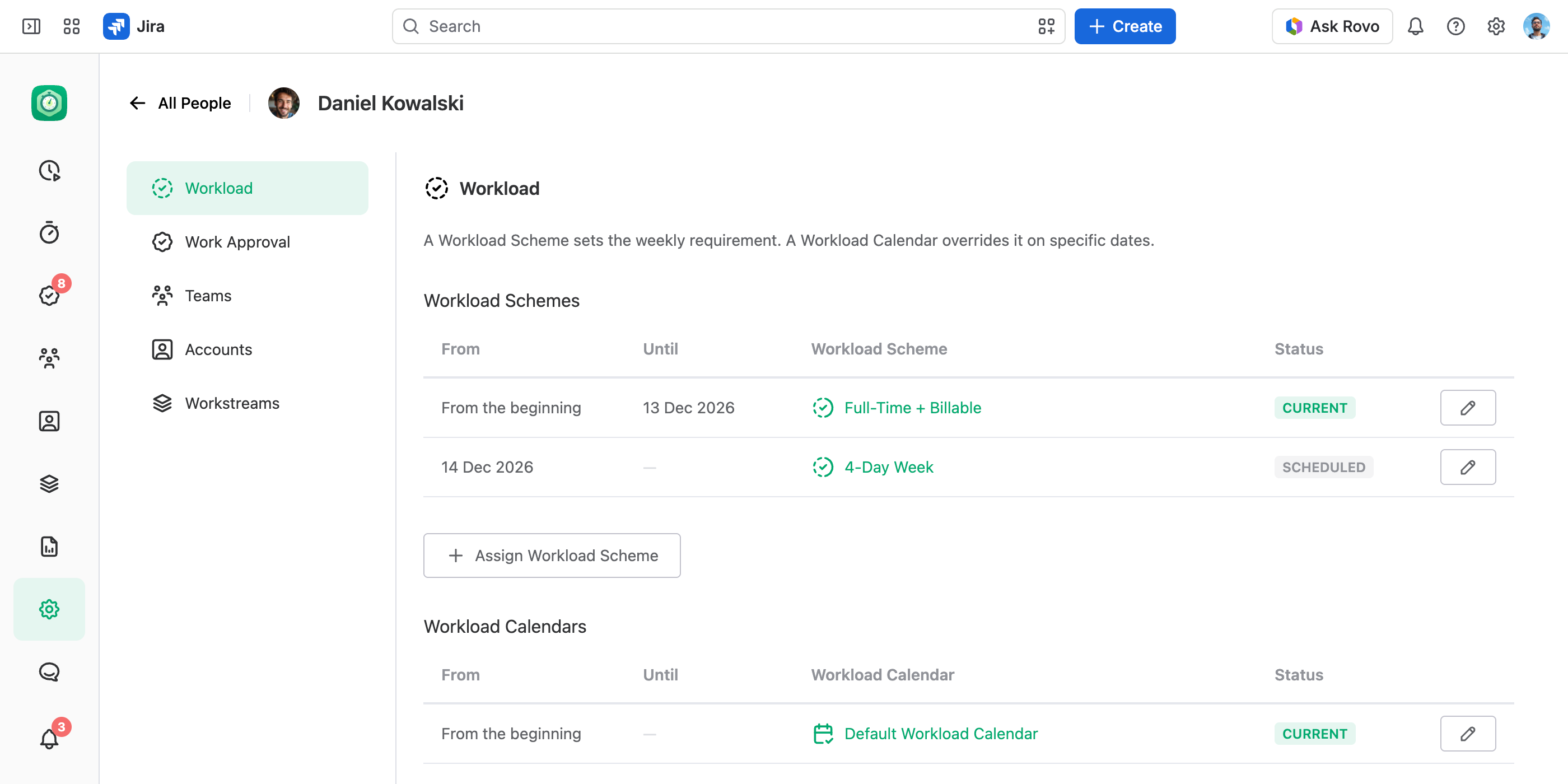
A person's schedule changes: a new contract, part time after parental leave, a move to another country's office. So each person holds a series of workload schemes and a series of workload calendars, each assignment from its own start date. Nothing is overwritten: past periods keep the requirement of the schedule they had, and a change planned for next month waits for its date.
Everyone starts on the default workload scheme and calendar. To put someone on another one:
- From the workload scheme or calendar. On its People tab, use Add User — the quick way for a whole group.
- From the person. Go to JetTime Settings › People (under General), open the person, and in Workload select Assign Workload Scheme or Assign Workload Calendar. See Managing People.
Either way, pick a Start Date, or leave it empty for "from the beginning". Each row of the person's history reads Current, Past or Scheduled. A new assignment on a start date the person already has replaces the one that starts on that date.
How the Requirement Is Counted
- Day by day. Each day takes the workload scheme and the workload calendar the person is on that day, so a period that crosses a switch or a holiday comes out right.
- Over the whole period. Logged and required time are compared for the period as a whole, not day by day. Six hours on Monday and ten on Tuesday meet two 8-hour days.
- All of a person's work. The workload counts everything the person logged in the period, across all teams and accounts — not only the work being approved.
- Fixed once submitted. The requirement is fixed at the first submit. A reject keeps it; recalling or resetting the submission takes a fresh one.
- Vacations and sick days. Logged as ordinary hours — on a "Vacation" work item, for example — they count toward the requirement like any other work.
Where the Workload Shows
The workload shows while the approval policy has Show Workload on: in the approval lists, on the submission card, and on the submission itself, which lists every workload metric. Each figure reads logged / required beside a bar. The bar is red under 80% of the requirement, yellow under 100%, and green once it is met; work above the requirement shows in lighter green.
Days in the Worksheet Grid
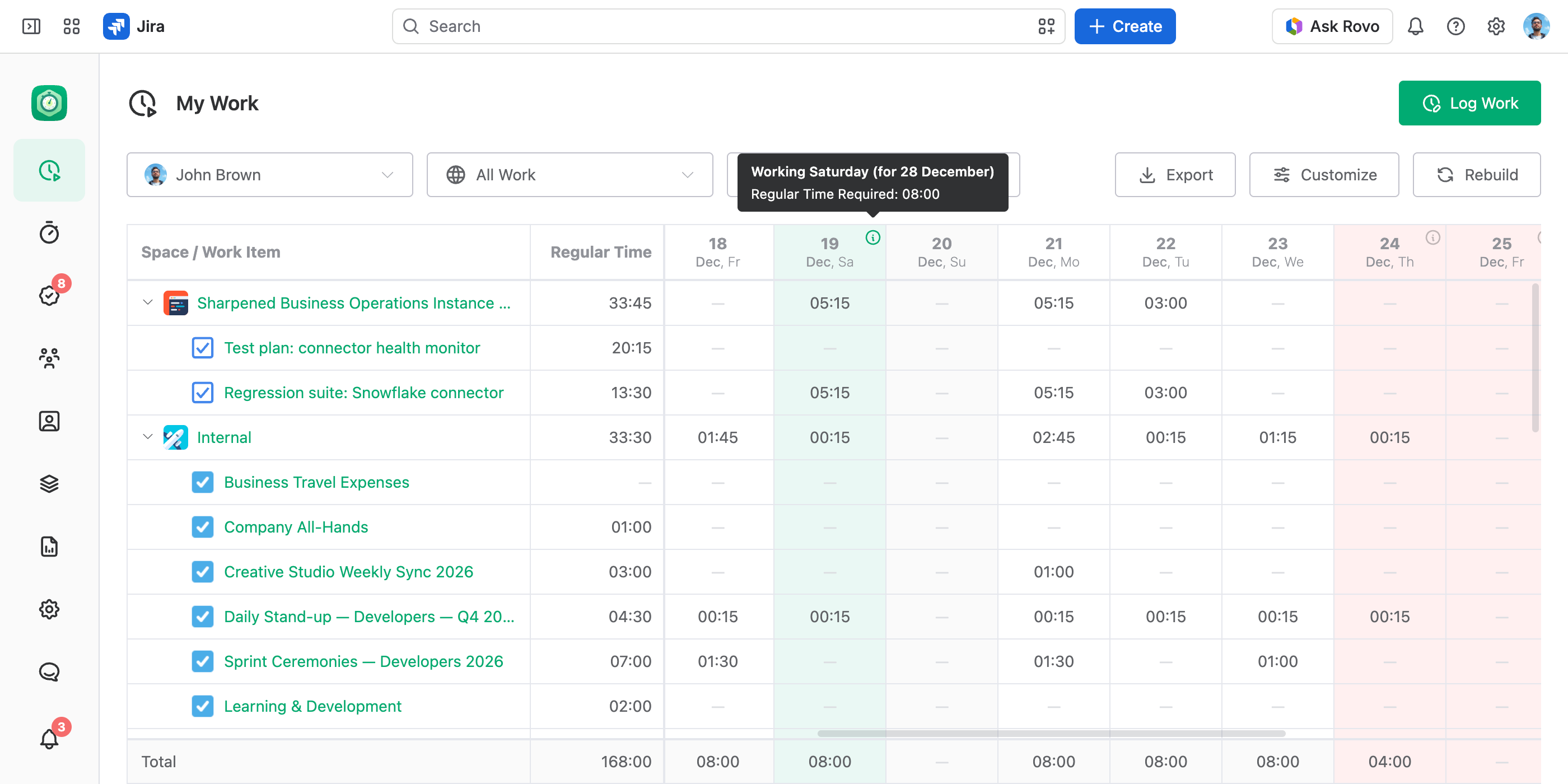
In a worksheet broken down by days, the day columns show the schedule:
- Grey. A weekly day off: the workload scheme requires nothing on that weekday.
- Red. A workload calendar day that requires less or nothing — a holiday, a half day, a holiday on a weekend too.
- Green. A workload calendar day that requires more, such as a working Saturday.
A workload calendar day also carries an info icon in its header: hover it to see the day's name and what it requires.
Whose schedule paints the days depends on the screen:
- A screen about one person — My Work and a submission's Worksheet tab. The days follow that person's own schedule: on each day, the workload scheme and calendar the person is on that day. A switch to a new workload scheme on 14 December shows from 14 December.
- A screen that can hold many people — a team's, account's or workstream's Worksheet tab, and reports. The days follow the default workload scheme and calendar, even when only one person's work is shown: one colour per column can't match everyone's schedule.