
Configuring Date and Time Settings
Set the first day of the week, week numbering, and the date, time, and duration formats.
Date and time settings in JetTime allow administrators to customize global preferences for time tracking and reporting. These include the first day of the week, how weeks are numbered, and how dates, times, and durations are shown.
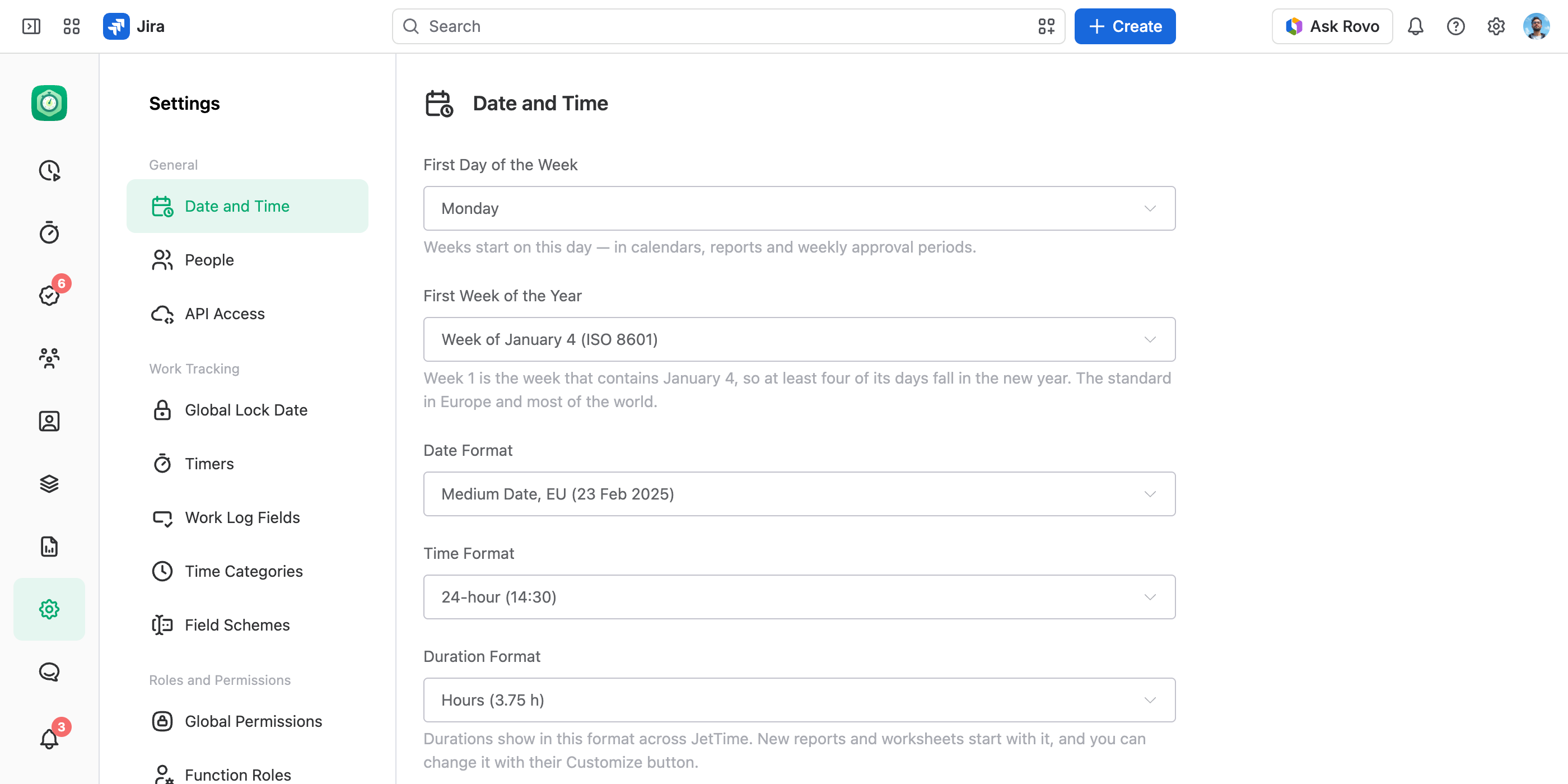
How to Configure Date and Time Settings
Open Date and Time
From the JetTime app, navigate to Settings › Date and Time (under General).
Modify Preferences
Adjust the following options:
- First Day of the Week. Set your preferred starting day (Monday or Sunday). Weeks start on this day in calendars, reports, and weekly approval periods.
- First Week of the Year. Choose Week of January 1 (US) or Week of January 4 (ISO 8601). It decides each week's number and which weeks pair into a bi-weekly period.
- Date Format. Choose a date format (for example,
DD/MM/YYYY,MM/DD/YYYY). - Time Format. Select between a 24-hour or 12-hour clock format.
- Duration Format. Choose how durations show across JetTime: Human (3h 45m), Time (3:45), Minutes (225 min), Hours (3.75 h), or Man-Days (0.47 d). Every new report and worksheet starts with it, and each can change its own with Customize.
Save Your Changes
Select Save to apply them, or Cancel to drop them.
Additional Tips
- Any changes made here apply globally and will impact all users in your Jira instance.
- Changing the First Day of the Week or the First Week of the Year can move the dates of weekly and bi-weekly approval periods, past ones included. JetTime asks you to confirm first: periods whose dates change are hidden and their work logs unlocked, and switching back restores them.
With these settings, you can ensure that JetTime is tailored to your organization's specific needs.