
Setting Up Work Approvals
Turn on work approvals for a team, an account, a workstream or the whole company.
Work approvals are off until you turn them on. Turn them on for each team, account or workstream whose worksheets should be approved, or for the whole company at once. Each runs its own approvals, in parallel and independently of the others. The settings are the same everywhere: an approval policy, a period scheme and the date approvals start.
Turn On for a Team, Account or Workstream
A team, account or workstream approves only its own work: the hours logged under the team, to the account, or matching the workstream's scope.
Open Work Approval Settings
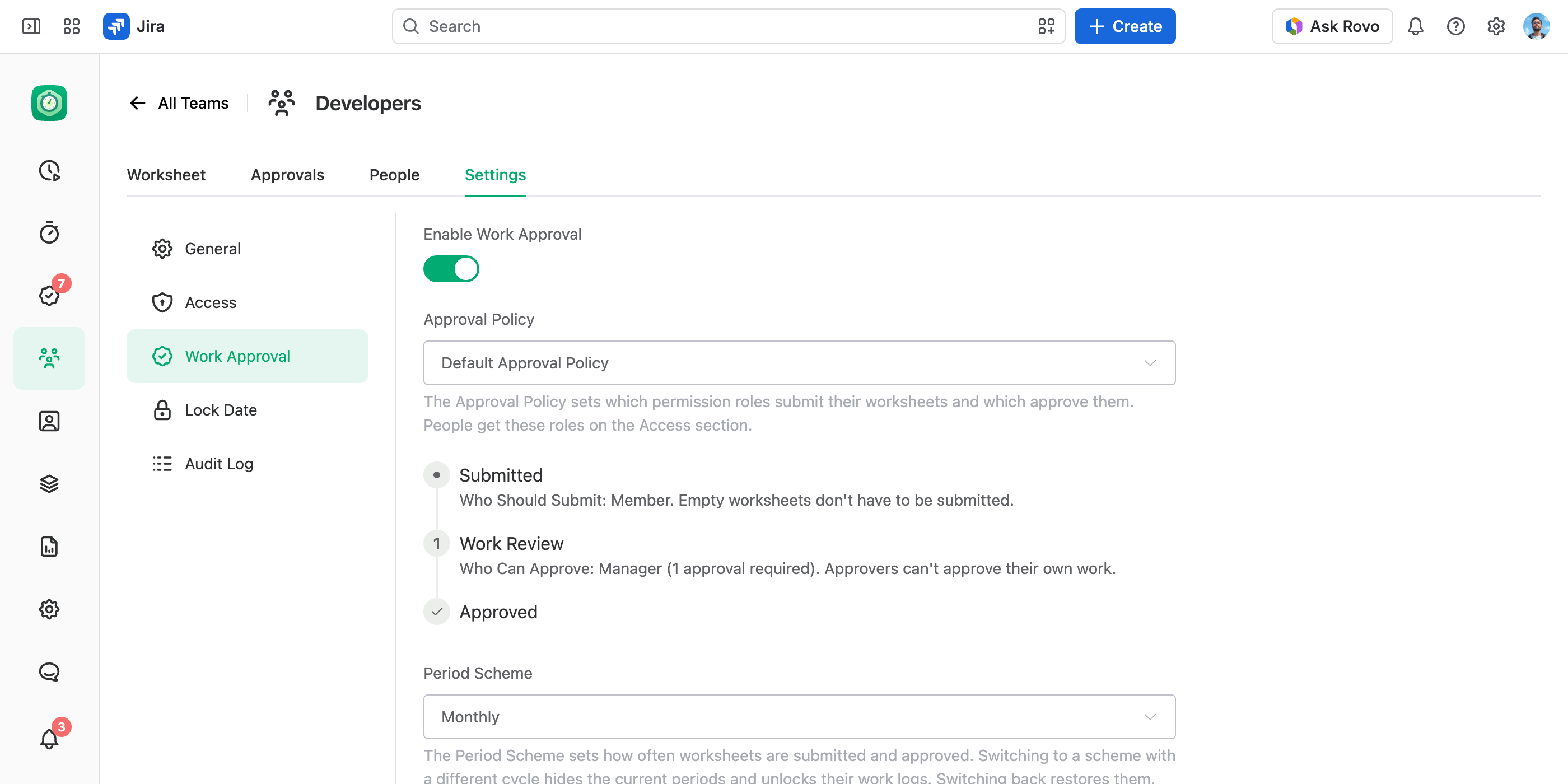
Open the team, account or workstream and go to Settings › Work Approval.
Turn It On
Turn on Enable Work Approval. The fields below fill in with the default approval policy and period scheme, and with the first day of the current period.
Choose the Approval Policy and the Period Scheme
Pick an Approval Policy and a Period Scheme. Under the approval policy, a preview shows who submits and who approves each step.
Check Approval Starts On
It sets where approvals begin — see Set the Approval Start Date.
Save
Select Save.
Changing these settings needs the Manage Settings permission on that team, account or workstream. The Full Access global permission covers it too, and so do the View and Manage Teams, View and Manage Accounts and View and Manage Workstreams global permissions, each for its own kind.
For a workstream, build the scope from Space, Work Item Type, Work Item and work log fields. A scope that uses a field anyone can change in Jira — a status, an assignee, a custom select — lets a work item be moved out of the scope, its locked work logs edited, and the item moved back. The Work Approval section warns you while that is possible.
Turn On for the Whole Company
Company-wide approvals cover every hour anyone logs, whatever team, account or workstream it goes to. They run beside the approvals of any team, account or workstream.
Open Global Work Approval Settings
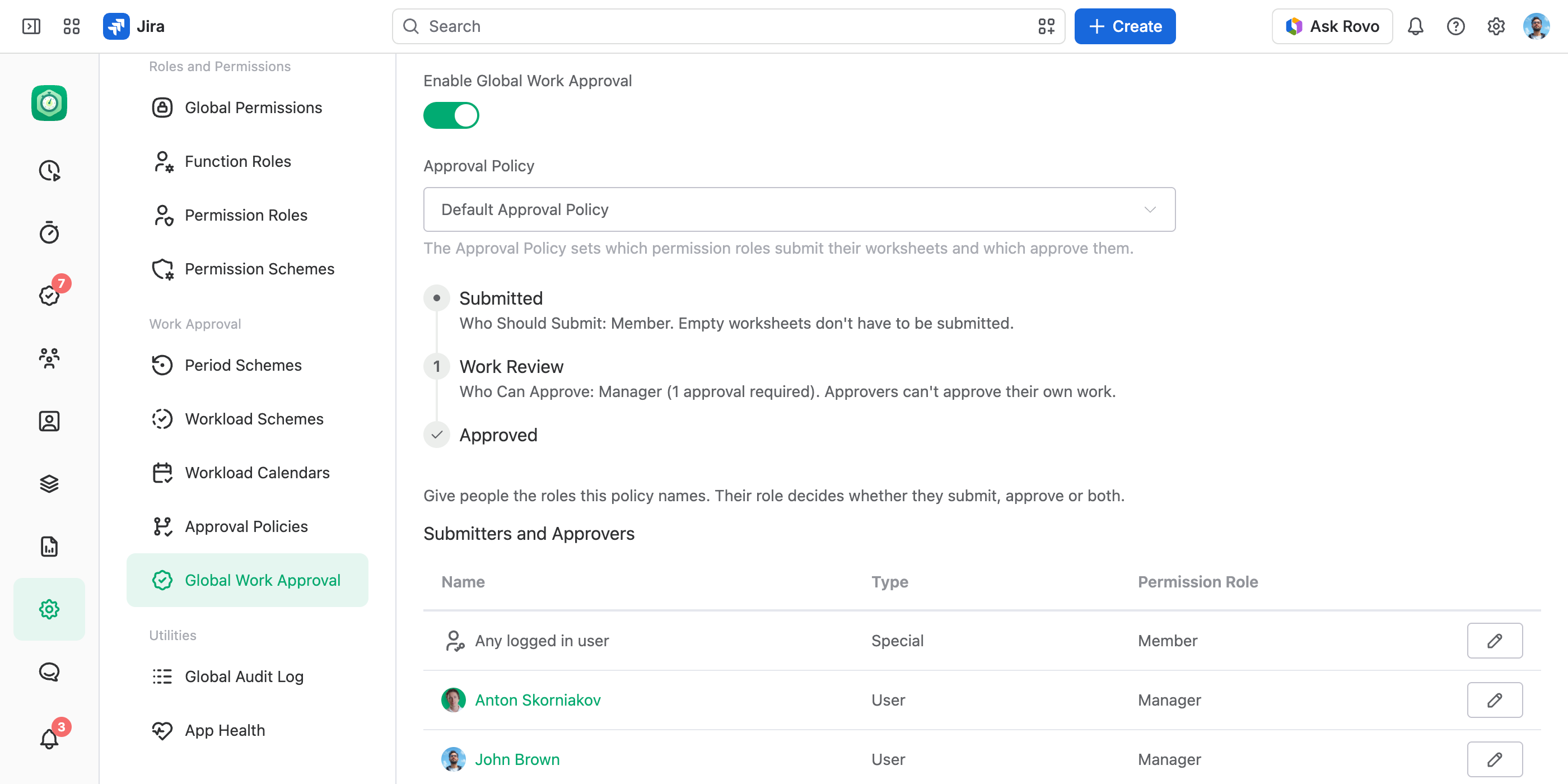
In the JetTime app, go to Settings › Global Work Approval (under Work Approval).
Turn It On
Turn on Enable Global Work Approval. The same defaults fill in.
Check Submitters and Approvers
The company has no Access tab, so this table gives people the roles the approval policy names. It comes filled in: Any logged in user holds Member, and each user who held the Full Access global permission in their own name when JetTime added work approvals holds Manager. With the default approval policy as it comes, that means everyone who logs time submits and those users approve.
Add people with Add User, Add Team or Add Special, and select the pencil at the end of a row to change its role.
Choose the Period Scheme and the Start Date
Pick a Period Scheme and check Approval Starts On.
Save
Select Save.
This page needs the View and Manage App Settings or the Full Access global permission.
Assign Submitter and Approver Roles
An approval policy names permission roles — say, Member submits and Manager approves. Who holds those roles decides who actually submits and approves:
- On a team, account or workstream. Its Access tab — the same roles that decide who sees its work logs. Someone added to a team's People gets the default role on that team, Member, unless they already held one.
- For the whole company. The Submitters and Approvers table above.
So to have contractors submit while staff don't, create a permission role named Contractor, tick the same permissions for it as for Member in your permission scheme, give it to the contractors on the Access tab, and list only that role under Who Should Submit in the approval policy.
An approver also needs to see the work they approve: their role should include View Others Work Logs in the permission scheme, as Manager does.
To check where one person submits and approves, open them in JetTime Settings › People (under General) and select Work Approval — see Managing People.
Set the Approval Start Date
Approval Starts On is where approvals begin: only periods that start on or after it need approval. It exists for sites with years of history in Jira. Without it, every past period would show as owed in everyone's Submitting list. The default — the first day of the current period — means nobody owes anything from before approvals were turned on.
- Whole periods only. A date inside a period skips that period. The label above the date names the first period that counts.
- Moving the date. Moving it forward hides the earlier periods and unlocks their work logs. Moving it back restores them as they were.
What Changes When Work Approval Is On
- An Approvals tab. The team, account or workstream gets an Approvals tab, where approvers review one period at a time. For the whole company it is Approvals › Approvals in the main menu. See Approving Worksheets.
- Periods instead of a date range. The Worksheet tab of a team, account or workstream with approvals, and My Work with it selected, move by period: the date range picker becomes a period picker with arrows. Teams, accounts and workstreams without approvals keep their date range, so both kinds of date control are expected.
- Approvals in the main menu. People who submit or approve get Approvals in the main menu, with a red count of what waits for them.
Turn Work Approval Off
Turn off Enable Work Approval and select Save. The submissions hide, their work logs unlock, and every setting stays. Turn it back on and everything returns as it was — submissions, statuses and locks included.
Good to Know
- Saved changes to an approval policy reach a submission already in progress only after it is reset or recalled — see Approval Policies.
- When you switch a team, account or workstream to a period scheme with another cycle — say, from monthly to weekly — its current periods are hidden and their work logs unlock. Switching back restores them. See Period Schemes.
- An archived team, account or workstream runs no approvals: its submissions are hidden and its work logs unlock until you set its status back to Active.