
Log Work Dialog
Get to know the dialog used to add and edit work logs.
The Log Work dialog is central to everything you track within JetTime. Whether you're creating, editing, or deleting work logs, all actions are performed through this dialog:
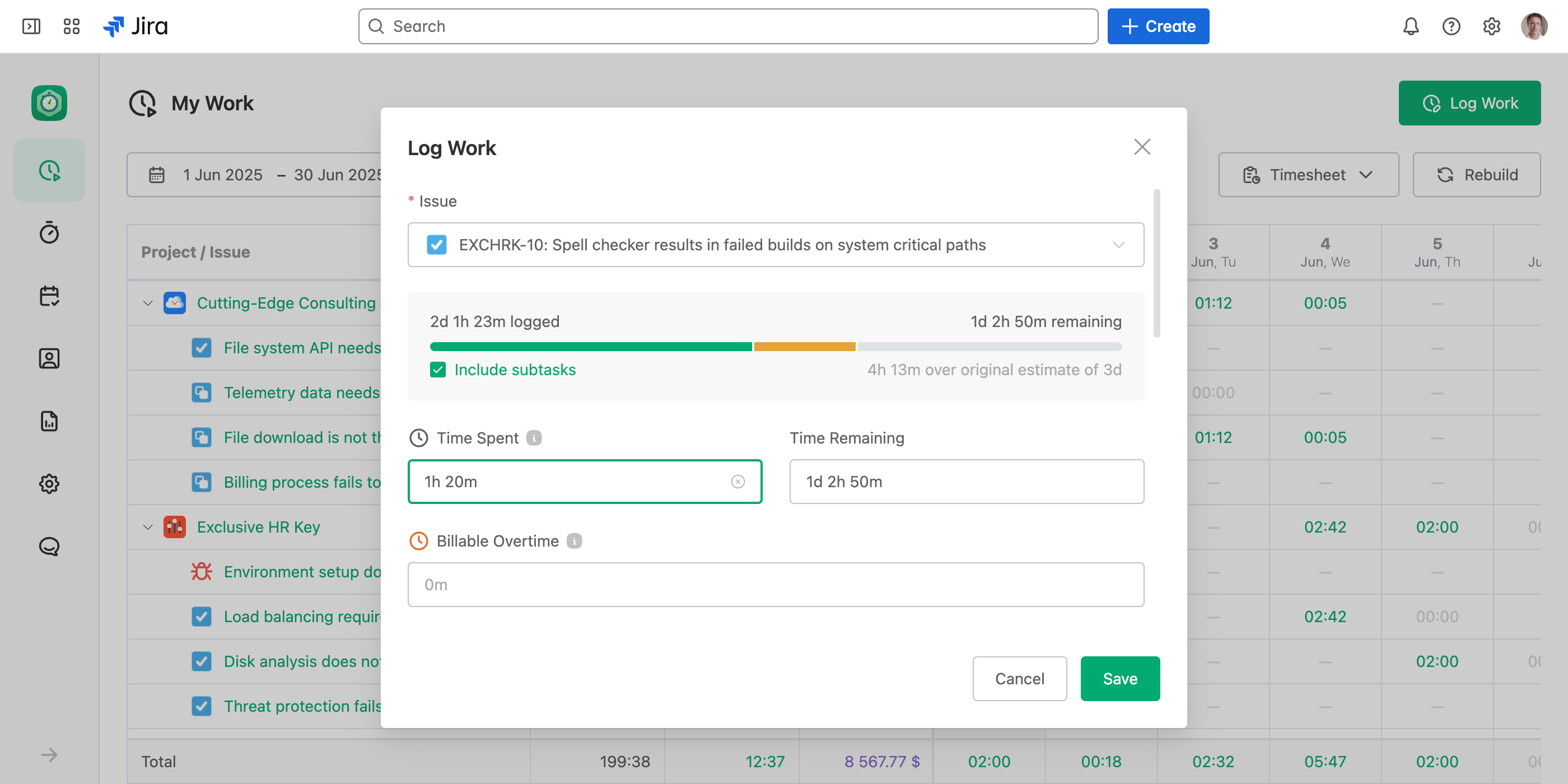
Key Features of the Log Work Dialog
- Time tracking. Track time using standard or custom time categories like Billable Time or Travel Time, tailored to your organization's needs.
- Account field. Assign logged work to a specific account or client, providing clarity in cost tracking and reporting.
- Custom work log fields and metrics. Capture additional data via custom fields like text, numeric values, or selectable lists, ensuring all necessary information is included.
- Time progress indicator. Easily monitor logged time versus the work item's original estimate through a visual progress bar.
- User, Date and Time. Select the user responsible for the work log, and the date and time the work started. When the work log's time zone differs from your browser's, a note under them names it — see Time Zone Handling.
- Team and Role. Record which team the hours belong to and which function role they were worked under. Both sit directly under User and Date, above the fields the field scheme controls, and both are required as soon as the author belongs to a team — see Logging Work for Teams.
- Work Description. A detailed description of the work performed. It can be optional or required. A description written in Jira's editor shows here as plain text, lists, mentions and links included. Saving keeps the text and drops the formatting.
How to Open the Log Work Dialog
The Log Work dialog can be accessed in the following ways:
- From the My Work screen. Open the Log Work dialog by selecting a worksheet cell in the Worksheet view, or select Log Work.
- From the report. Open a report in the Worksheet view and select any worksheet cell to log or edit time for the corresponding task.
- From a work item. If JetTime is set as the time tracking provider in Jira, use the Log work context action directly from the work item screen.
- From the timer. Select Log Timer to open the dialog and save the tracked time from the timer.
Using the Log Work Dialog
Create or Update
Open the dialog to create a new work log or update an existing one. You fill in the fields the work item's scheme includes — which may be time spent, description, time categories, account, and custom fields.
Validation
The dialog enforces validation rules for required fields, based on the field scheme that applies to the work item.
Delete Logs
If editing an entry, you can delete it directly using Delete within the dialog.
A work log in a submitted, approved or closed period (see What Gets Locked), or on or before a Lock Date, can't be created, edited or deleted. JetTime refuses the save with a message titled by what failed — for example "Can't Edit Work Log" — and says which period or date blocks it. In work log lists, a padlock replaces the edit button and its tooltip gives the same reason.
Customization Options
The Log Work dialog is fully customizable to match your organization's needs:
- Custom time categories. Your organization can define additional time categories like Billable Time or Travel Time.
- Custom work log fields. Use fields tailored to specific metrics or information, such as delivery counts or client-specific data.
- Accounts. Assign accounts to work logs for better tracking and streamlined reporting.
- Custom form per work item. Each work item can show its own Log Work form. Pick which fields appear, make some required, or log costs and metrics instead of time. You can even turn logging off for some work items, like invoiced ones. This is set up with Field Schemes.
The Log Work dialog is an essential tool in JetTime, making time tracking, task management, and reporting accurate and straightforward.