
Approval Policies
Set who submits worksheets, who approves them at each step, and what gets signed off.
An approval policy is the rulebook of an approval process: who submits worksheets, who approves them at each step, and which figures get signed off. You set it up once in JetTime Settings and use it on any number of teams, accounts and workstreams, and for the whole company.
Create an Approval Policy
Open Approval Policies
In the JetTime app, go to Settings › Approval Policies (under Work Approval).
Create the Approval Policy
Select Create Approval Policy. In Name, enter a name such as Client Billing, and select Create. The new approval policy opens with one step and Regular Time as its metric.
Fill In Both Tabs
Set up Workflow and Metrics (below), and select Save on each.
Choose Who Submits
On the Workflow tab:
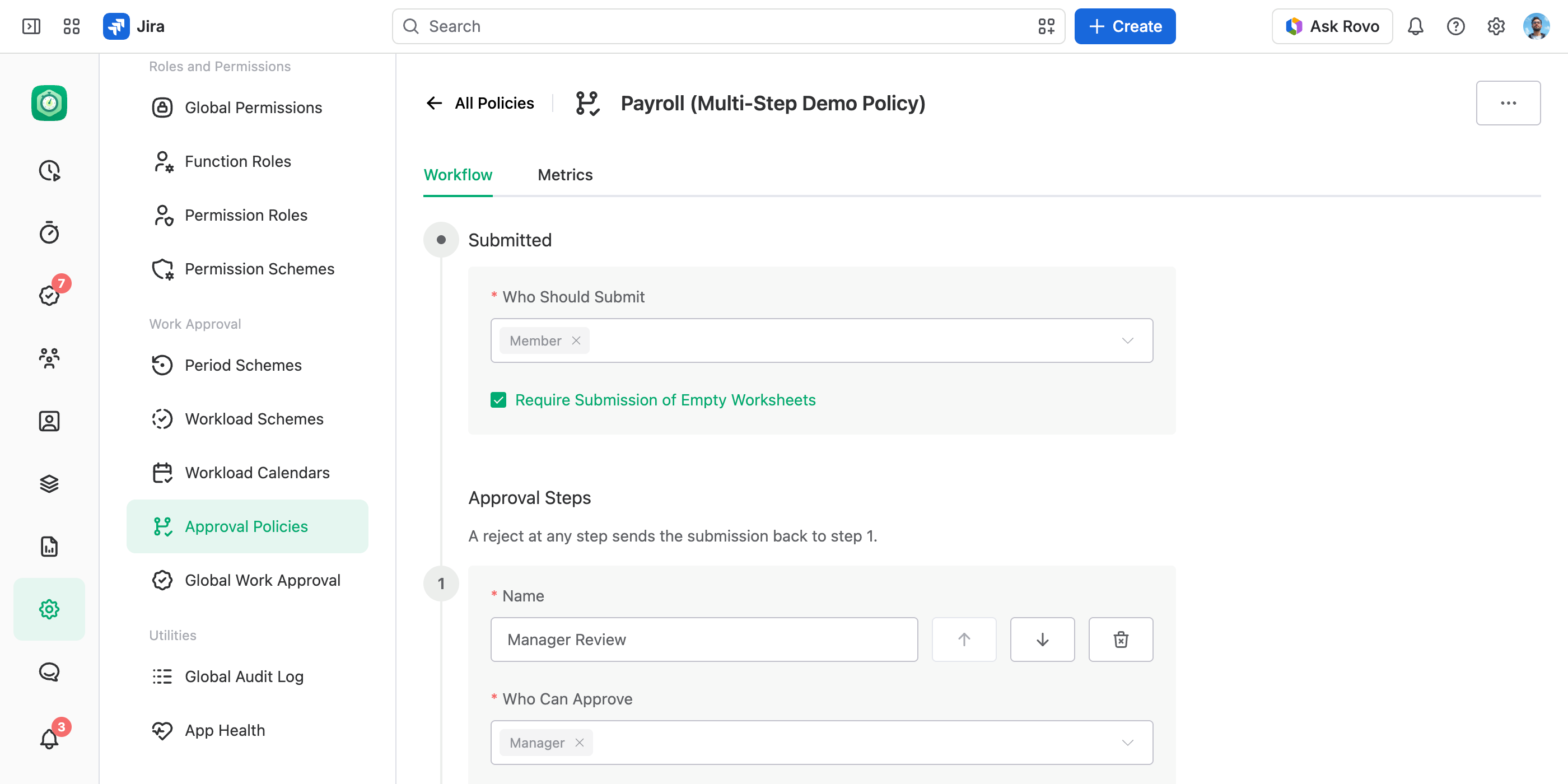
- Who Should Submit. The permission roles that submit worksheets. On every team, account or workstream that uses the approval policy, whoever holds one of these roles submits worksheets.
- Require Submission of Empty Worksheets. Off, only people who logged time in that team, account or workstream during the period owe a worksheet. On, everyone holding the role owes one, hours or not.
Leave it off for client accounts, where someone who did no work for the client has nothing to sign. Turn it on for payroll, where a week with no hours is exactly what the approver needs to see.
Set Up the Approval Steps
Under Approval Steps, each step is one round of approval, and the steps run in order, top to bottom. For each step:
- Name. What the step means, such as
Team Lead RevieworPayroll Audit. People see it on the submission. - Who Can Approve. The permission roles that approve this step.
- Number of Approvals to Complete This Step. How many different people must approve before the worksheet moves on.
- Allow Approving Own Work. Whether an approver may approve their own worksheet at this step. Leave it off to keep reviews independent; turn it on for a one-person team.
Add a step with Add Step, move it with the arrows, and delete it with the trash icon. An approval policy always keeps at least one step.
Choose What Gets Approved
On the Metrics tab:
- Approval Metrics. The figures each submission totals and keeps — any time category or numeric work log field, such as billable hours, expenses or mileage. Drag to reorder them: the first is the main one, the figure the approval lists show.
- Show Workload. Each submission also shows the person's workload for the period — everything they logged against what their schedule requires — to the approvers and to the person. See Workload Schemes and Calendars.
The Default Approval Policy
One approval policy carries a Default tag: the Default Approval Policy. In it, Member submits and Manager approves in one step, Work Review. Its main metric is Regular Time, and it shows the workload. These are only its starting settings: you can change every one of them to fit your process.
Turning approvals on picks it if no other approval policy was chosen before, and a team, account or workstream moves to it when its own is deleted — which is why it can't be deleted.
Change an Approval Policy
Edit the approval policy and select Save. The change reaches new submissions only:
- Submitted worksheets keep their rules. A worksheet in review, approved or rejected stays with the rules it was submitted under, to the end.
- Everything else follows the new rules. A worksheet not submitted yet takes them at its next submit.
To move a submission already in progress to the new rules, reset it: open the submission and select … › Reset Submission. A submission recalled before its first approval also takes the new rules at its next submit. When a team, account or workstream switches to another approval policy, its submissions in progress keep the old one in the same way. See The Submission Snapshot.
Delete an Approval Policy
Open the approval policy and select … › Delete Approval Policy. Every team, account and workstream using it, and the company-wide approvals if they use it, moves to the default approval policy. Submissions already made keep the rules they were submitted under.
Good to Know
- Deleting a permission role removes it from every approval policy, and the Workflow tab asks you to name a role for any step left without one. A submission already in progress still waits for the deleted role: reset it, or have someone with the Full Access global permission approve it.
- Who holds the roles an approval policy names is set where it runs — see Setting Up Work Approvals.