

Introduction to Reporting
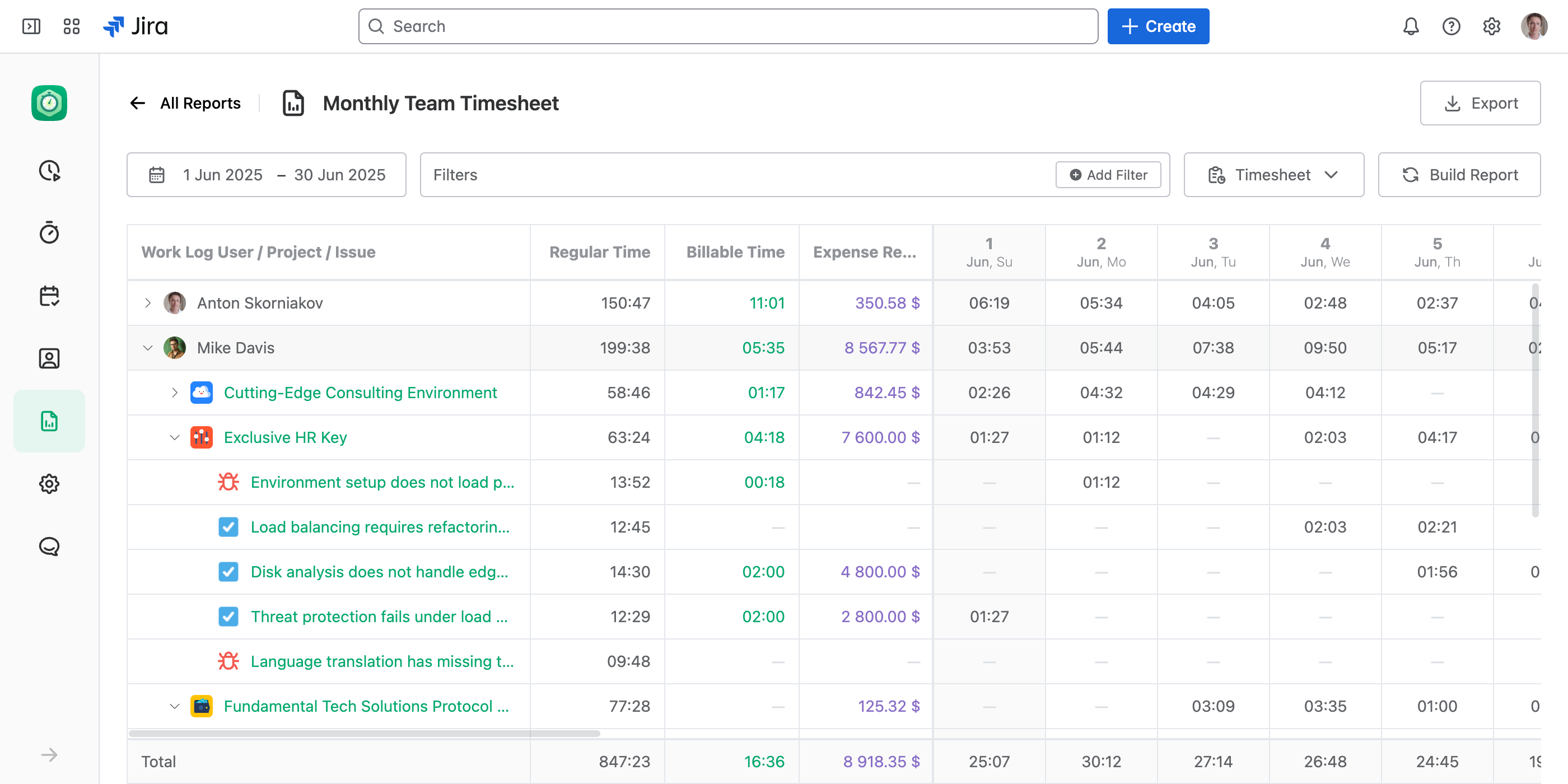
Build Jira time reports from your work logs, in timesheet or table view.
Reports turn your work logs into the numbers you bill and pay from: one client's month split by role, an epic's whole effort rolled up from every work item beneath it, a month's costs per account, or any custom metric you track.
How JetTime Reports Are Built
JetTime reports are built entirely based on work logs, which inherit all relevant fields from parent entities (such as Jira work items, spaces, etc.). Therefore, if there are no work logs recorded, the report will be empty.
Additionally, the person generating the report must have the necessary permissions to access all relevant work logs. Missing permissions may result in incomplete reports or no data being displayed. For more details on managing permissions, refer to the Managing App Permissions article.
Report View Modes
JetTime supports two report view modes:
- Table view. Detailed rows with as many columns as you need.
- Worksheet view. The worksheet is what other tools call a timesheet, but broader. Not just for time tracking, the Worksheet view can also display financial data (financial worksheets) or custom metric worksheets.
Timezone Handling
A work log lands on its author's day and clock time, for every viewer and in every report — see Time Zone Handling.
Customize Your Reports
In a report you can:
- Filter data to focus on what matters most.
- Choose a duration format for better readability (for example, human-readable formats, minute-based formats, or man-days).
- Adjust columns, metrics, and grouping options to suit your reporting requirements.
- Save reports for future use, which are accessible only to you for maintaining privacy and control.
Before generating a report, you must set a date range for work log import. The selected date range determines which data will be fetched and displayed in the report.
Export and Share Reports
Export a report to PDF, Excel or CSV to share it or use it in another tool.
To give a colleague a report's settings, copy a link with them: it opens a new report with the same filters, dates and view, and shows only the work logs their permissions allow. See Creating Reports via Links.
Next Steps
Learn how to work with Worksheet Reports, Table Reports, apply filters, and customize report data.