
Configuring Field Schemes
Customize the Log Work form by work item, team, and function role, or turn logging off.
Field schemes decide which fields appear on the Log Work form, and how each one behaves. Instead of one fixed form for everything, you can show only the fields that fit a kind of work, mark the right ones as required, or turn logging off entirely.
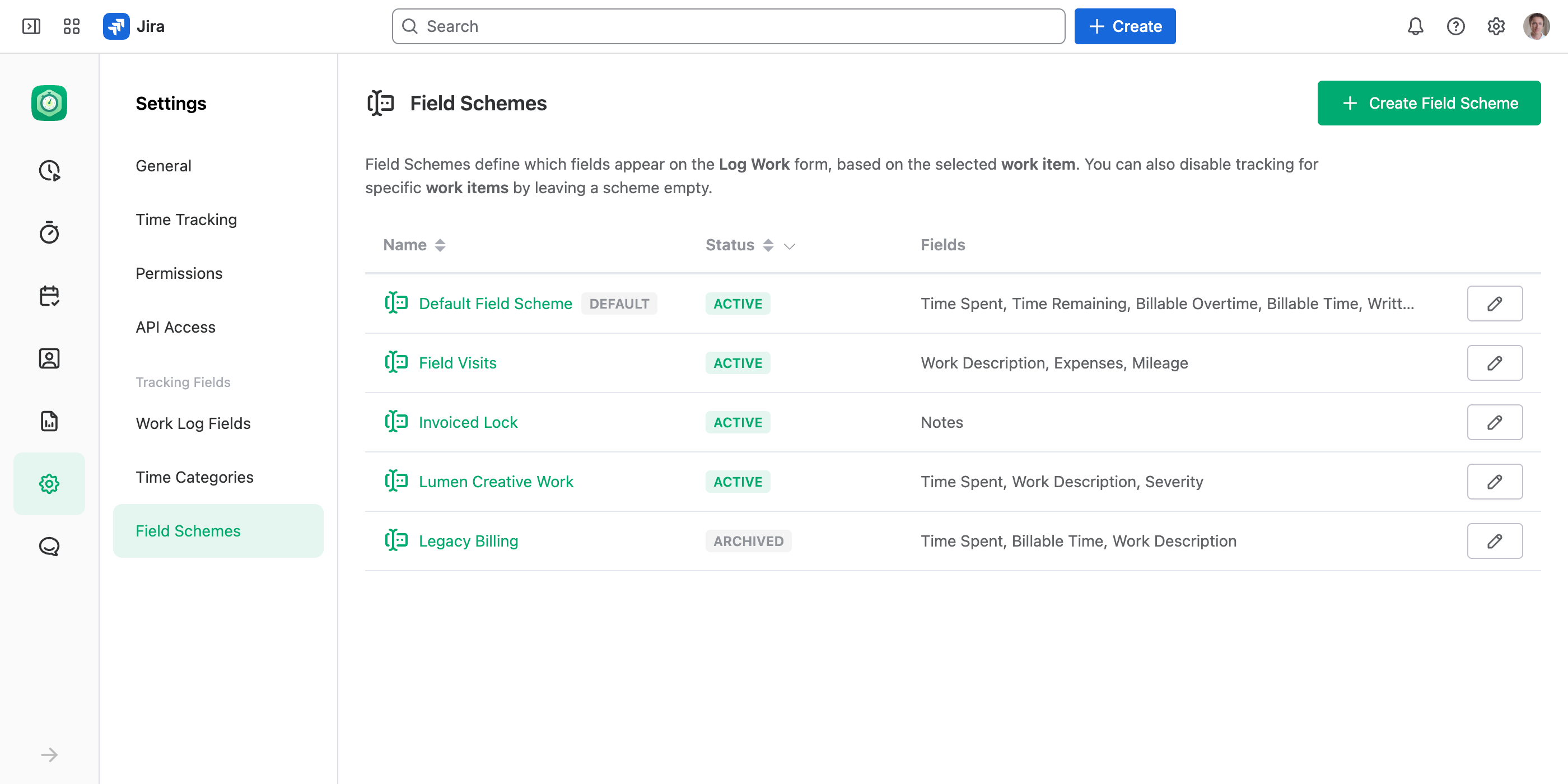
JetTime picks the scheme while someone fills in the form: the first scheme whose rules match wins. Rules read three things — the work item, and the Team and Role chosen on the form — so the same work item can show a different form depending on who is logging and under which function role. There is always a default scheme for everything else.
How to Configure a Field Scheme
Open Field Schemes
In the JetTime app, navigate to Settings › Field Schemes (under Work Tracking). The list shows each scheme's Name, Status, and the fields it carries.
Create or Open a Scheme
Select Create Field Scheme to add one, or select a scheme's name to open it.
A scheme opens on three tabs: Fields, Rules, and Settings. Select the scheme's name in the header to rename it, set Status on the Settings tab, and use the … menu to delete it.
Choose the Fields (Fields Tab)
Select Add Field to add fields to the form, then select a field to set how it behaves:
- Fields you can add. Time spent, time remaining, work description, account, any custom time category or work log field, and a notes block.
- Required. Make the field mandatory. The same field can be required in one scheme and optional in another.
- Copy from Regular Time (time categories only). Pre-fills the category from the Time Spent value as the user types.
- Notes. Choose a type (Info, Success, Warning, or Error) and write the message shown on the form.
For example, a scheme for support work might show Time Spent and a required Work Description; a scheme for field visits might drop time entirely and show only a Mileage and Expenses field. Each kind of work gets exactly the form it needs.
Set the Rules (Rules Tab)
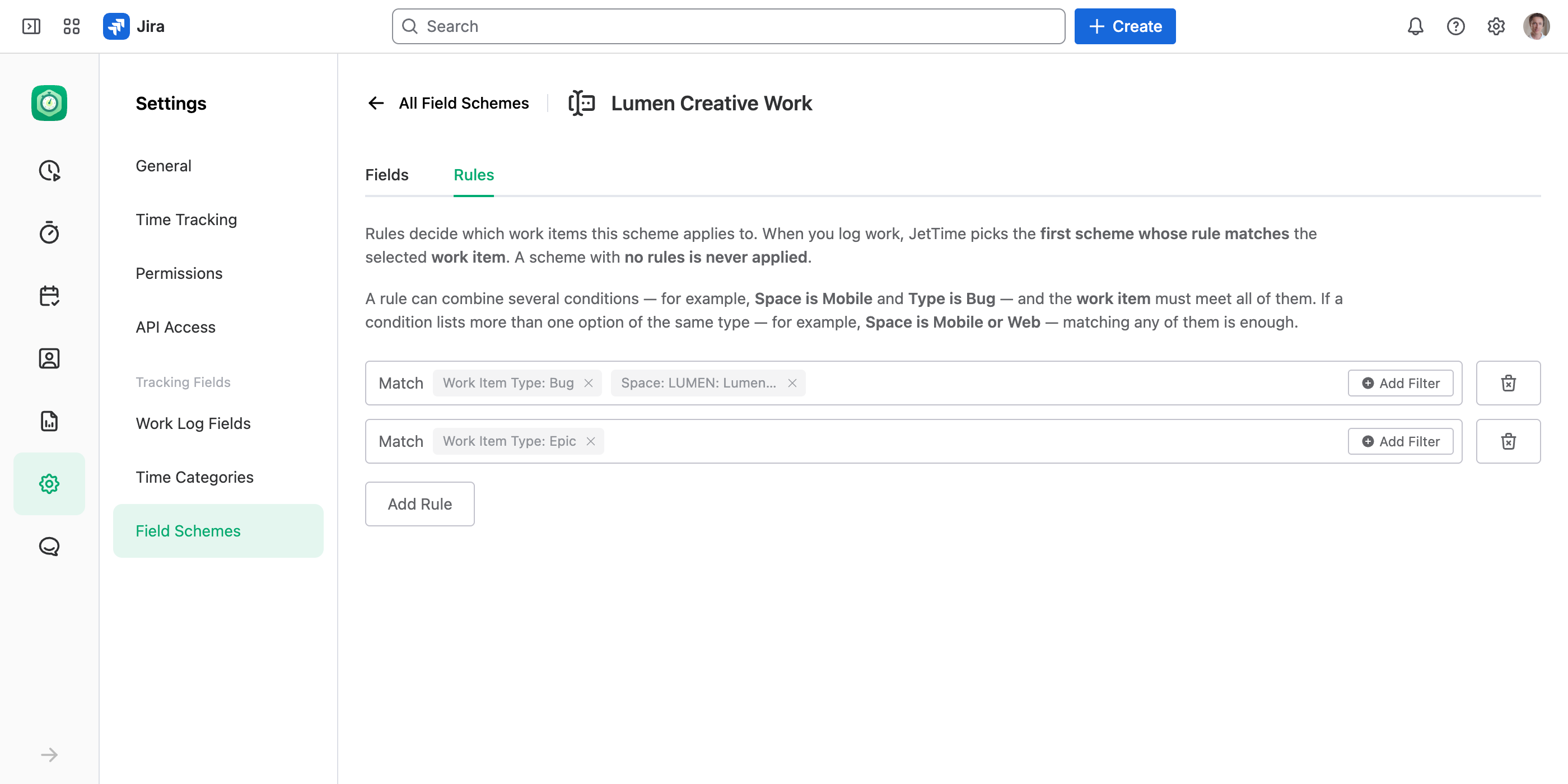
Rules decide when the scheme applies. A condition reads either the work item — such as its space, work item type, status, and its user and select custom fields — or the Team and Role picked on the Log Work form. Within one rule, conditions combine: all of them must hold, and a condition that lists several options of the same type (for example Space is Lumen or Web) matches any one. Add more rules when a single combination isn't enough: whatever matches any rule gets the scheme.
For example, two rules cover two different cases at once: apply the scheme to bugs in the Lumen Creative Campaigns space, or to any epic across all spaces.
- Rule 1. Space is Lumen Creative Campaigns and Work Item Type is Bug.
- Rule 2. Work Item Type is Epic.
Team and Role conditions are what let one work item show two different forms. Role here is the person's function role — what they do in that team, recorded on every work log. So a rule of Team is Mobile Developers and Role is QA gives a tester logging to that team a required bug-number field the rest of the team never sees. Everyone else on the same work item falls through to another scheme and gets the plain form.
Team and Role sit on the Log Work form itself, so changing either one re-picks the scheme while the person is still filling it in.
The default scheme has no rules and applies whenever no other scheme matches.
Save Your Changes
Each tab saves on its own — select Save on the tab you edited. Leaving a tab with unsaved changes asks you to discard them, so save the Fields tab before you move to Rules.
Disabling Logging for Some Work Items
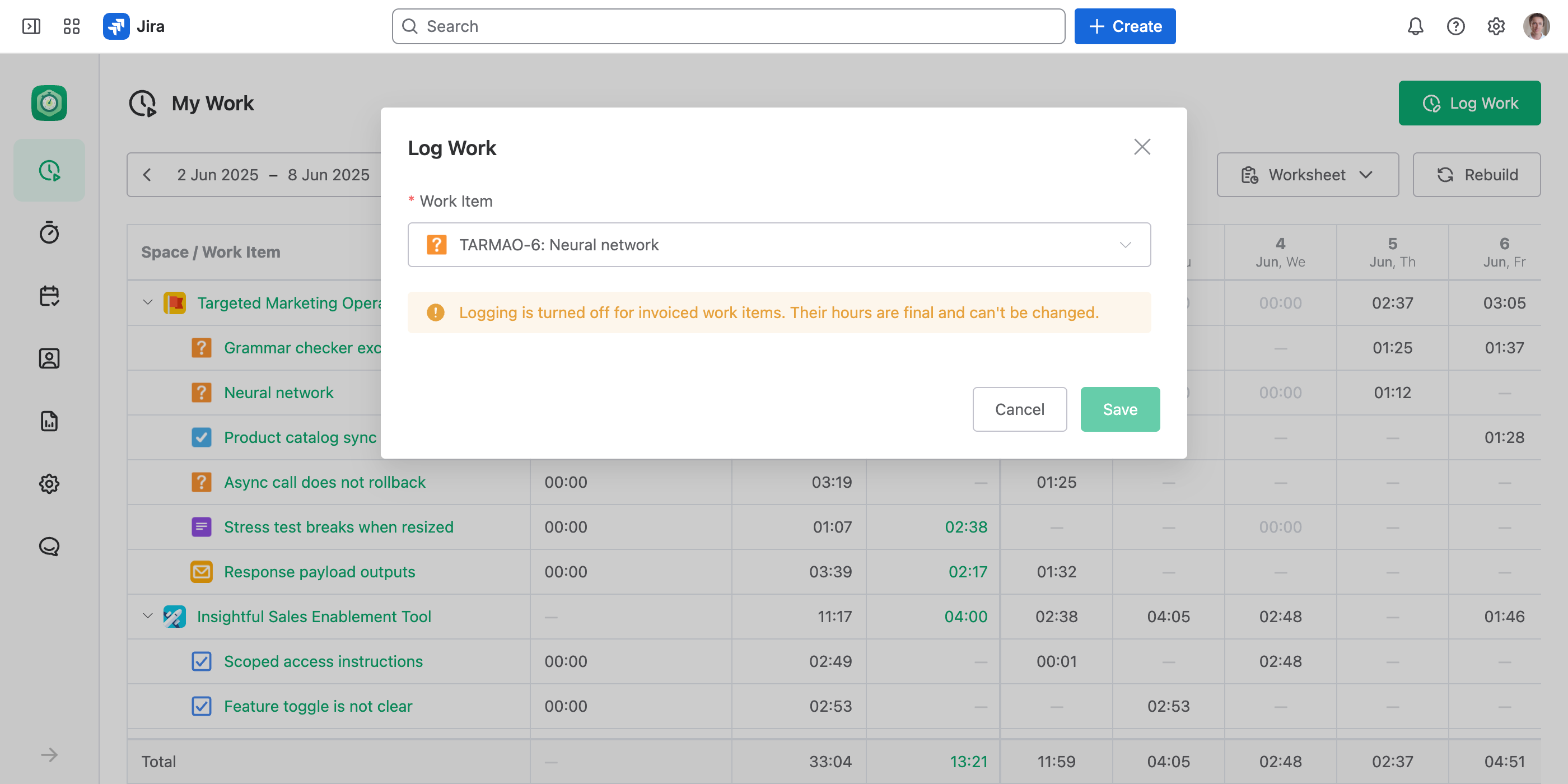
A scheme with no input fields disables logging for everything it covers. Remove every field — you can keep a single Notes field to explain why — and the Log Work form has nothing to fill in and Save greyed out. This lets you switch tracking off by rule, for example on work items whose status is Invoiced or Closed, so hours can't change after the books are done.
The top of the form stays: Work Item, User, Date, and Team and Role where the person is eligible for a team. Those are the fields that pick the scheme, so a scheme can never hide them; your note sits below them.
Additional Tips
- Design schemes so each combination matches at most one — the work item together with the team and role it is logged under. If none match, the default scheme applies.
- A non-default scheme with no rules never applies until you add at least one rule.
- Set a scheme's Status to Archived to take it out of service without deleting it. The default scheme is always active and can't be archived or deleted, but you can rename it.
- Removing a category or work log field elsewhere simply drops it from any scheme that used it — nothing breaks.
Field schemes draw on the fields and categories you've defined — see Setting Up Custom Work Log Fields and Defining Custom Time Categories.