
Approving Worksheets
Learn how to review, approve and reject worksheets, one at a time or in bulk.
When a role of yours is named on an approval step, worksheets come to you for a decision. This article covers the approver's side, and two jobs for whoever manages a team's, account's or workstream's settings: resetting submissions and closing periods.
See What Waits for Your Approval
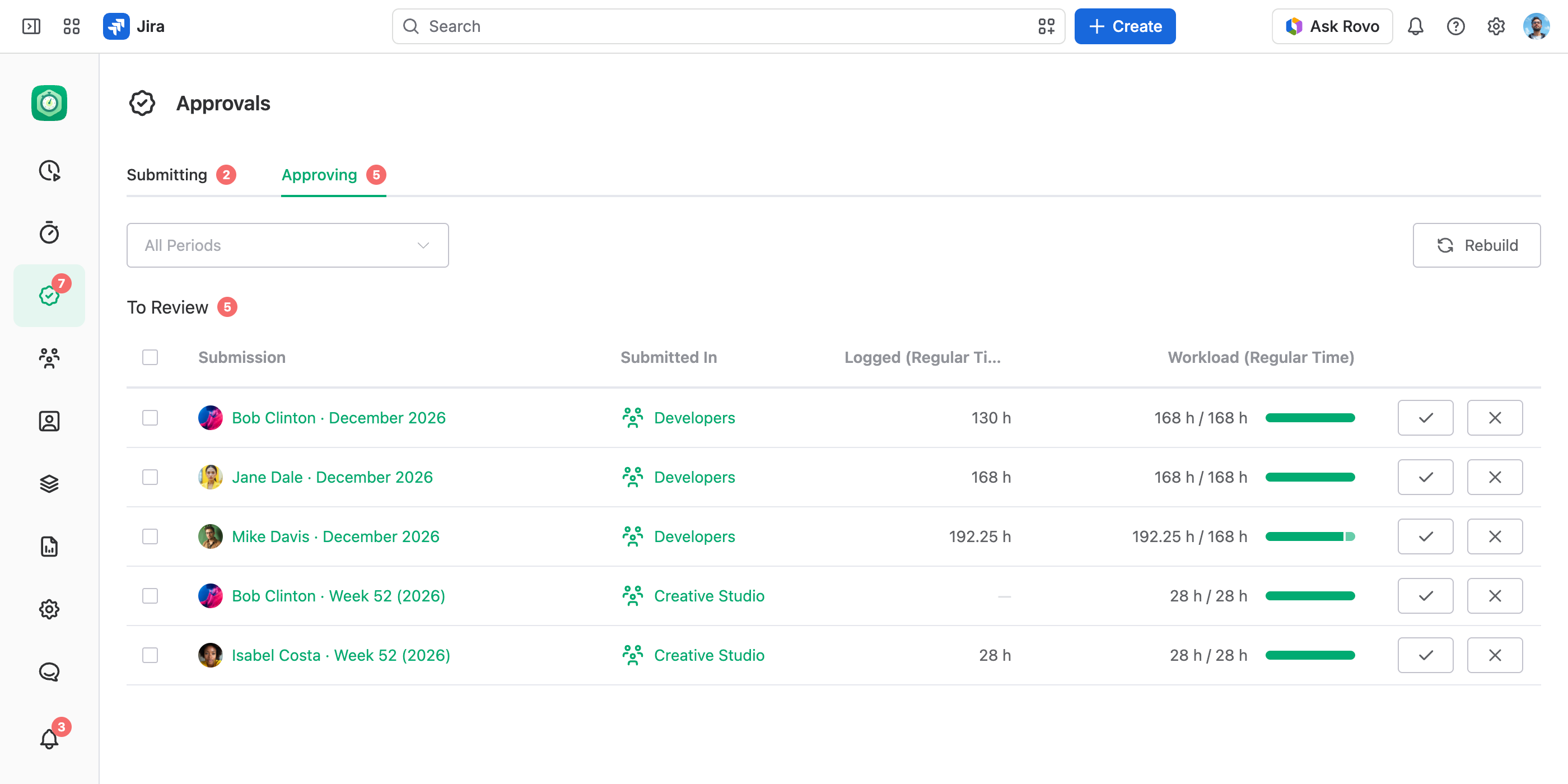
Select Approvals in the main menu and open Approving. To Review lists the worksheets waiting for your decision right now, across every team, account and workstream and the company-wide approvals: the step each one is on names a role you hold, and you haven't approved it yet. Your own worksheet shows up only where the step allows approving your own work.
Each row shows the person and the period, where the worksheet was submitted, what they logged there and, when the approval policy shows it, their workload for the period. The red count on Approvals in the main menu includes them.
Review One Period
Everyone's worksheets for one period — who submitted, who didn't, who was rejected — are listed in one place per approval:
- A team, account or workstream. The Approvals tab of that team, account or workstream. Who sees it:
- approvers — people who hold a role named on a step of the approval policy;
- people with the View Others Work Logs, Manage Others Work Logs or Manage Settings permission on that team, account or workstream, or the global permissions that cover them.
- The whole company. Approvals › Approvals in the main menu. Who sees it:
- approvers of the company-wide approvals;
- people with the View Others Work Logs, View and Manage Others Work Logs, View and Manage App Settings or Full Access global permission.
Both lists work the same way:
- The period. Pick one, or step with the arrows. Current Period jumps back to today, and a Closed tag marks a closed period.
- The totals card. How much of the period's main figure, and how many people, are in each status.
- The table. Submission — the person — Status, what they logged, and their workload when the approval policy shows it. Approve, reject or submit from the row.
Someone missing from the table doesn't owe a worksheet for the period: either they hold none of the roles under Who Should Submit in the approval policy, or they logged no time in the period and the approval policy doesn't require empty worksheets.
Review a Submission
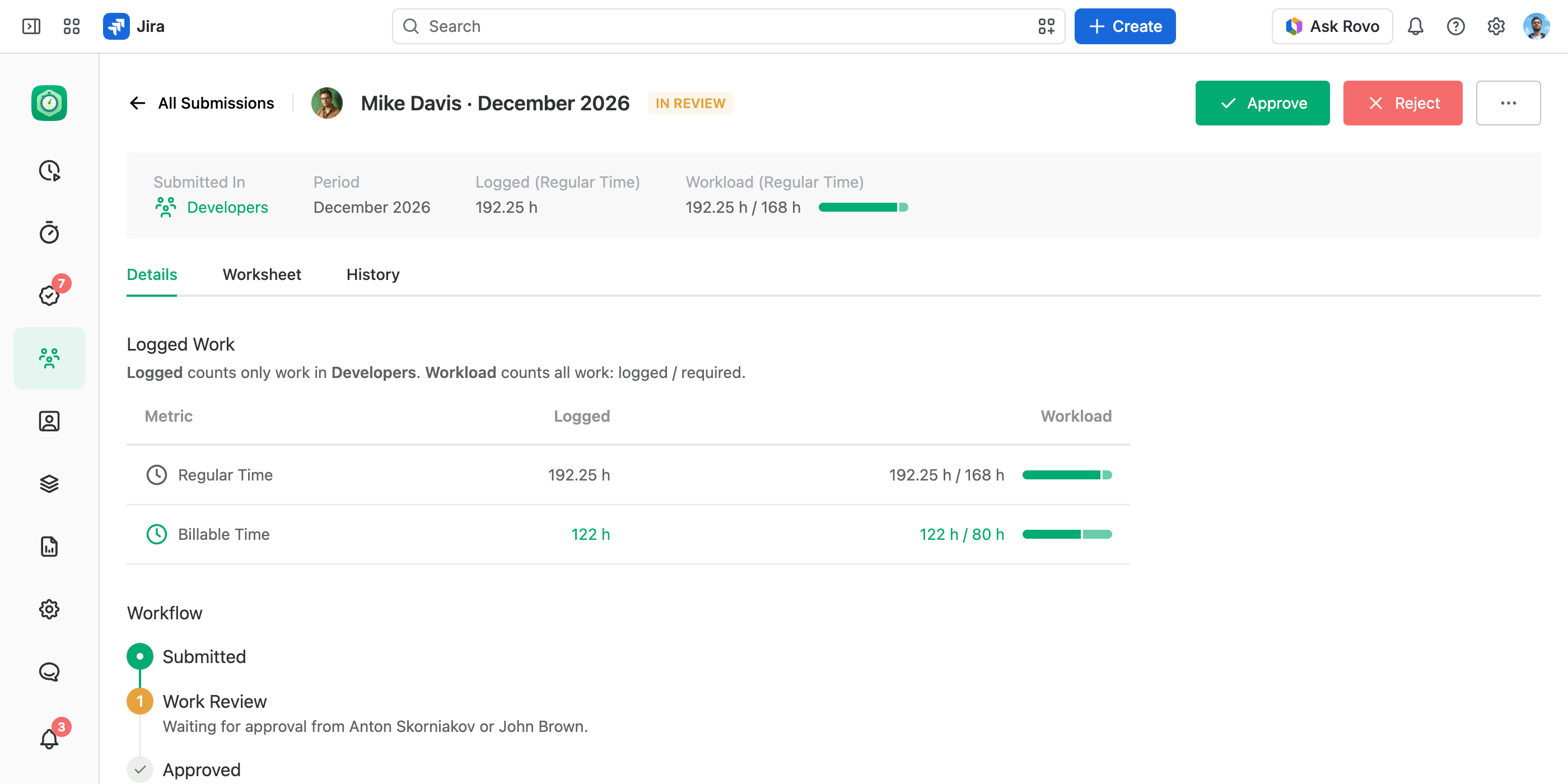
To open a submission, select the person's name in Approvals › Approving or on an Approvals tab. On its Details tab, read their message, if they left one, and every figure the worksheet carries. The approval steps on that tab show who has approved already and whom the step still waits for. On the Worksheet tab, check the work behind the figures — the period's work logs, grouped and exported as in any report. The History tab holds the earlier rounds: who submitted, approved or rejected, and what they wrote.
Approve or Reject
Open the Worksheet
Find it in To Review, on the Approvals tab, or open the submission.
Approve It
Select Approve. In the Approve Worksheet dialog, add a Message if you like, and select Approve.
Or Reject It
Select Reject and say in Message what to fix — a reject needs one. The worksheet goes back to the person as Rejected, and their work logs unlock.
With several steps, the worksheet moves to the next step once its current step has all the approvals it needs — a step may need more than one. A reject at any step sends it back to the person, and when they submit again, it starts from the first step. After the last step, it is Approved.
While your step still waits for other approvals, you can reject from the submission's … menu. An approved worksheet can still be reopened: an approver of its last step rejects it.
Approve or Reject Several at Once
In To Review or on an Approvals tab, select the rows, or all of them with the checkbox in the header, and select Approve or Reject in the bar that replaces the column titles. One message goes to every worksheet, so a reject's message should fit them all — "Friday is now a working day, please add your hours."
Recall Your Approval
Approved by mistake? Open the submission and select … › Recall Approval. It works while the step you approved is still open. Once the worksheet has moved past your step, only the approvers of the step it is on can send it back.
Logged vs. Workload
The two figures beside a worksheet count different work:
- Logged. The work you are approving: only the person's work for this team, account or workstream, or all of it for the company-wide approvals.
- Workload. All their work in the period, across all teams and accounts, against what their schedule requires. It shows when the approval policy shows it.
So on a team, an account or a workstream, the workload often shows more hours than the logged figure; for the company-wide approvals, the two count the same work. How the requirement is set and what the bar's colours mean: Workload Schemes and Calendars.
The Submission Snapshot
At the submit, the submission takes a snapshot, and everything after it runs on that snapshot:
- The rules. The approval policy as it stood at the submit — its steps, their approvers and how many approvals each step needs. Every later action follows it: each approval, a reject, and the resubmit after a reject. Edits to the approval policy don't reach it.
- The figures. The totals of every metric and, when the approval policy shows it, the workload. They stay as submitted while the worksheet is in review and after it is approved, even if its work logs change in Jira meanwhile.
A reject keeps the rules, and the person resubmits with fresh figures. Recalling the submission before its first approval, or resetting it, clears the whole snapshot: the next submit takes the current approval policy.
Check Figures That Changed After the Submit
A warning icon after a person's name means their work logs changed after the submit — for example, a work item deleted in Jira took its work logs with it. The icon's tooltip says what changed: the logged work, the workload, or both. On the submission's Details tab, each changed figure carries the same icon, and its tooltip gives the current value. Nothing is blocked: approve the submitted figures, or reject so the person resubmits with the current ones.
Apply a Changed Approval Policy
A submission in progress runs on its snapshot, so a changed approval policy reaches it only after a reset. Open the submission and select … › Reset Submission. The submission goes back to Not Submitted, its approvals and figures are cleared, and its work logs unlock. The next submit takes the current approval policy.
A reset needs the permissions that change the team's, account's or workstream's settings (Setting Up Work Approvals); for the whole company, the View and Manage App Settings global permission. The Full Access global permission covers both.
Close and Open a Period
Close a period once its work is done: select Close Period on the Approvals tab. A closed period:
- locks that team's, account's or workstream's work logs for everyone, whatever the statuses;
- stops being owed, even by people who never submitted;
- allows no action on its submissions, recalls included.
Open Period reverses it. Both need the same rights as a reset.
Close a period once everyone's last day of it is over. For a team spread across time zones, that means the next day: when the period ends at midnight in Berlin, a colleague in New York still has six hours of it left.
Good to Know
- A step that nobody left can approve — no one holds its role, or only the submitter does where own work isn't allowed — waits. The submission's Details tab then says "No approvers available. Only someone with Full Access can approve." Give the role to someone on the Access tab, or in Submitters and Approvers for the whole company.
- A step that needs more approvals than there are people left to give them says "Too few approvers for this step. Only people with Full Access can complete it." Give the role to more people, or lower Number of Approvals to Complete This Step in the approval policy and reset the submission.
- The Full Access global permission approves any step, its own work included, without a role on it.