
Using Custom Work Log Fields
Capture extra details on each work log with custom fields.
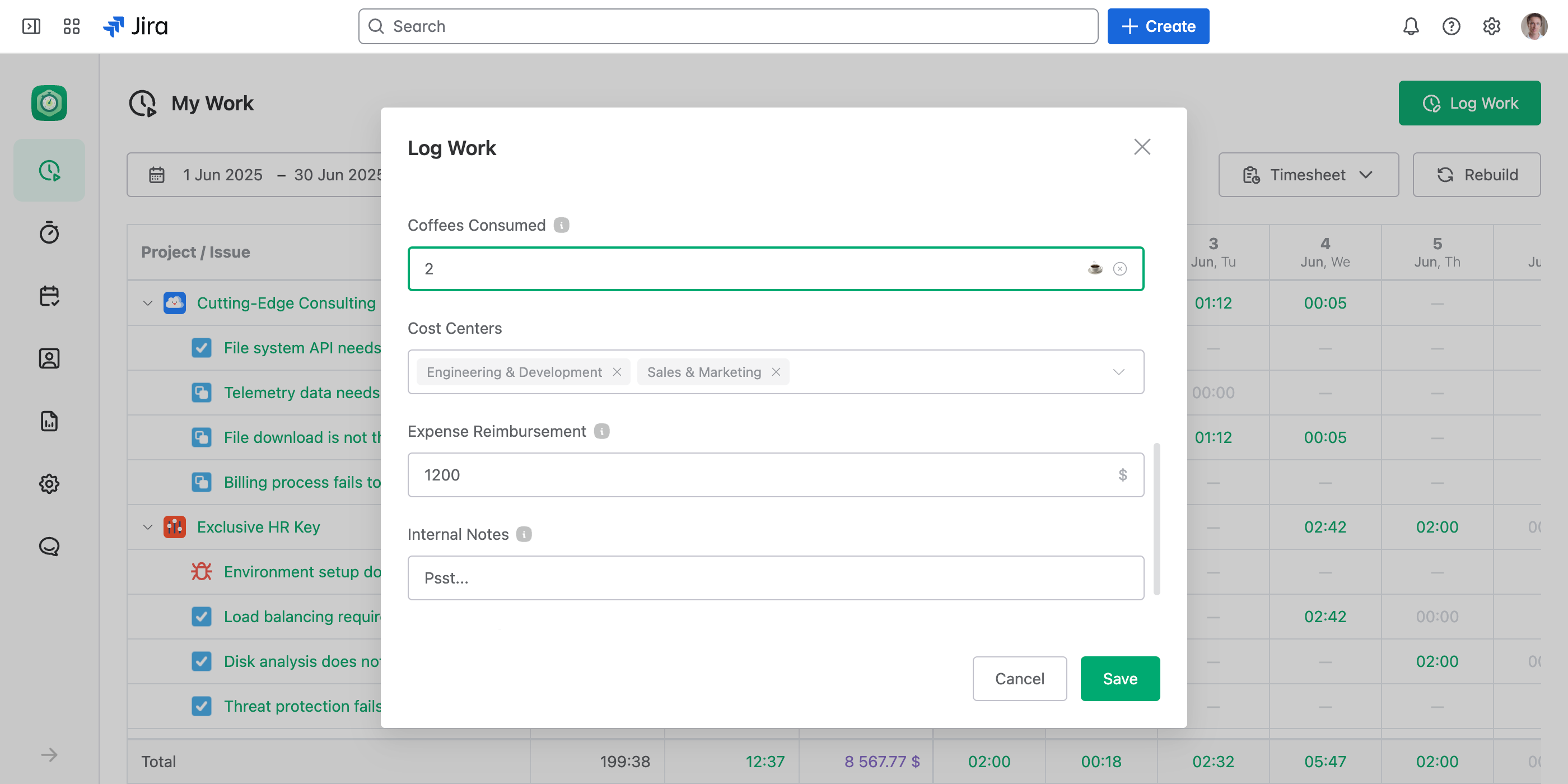
JetTime allows you to enhance your time tracking by using custom work log fields. These fields can be configured to track additional details specific to your workflow or reporting needs and can be filled in while logging work:
Types of Custom Work Log Fields
Custom work log fields support various types to suit different data tracking needs:
- Text. For entering free-form text such as notes or descriptions.
- Number. For logging numeric values, optionally with a specific unit (for example, hours, costs).
- Single-Select. For selecting one option from a predefined list.
- Multi-Select. For selecting multiple options from a predefined list.
- Checkbox. For simple yes/no or true/false tracking.
Why Use Numeric Custom Fields?
Numeric custom fields are especially powerful as they can become metrics in reports. This enables you to:
- Calculate totals for these fields using aggregation and grouping by various report fields such as work items, users, spaces, or even by work item or work log custom fields.
- Create worksheet reports that break down numeric field values into date periods (for example, daily, weekly, or monthly totals).
Additionally, numeric fields formatted as currency are ideal for tracking costs and other financial data efficiently. For instance, you can log expenses, billable costs, or budgets with these fields and monitor them in detailed financial reports.
Logging Work with Custom Fields
Custom work log fields appear in the Log Work dialog when the Field Scheme for that work item includes them. Schemes let you show different fields for different work items — for example a Mileage and Expenses field on field visits, but not on office tasks.
- A field is required when the scheme marks it as required — fill it in before saving.
- Numeric fields only permit valid numbers.
- Fields of type Single-Select or Multi-Select will provide dropdowns for choosing predefined options.
Next Steps
To learn how to configure custom fields, check out the Setting Up Custom Work Log Fields article.