
Managing People
Look up anyone and see everything set up for them in one place.
People answers "what is set up for this person?" on one screen: their workload schedule, where they submit and approve worksheets, and every team, account and workstream they were added to. No need to open each object's Access tab in turn.
Find a Person
In the JetTime app, go to Settings › People (under General). Search for anyone by name, or pick from Recently Used, and select the person to open their screen.
You can also open a person's screen from any list of people in JetTime — a team's People tab, an Access tab, a workload scheme's People tab. Their name is a link for everyone who can open Settings.
What the Person Screen Shows
The menu on the left holds five sections:
- Workload. The person's workload schemes and workload calendars over time, each with its start date and a Current, Past or Scheduled status. Assign a new one or change a row right here — see Workload Schemes and Calendars.
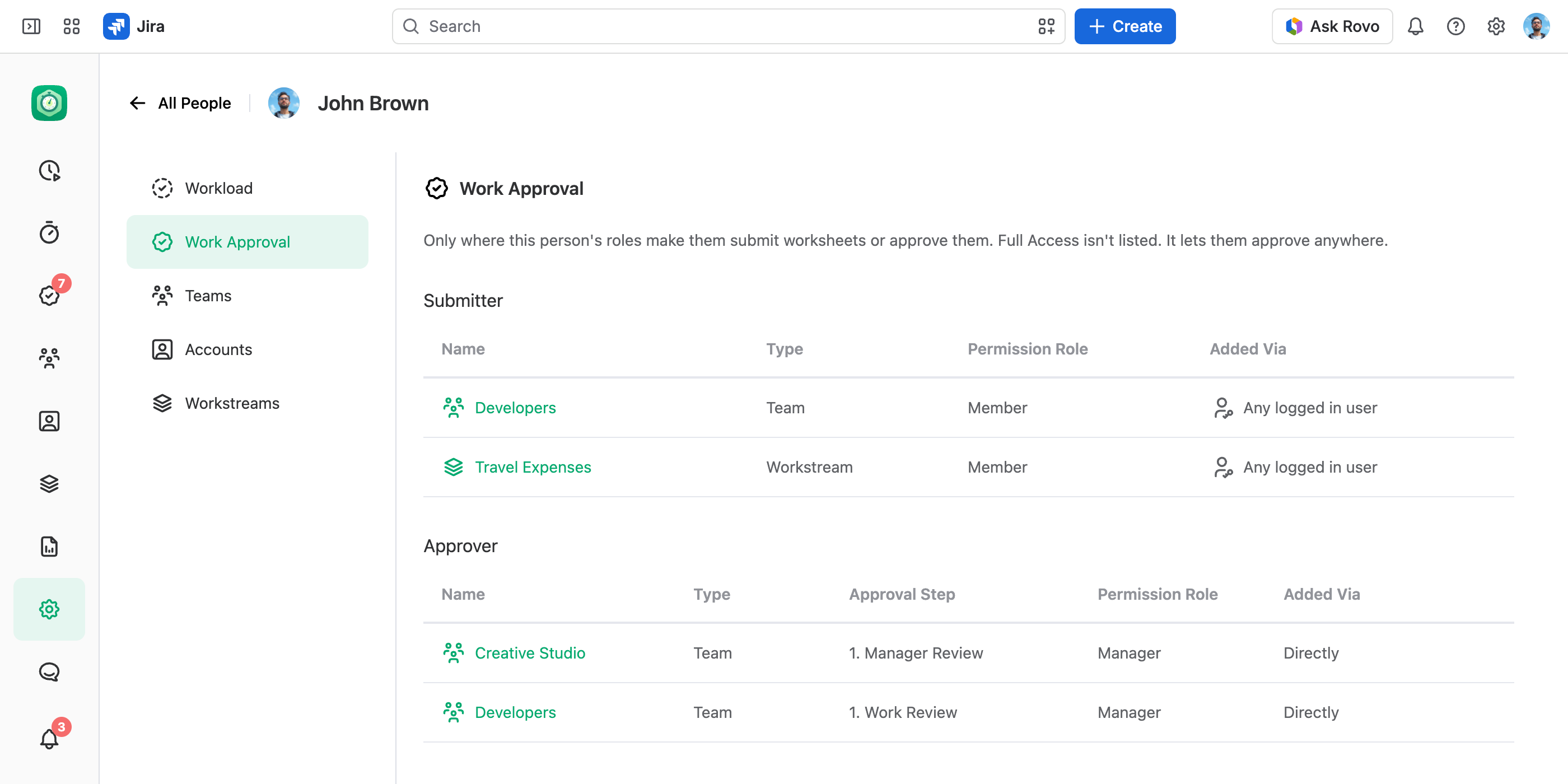
- Work Approval. Where the person submits worksheets and where they approve them: every team, account and workstream, and the company-wide approvals, where their roles make them a submitter or an approver. Each row shows the role and the grant the role comes through, in Added Via. An approver's row also names the approval step. The Full Access global permission isn't listed: it lets them approve anywhere.
- Teams, Accounts and Workstreams. Every team, account and workstream the person was added to, with their permission role there and, on a team, their function role. Added Via shows whether the row is their own or comes through a team or Any logged in user.
Good to Know
- The Teams, Accounts and Workstreams sections list only the places where the person was explicitly added. A global permission can give them more access than these lists show — see Managing Global Permissions.
- Opening People needs the View and Manage App Settings or the Full Access global permission.