
Bulk Editing Work Logs
Learn how to edit any field, move or delete many work logs at once.
The bulk editor changes hundreds of work logs in one run. It moves them to another work item, deletes them, or edits any of their fields: the user, the date, the team and role, time categories, costs and your own fields. Jira's own screens change work logs one at a time and can't move one to another work item at all.
Use it to mark a client's whole month with a custom Invoiced field, move work logs off the wrong work item, hand work logs to the person who did the work, or clean up a bad import.
Each work log in a run is checked as if you edited it alone: your permissions, its Log Work form and its locks all apply. So nobody needs admin rights, and a bulk change can't do what a single edit couldn't.
Open the Bulk Editor
Open it from any built report:
- Every work log of the report. On Reports, My Work, or the Worksheet tab of a team, account, workstream or submission, select … › Bulk Edit Work Logs.
- The work logs behind one figure. Select a worksheet cell or any total to see its work logs, then select Bulk Edit Work Logs in the list.
- A work item's work logs. On the work item's Work log tab in Jira, select … › Bulk Edit Work Logs. A report of its work logs opens in a new browser tab, with a tip pointing at the … where the bulk editor opens.
Bulk Edit Work Logs appears for everyone who can log work.
Select Work Logs
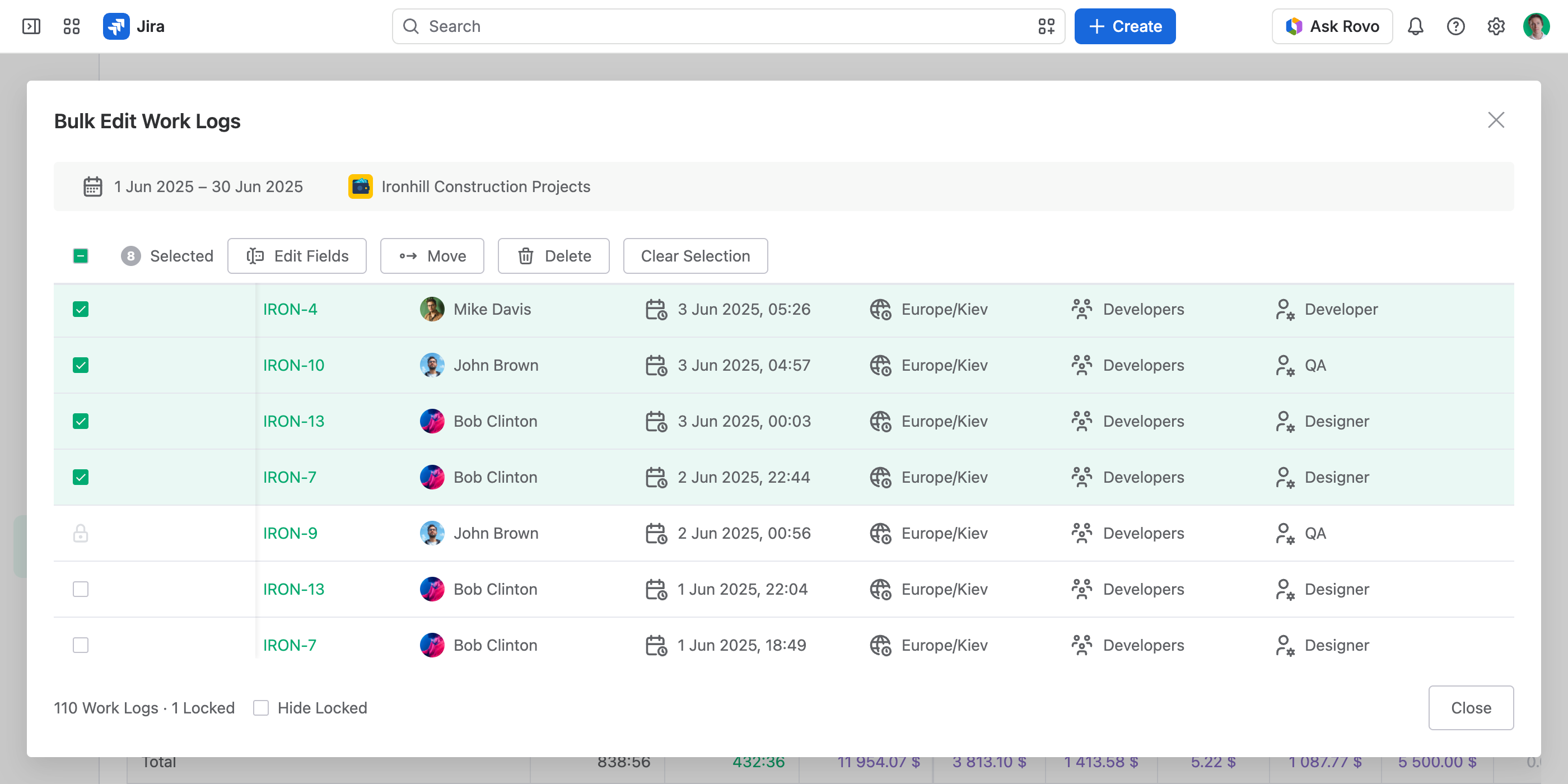
The bulk editor lists the work logs with every field of the Log Work form as a column. Select the rows to change one by one, or all of them with the checkbox in the header. To select a range, select its first row, then hold down the Shift key and select its last row. The actions appear above the table: Edit Fields, Move and Delete.
A padlock in place of the checkbox marks a work log you can't change. It falls in a submitted, approved or closed period, sits on or before a Lock Date, or is outside your permissions — its tooltip says which. Select Hide Locked to take these rows out of the table.
Edit Fields
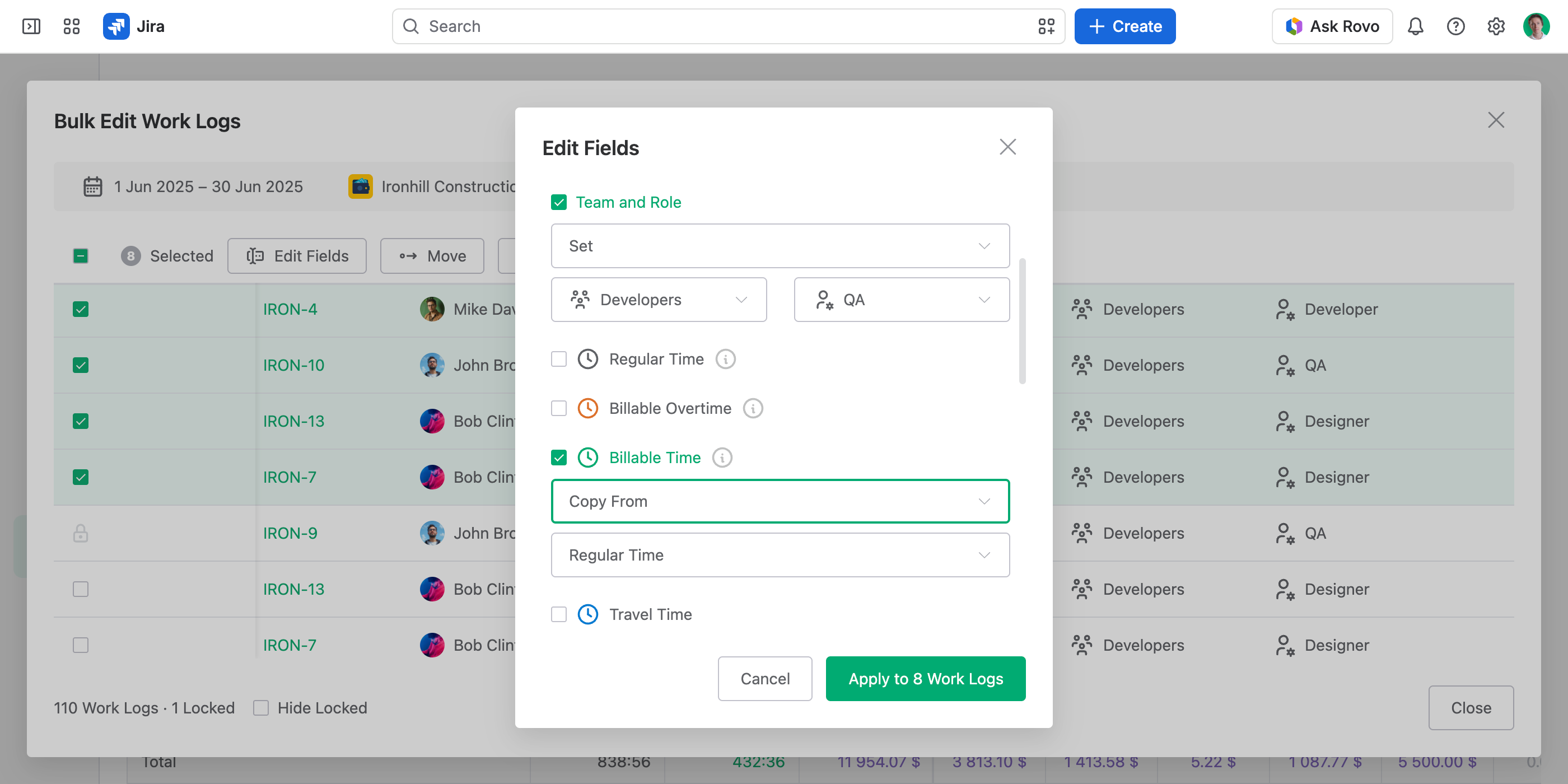
Edit Fields opens the Log Work form with a checkbox before each field. Tick the fields to change and choose what happens to each:
- Set. Gives every selected work log the same value.
- Clear. Leaves the field empty. To record a zero, set it to
0mor0instead: reports tell the two apart — see Find Forgotten Figures. - Copy From. For a time category: copies another category's time on each work log, for example Regular Time into Billable Time.
Only the ticked fields change; the rest of each work log stays as it is. Select Apply to Work Logs to start the run.
A few fields work their own way:
- User. Shows when you may manage other people's work logs. Each work log is re-created under the new person, who becomes its author in Jira too.
- Date and Time. A new Date moves each work log to that day, at the start time it already had. A new Time changes only the start time; each work log stays on its own day. Both count in the work log's own time zone — the Work Log Time Zone column shows it. See Time Zone Handling.
- Team and Role. Set together, as in the Log Work dialog — see Logging Work for Teams.
Each work log then meets the same rules as when you edit it alone. A field its form doesn't show isn't written. A required field can't be cleared. A work item where logging is turned off takes no change. A work log that breaks a rule is Refused and keeps its values.
Move Work Logs to Another Work Item
Select Move, pick the Target Work Item and select Move Work Logs. Each work log moves with everything it holds: its user, date, time, fields and description. A work log already on that work item is skipped. If logging is turned off on the target work item, the work logs are refused.
The target's remaining estimate goes down by the moved time, and the work item each work log came from gets that time back.
Delete Work Logs
Select Delete and confirm with Delete Work Logs. The deleted time goes back to each work item's remaining estimate. A deletion can't be undone.
Track the Run
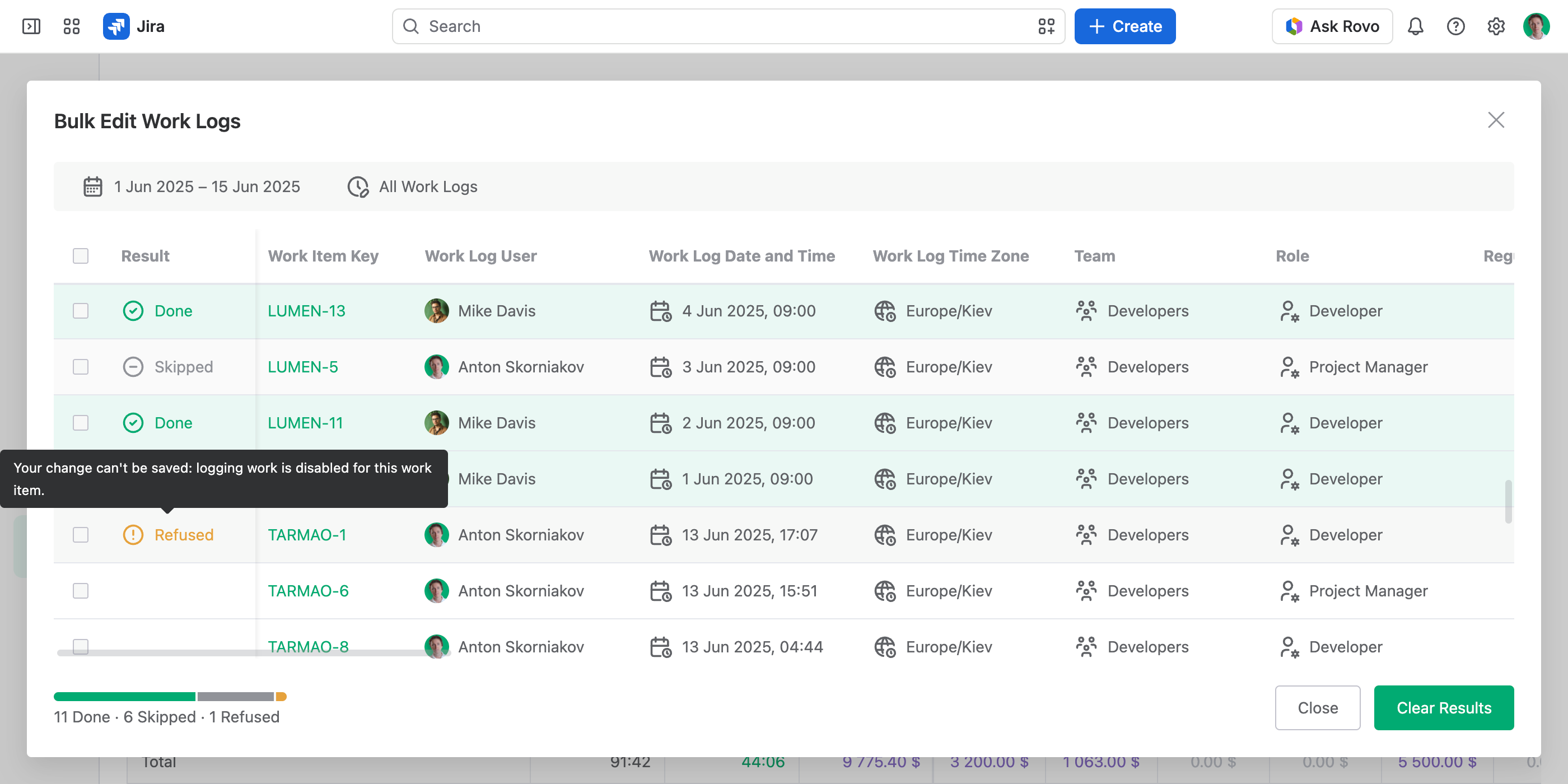
The run works through the selected work logs from the top. Each one gets a result in the Result column:
| Result | What it means |
|---|---|
| Done | The change is made: the work log is edited, moved or deleted. |
| Skipped | Nothing to do: the work log is already as asked. |
| Refused | Not done, for a reason about this work log alone — a lock, a permission, a rule of its form. Hover over it to see the reason. The run goes on. |
| Failed | Not done, and the next work log would likely fail the same way — for example, while Jira is limiting requests. The run stops. |
The buttons at the bottom control the run:
- Stop. Ends the run early. The work logs in progress finish, and no new one starts.
- Continue. Runs the rest of a stopped run with the same change.
- Clear Results. Starts over on the same work logs, for the next action or to run a failed one again. Deleted work logs leave the list.
The report updates when you close the bulk editor.
Good to Know
- Keep the bulk editor open while it runs. The run happens in your browser. Leaving the page stops it; the changes already made stay.
- A new user keeps each work log's account. Where that person can't log to the account, the work log is refused. Tick Account as well to set or clear it in the same run.
- One work item takes about three writes a second. That's Jira's limit, so emptying a work item that reached Jira's cap of 10,000 work logs takes about an hour.
- Descriptions keep their formatting. A Work Description you don't tick stays exactly as Jira stores it, formatting included. One you set is saved as plain text.