
Setting JetTime as Time Tracking Provider in Jira
Make JetTime the default time tracking provider in Jira.
Setting JetTime as the time tracking provider enhances Jira's work item view by enabling JetTime-specific features, such as the Log work action and grouped work logs in the work item activity tab.
JetTime is not configured as the default Jira time tracking provider upon installation. You need to manually set it up in Jira's Time Tracking Settings to enable its full functionality.
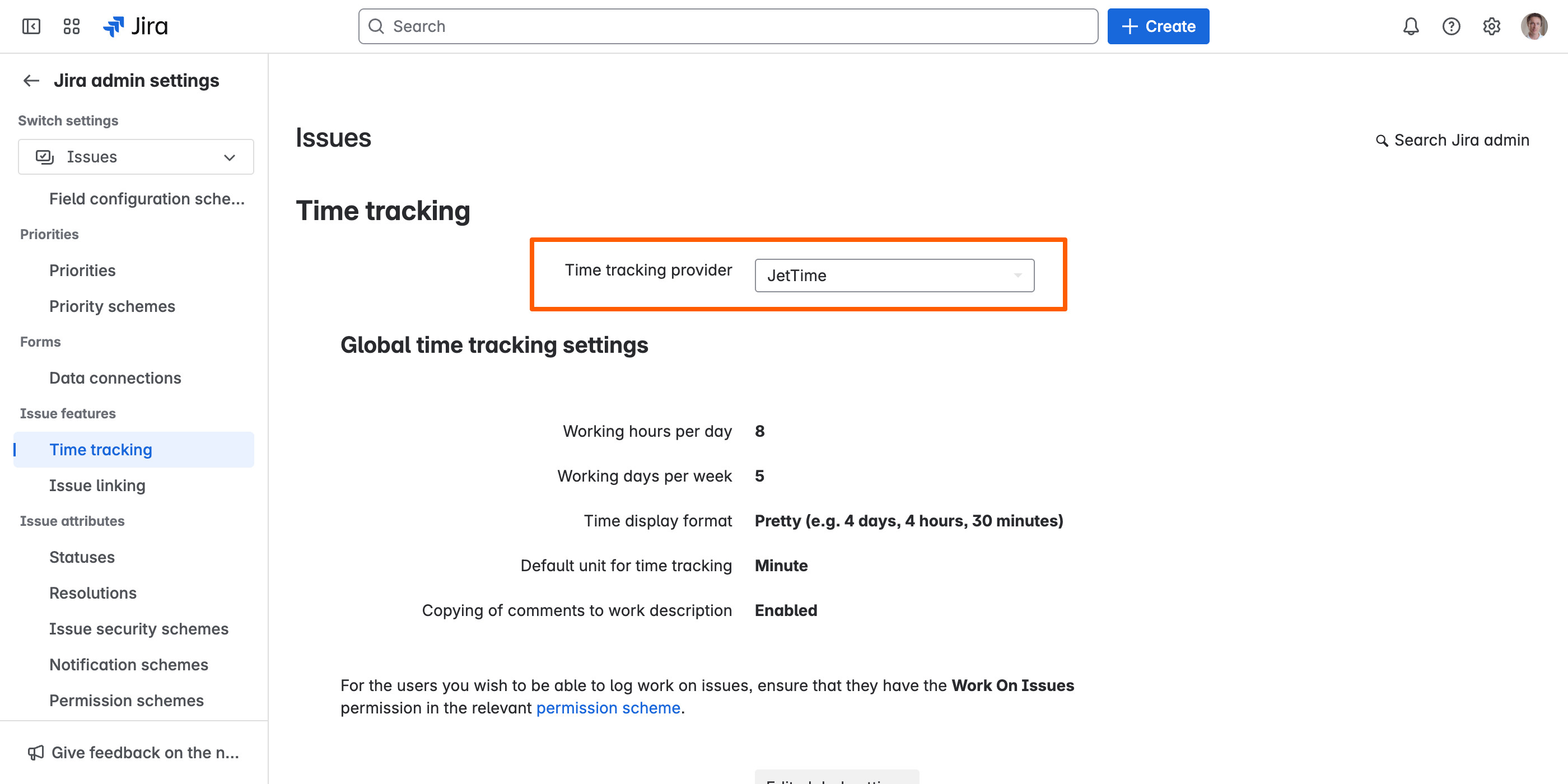
Steps to Configure Jira
Access Time Tracking Settings
Open Jira settings drop-down, select Work Items, and then navigate to Time Tracking under the Work Item Features section.
Select JetTime
In the time tracking configuration, choose JetTime as the provider from the available options. Changes will be applied automatically.
Why Enable JetTime?
- Enhanced work item view actions. Activates JetTime's Log work action in the Jira work item view for streamlined work log submissions.
- Grouped work logs. Displays work item work logs in the activity tab, grouped by users, for better visibility and organization.
- Your rules apply in Jira too. Every work log on a work item goes through JetTime — the forms you set up in field schemes, JetTime's permissions, approval locks and lock dates. Without the provider, Jira's own log work dialog bypasses them.
Check It in App Health
Settings › App Health (under Utilities) checks whether JetTime is your time tracking provider. While it isn't, a muted count shows on App Health and on Settings in the main menu. Only a Jira administrator's check can tell; for anyone else the page says it can't be checked.
Optional but Powerful
While JetTime works without this configuration, enabling it enhances your Jira experience by integrating JetTime features directly into Jira's work item view.