
Logging Time Manually
Manually log time spent, set remaining estimates, and use time categories.
Logging time manually allows you to precisely record the amount of time spent on tasks, set estimates for remaining work, and utilize custom time categories for enhanced tracking. JetTime uses a centralized Log Work Dialog for all time-tracking operations, making it simple to create, edit, and manage work logs.
The fields on the form depend on the work item. With Field Schemes you can choose which fields appear, make some required, or turn logging off for some work items entirely.
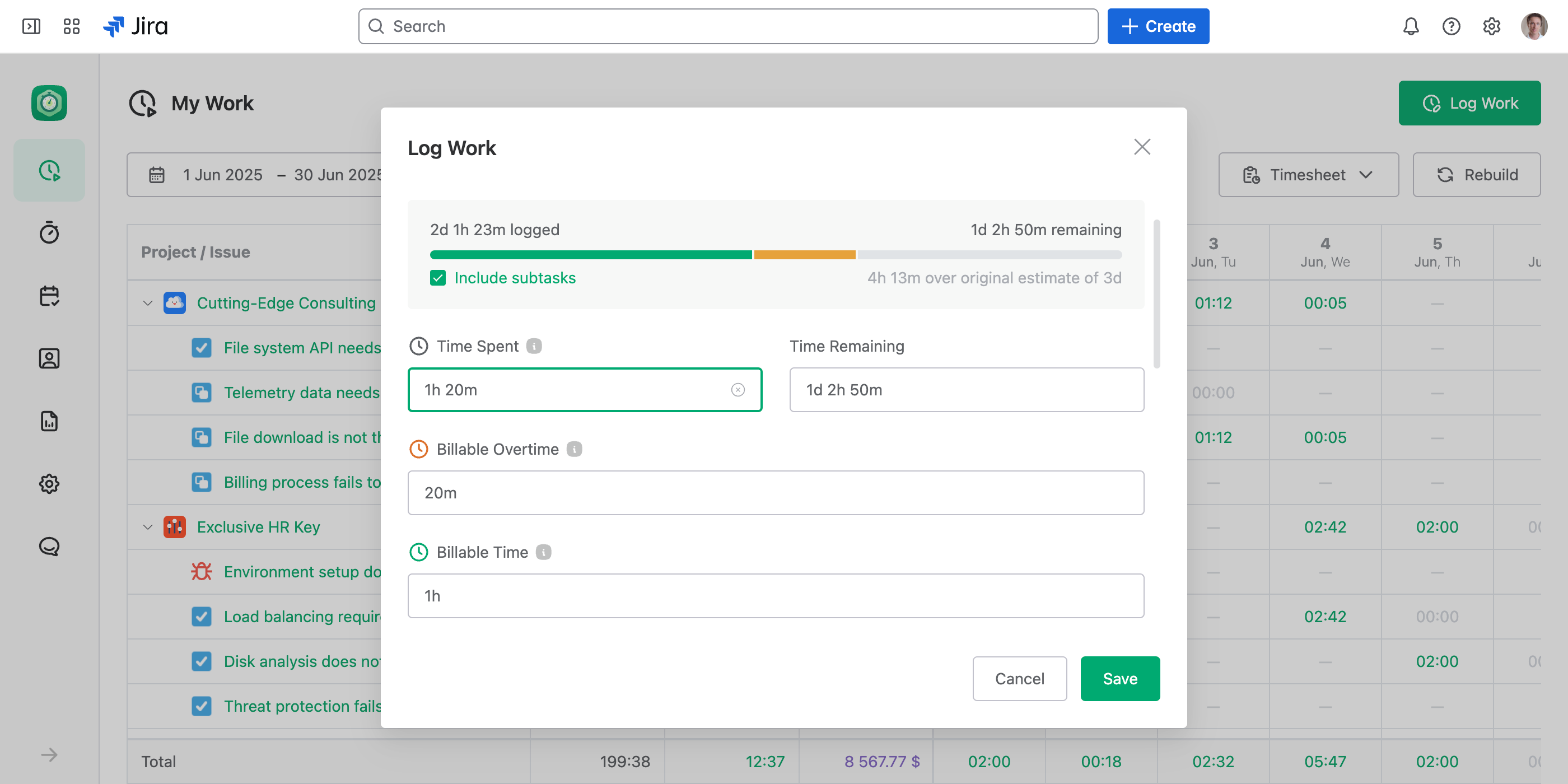
Steps to Manually Log Time
Enter Time Spent
When the form includes Time Spent, log the time there. Time should be entered using a human-readable format, such as:
2h(two hours)30m(30 minutes)1d 4h(one day and four hours)
Specify Time Remaining
If the task has an associated estimate, you can adjust Time Remaining to reflect how much work remains after logging the current time. JetTime automatically calculates this value, but you can override it manually if needed.
Use Custom Time Categories
Your organization may provide additional time tracking categories (for example, Billable Time, Overtime, or any custom-defined categories). To log time in these categories, simply fill in the relevant fields in the dialog.
Save Your Work Log
Once you've completed all required fields, select Save to log your time. The work log will now appear in reports.
Manually logging time with JetTime is a straightforward way to stay organized, ensure data accuracy, and track progress effectively. Remember to leverage the features in the Log Work Dialog for a seamless experience.