
Workstreams
Group logged work by rules combining work item and work log fields.
Teams and accounts answer the two questions you ask most often: who did the work, and who it is billed to. A workstream answers all the rest. Some slices of work don't line up with a team or a client — all bug work across every space, everything the development team logs to the CapEx account, non-billable time wherever it happens. A workstream is that slice, saved: you write the rules once, and every work log that matches belongs to it.
Nobody picks a workstream while logging. There is no workstream field on the Log Work form and nothing written onto the work log — a workstream matches automatically, from the fields the work log already carries. Change the rules and the slice re-forms, over hours logged months ago as readily as over today's.
Like a team or an account, a workstream has its own worksheet and its own access rules, so you can give someone the numbers for one slice of work and nothing else.
How to Create a Workstream
Open Workstreams
In the main menu, select Workstreams. The list shows the workstreams you have access to, with their Name and Status. Use the Status column filter to hide archived ones.
Create the Workstream
Select Create Workstream and fill in one field:
- Name. What the workstream is called, for example Bugs or CapEx.
That is the only field — unlike a team or an account, a workstream has no key, because it is never written onto a work log. Select Create.
Define the Scope
Open Settings › Scope and add the conditions that decide which work belongs to it (below).
A workstream has these tabs: Worksheet, Approvals (while the workstream runs work approvals — see Approving Worksheets), and Settings. Select the workstream's name in the header to rename it, and use the … menu to delete it.
Defining the Scope
The scope is the rule that decides which logged work belongs to the workstream. Open Settings › Scope and build it from conditions:
Add a Condition
Select Add Filter, choose a field from the list on the left — search it if the list is long — then choose the values you want on the right. Each condition appears on the Match row as a removable tag, reading field and value.
Add as Many as You Need
Conditions combine. A work log has to meet all of them, so Space is Mobile plus Role is Designer means design hours on the Mobile space, and nothing else.
List Several Values of One Field to Widen It
Pick the same field again and choose another value. Each value gets its own tag, and matching any of them is enough — Role is Designer or Copywriter covers both.
Save the Scope
Nothing is stored until you select Save.
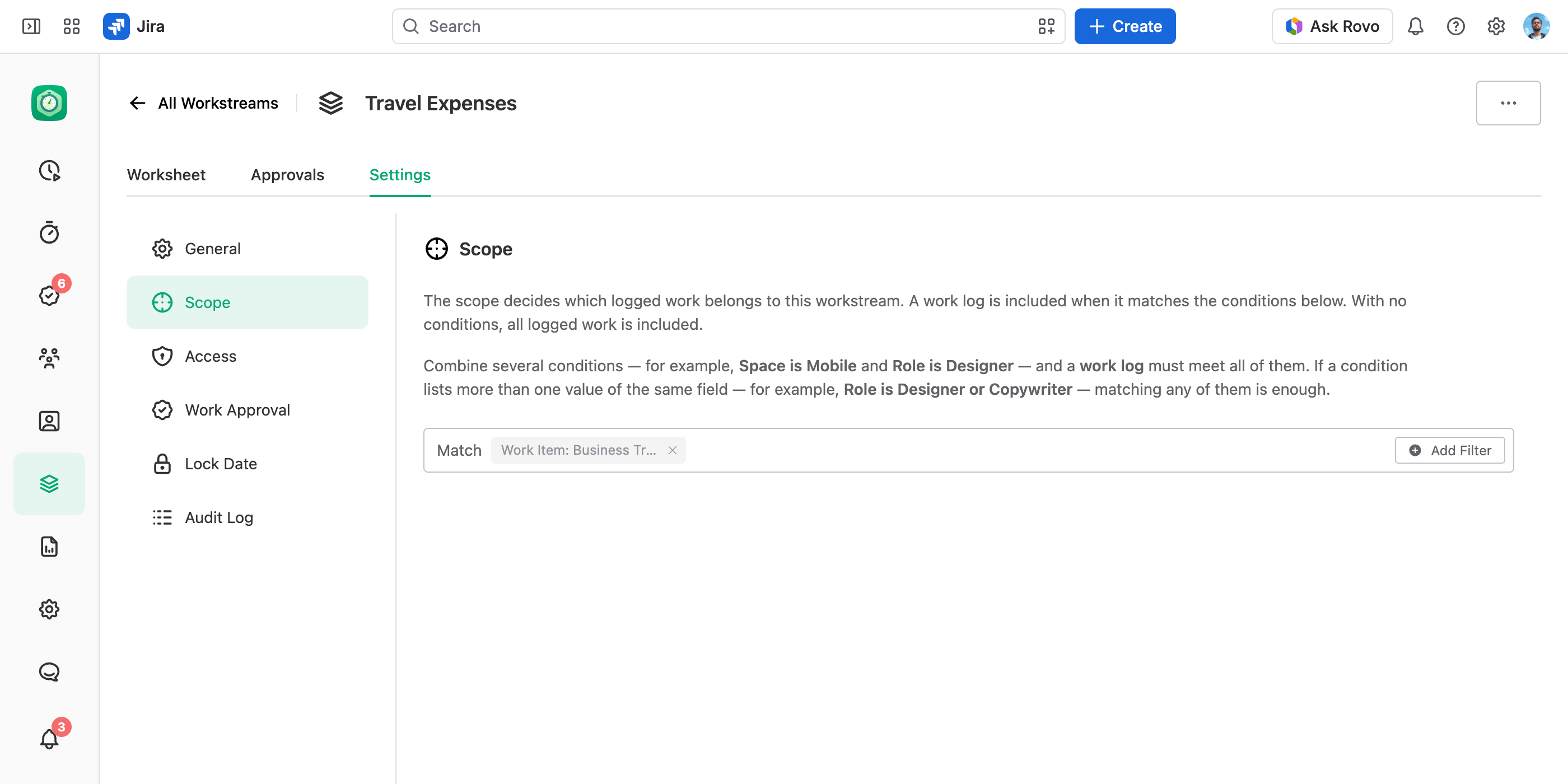
Remove a condition by closing its tag.
A scope with no conditions includes all logged work. That is the widest possible slice, not an empty one — add conditions to narrow it.
A workstream has one set of conditions, all combined together. When you need two unrelated slices, make two workstreams.
Which Fields a Condition Can Use
A scope reaches wider than Field Scheme rules, which only see the work item plus the team and function role on the work log. A workstream condition can use both sides of a work log:
- Work item standard fields. Work item, space, work item type, status, and every user-type Jira field such as assignee or reporter.
- Work item custom fields. Every Jira single-select and multi-select custom field, under its own name.
- Work log fields. Work log user, account, team, role, and every custom work log field of type single-select, multi-select, or checkbox.
A scope offers the same fields a report can filter on, so anything outside that set — free-text and number custom fields, for example — can't be used in a condition.
That mix is what makes a workstream flexible. Bug work on one client's account, logged under the QA function role, is a single workstream — a grouping no one field on the work log can express.
Reporting on a Workstream
The Worksheet tab is the same reporting you use in Reports, filtered by the scope. Pick a date range and read the slice: view mode, grouping, columns, totals, duration format, and export to PDF, Excel, or CSV all work as they do in a report, and the exported file is named after the workstream.
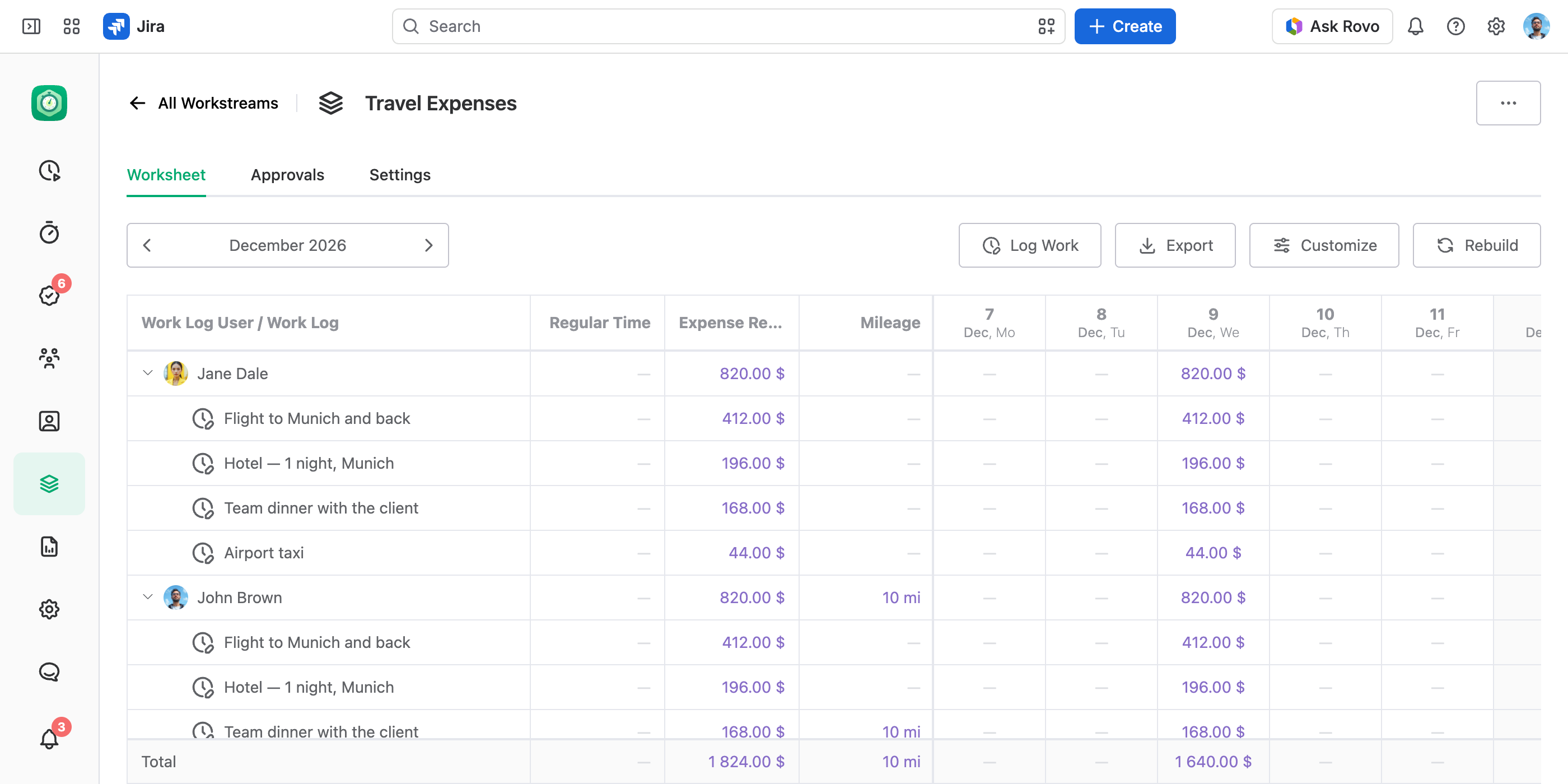
The worksheet is rebuilt from the scope as it stands each time you open the tab, so a scope you widened this morning shows its new work immediately. You can't remove or widen the scope filter from the worksheet itself, and the view settings you pick are saved for this workstream, in your browser.
While the workstream runs work approvals, the tab moves by approval period instead of a date range. Someone who doesn't see the Approvals tab finds their own submission card above the worksheet — see Submitting Worksheets.
A workstream isn't stored on the work log, so it is not a report column, grouping dimension, or filter — the Worksheet tab is where you read a workstream's hours.
Workstream Settings
Settings splits into General, Scope, Access, Work Approval, Lock Date and Audit Log.
General
Status is the only setting here. Set it to Archived to retire the workstream: it grants no access anywhere it was assigned and drops out of everyday use. The work logs it covered are untouched — a workstream never changes the work logs it matches.
The workstream's name isn't on this page. Rename it by selecting the title in the header.
Access
The Access tab decides who may read this slice of work. Choose a Permission Scheme, then assign permission roles with Add User, Add Team, and Add Special — to an individual, to a whole team (its team members all get the role), or to Any logged in user as a baseline for everyone.
The scheme preview here leaves out the permissions for creating and changing work logs. A workstream never grants those — it is a way of looking at work, not something you log into. That kind of access comes from a team or an account, or from a global permission, which grants it everywhere at once.
Grants combine here as everywhere: when several rows apply to one person, they get everything those permission roles allow. The full model is in Managing App Permissions.
Nothing is stored until you select Save.
Work Approval
Turn on work approvals for the workstream: the work its scope matches is submitted each period and approved by the roles its approval policy names. Like the lock date below, the approval locks follow the scope. See Setting Up Work Approvals.
Lock Date
Freeze the work logs the workstream covers on or before a date — say, a CapEx quarter once it is reported. The lock follows the scope, so for a workstream you lock, build the scope from fields people don't change in passing: Space, Work Item Type, Work Item and work log fields. See Locking Work Logs with Lock Dates.
Audit Log
Who submitted, approved or rejected the workstream's worksheets, closed its periods or moved its lock date, and when. See Audit Log.
Additional Tips
- Teams and accounts are chosen by the person logging; a workstream matches on its own. Use a team or an account when the person logging should decide where the hours belong. Use a workstream when that decision should follow a rule instead.
- Seeing a workstream is not the same as managing it. The Settings tab needs Manage Settings on the workstream, while Create Workstream and Delete Workstream need the View and Manage Workstreams global permission.
- Archive rather than delete. Archiving retires the workstream while leaving every work log it matched untouched; deleting removes the workstream and its access rows permanently.
- Conditions match by key. If you rename the key of an account or a team a condition points at, that condition stops matching until you rename it back or point the condition at the new key.