
Locking Work Logs with Lock Dates
Freeze logged work up to a date, company-wide or per team, account or workstream.
Once a month is invoiced or payroll has run, its hours must stay put. A lock date freezes every work log on or before a date: nobody can add, edit or delete one — the Full Access global permission included. Set it once for the whole company, or separately for one team, account or workstream. It needs no approval process; it is just a date.
When to Use a Lock Date
- An invoiced month. Lock a client's account up to the last day you billed. The invoice and the hours behind it can't drift apart.
- Payroll or month-end close. Lock everyone's work up to the date the books are done, with the global lock date.
- A finished project. Lock a team or a workstream once its work is signed off.
- History before you start approvals. Lock everything up to the day you switch on work approvals, so the past stays as it was while new periods go through review.
Lock Everyone's Work: the Global Lock Date
Open Global Lock Date
In the JetTime app, go to Settings › Global Lock Date (under Work Tracking).
Set the Date
Turn on Enable Global Lock Date and pick Lock Work Logs On or Before.
Save
Select Save. Every work log in Jira dated on or before that day is now locked.
Changing the global lock date needs the View and Manage App Settings or the Full Access global permission.
Lock One Team, Account or Workstream
Open Its Settings
Open the team, account or workstream and go to Settings › Lock Date.
Set the Date
Turn on Enable Lock Date and pick Lock Work Logs On or Before.
Save
Select Save. The lock covers that object's work logs only: those logged under the team, to the account, or matching the workstream's scope.
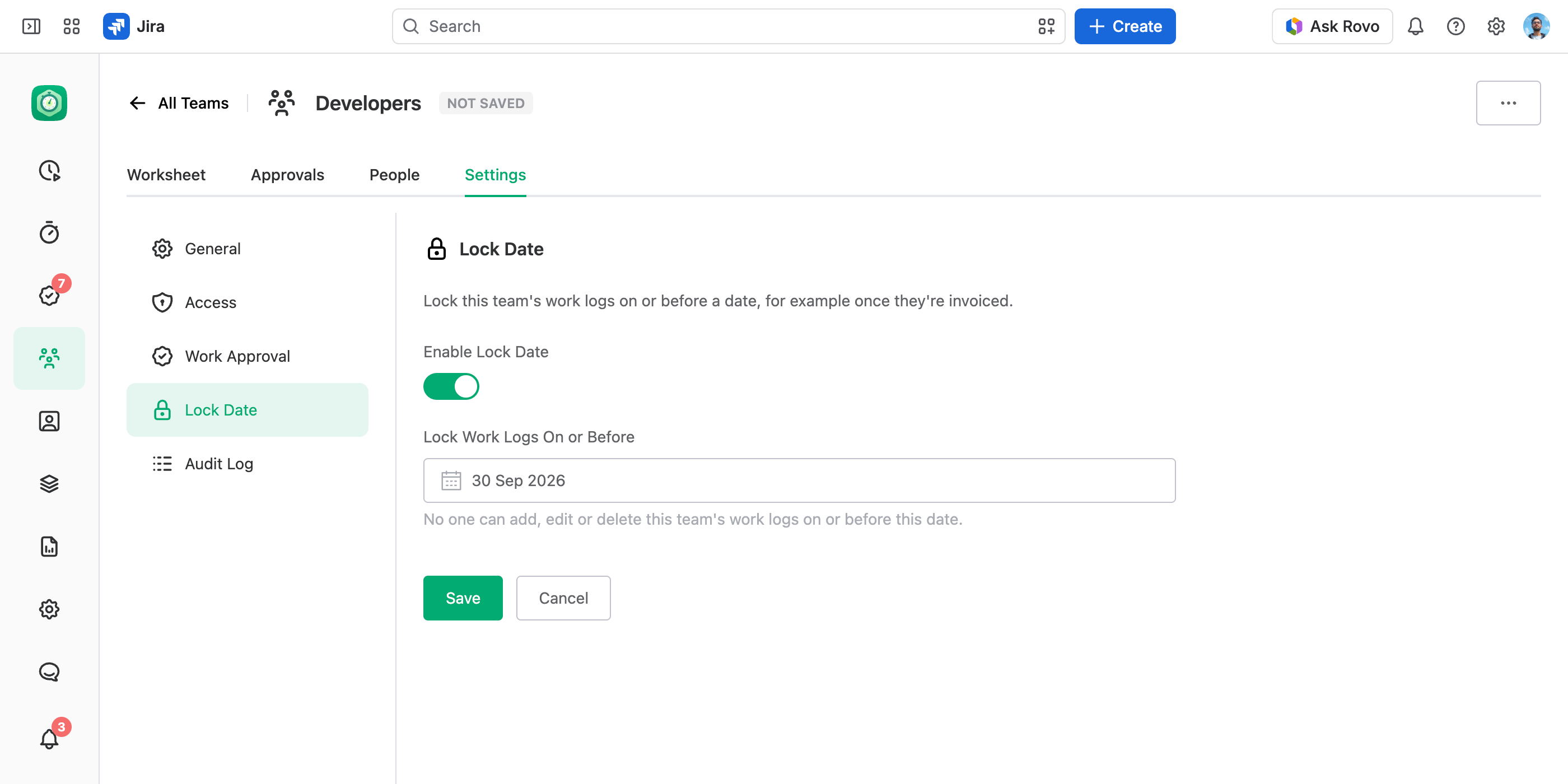
Anyone with Manage Settings on that team, account or workstream can change its lock date — the person who runs that client or team sets it, no administrator needed.
What a Lock Covers
- Nothing on or before the date changes in the lock's scope. No new work logs, no edits, no deletes. The date is the work log's own day — its author's, see Time Zone Handling.
- An edit can't move work into a locked range either. Changing a work log's date to a locked day, or its account to a locked account, is refused too.
- Locks add up. A work log is frozen when any lock covers it — the global lock date, its team's, its account's, or that of a workstream it matches.
- People see why. In work log lists a padlock replaces the edit button, and a refused save names the lock — for example "Work logs on or before 30 Sep 2026 are locked on Acme Corp account."
- Every change is on record. Each lock date change is written to the audit log, with who changed it and from what date to what.
A workstream's lock follows its scope. If the scope uses a work item field anyone can change in Jira — its status, assignee or a custom select — a work item can be moved out of the scope, its locked work logs edited, and the item moved back. For a workstream you lock, build the scope from Space, Work Item Type, Work Item and work log fields.
Lock Date or a Field Scheme?
Both keep finished work from changing, in different ways:
- A lock date. Works by date: everything up to a day is frozen, whatever state its work items are in.
- A Field Scheme. Works by work item: it can switch logging off on items in a status such as Invoiced or Closed, on any date — see Disable Time Tracking for Specific Work Items.
Use a lock date to close a period, and a field scheme to close a work item.
Good to Know
The lock covers everything logged through JetTime — including the Log Work dialog opened from a work item's screen in Jira, once JetTime is your time tracking provider. The Jira REST API can still change a work log, and deleting a work item in Jira deletes its work logs with it.