
My Work Page
Log, check and submit your own work from one everyday screen.
My Work is where you work in JetTime day to day. It is your own worksheet (what other tools call a timesheet): log and fix your time there, look at it through any team, account or workstream you work in, and submit it when approvals run. Open it from the main menu.
Log and Fix Your Time
Select Log Work to add a work log, or select a cell in the worksheet to see the work logs behind it, edit them, or add one for that day and work item. See Log Work Dialog.
The worksheet is a report of your own work. Change its view, grouping and columns with Customize, export it with Export, and refresh it with Rebuild — see Customizing Reports. To fix many work logs at once, select … › Bulk Edit Work Logs — see Bulk Editing Work Logs.
Look at Your Work in One Team, Account or Workstream
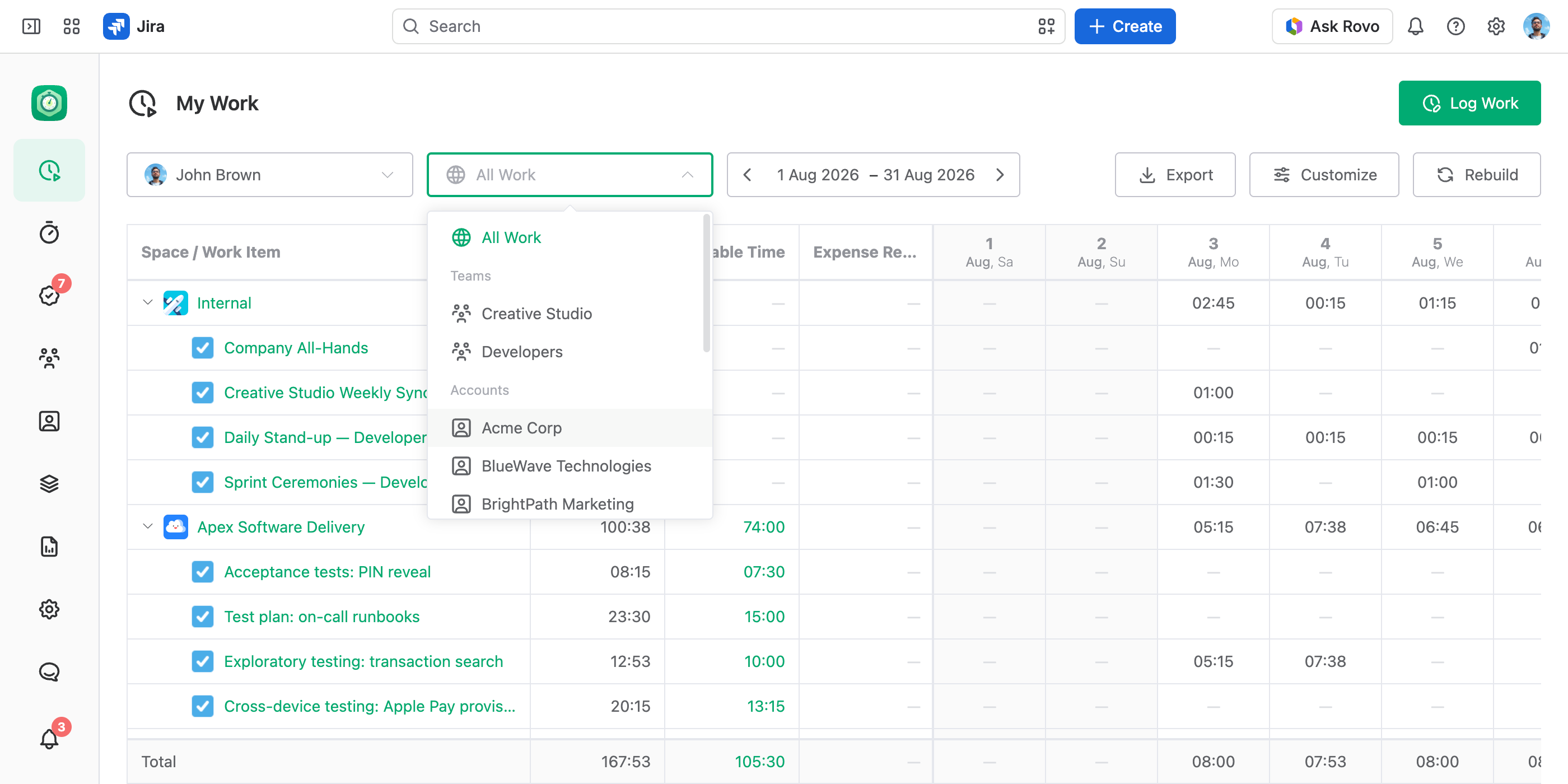
The select in the toolbar narrows the worksheet to one place:
- All Work. Everything you logged.
- Teams and Accounts. The ones the Log Work dialog offers you.
- Workstreams. The ones you can see.
"How much did I log for Acme Corp this month?" is one pick away.
Pick the Dates or the Period
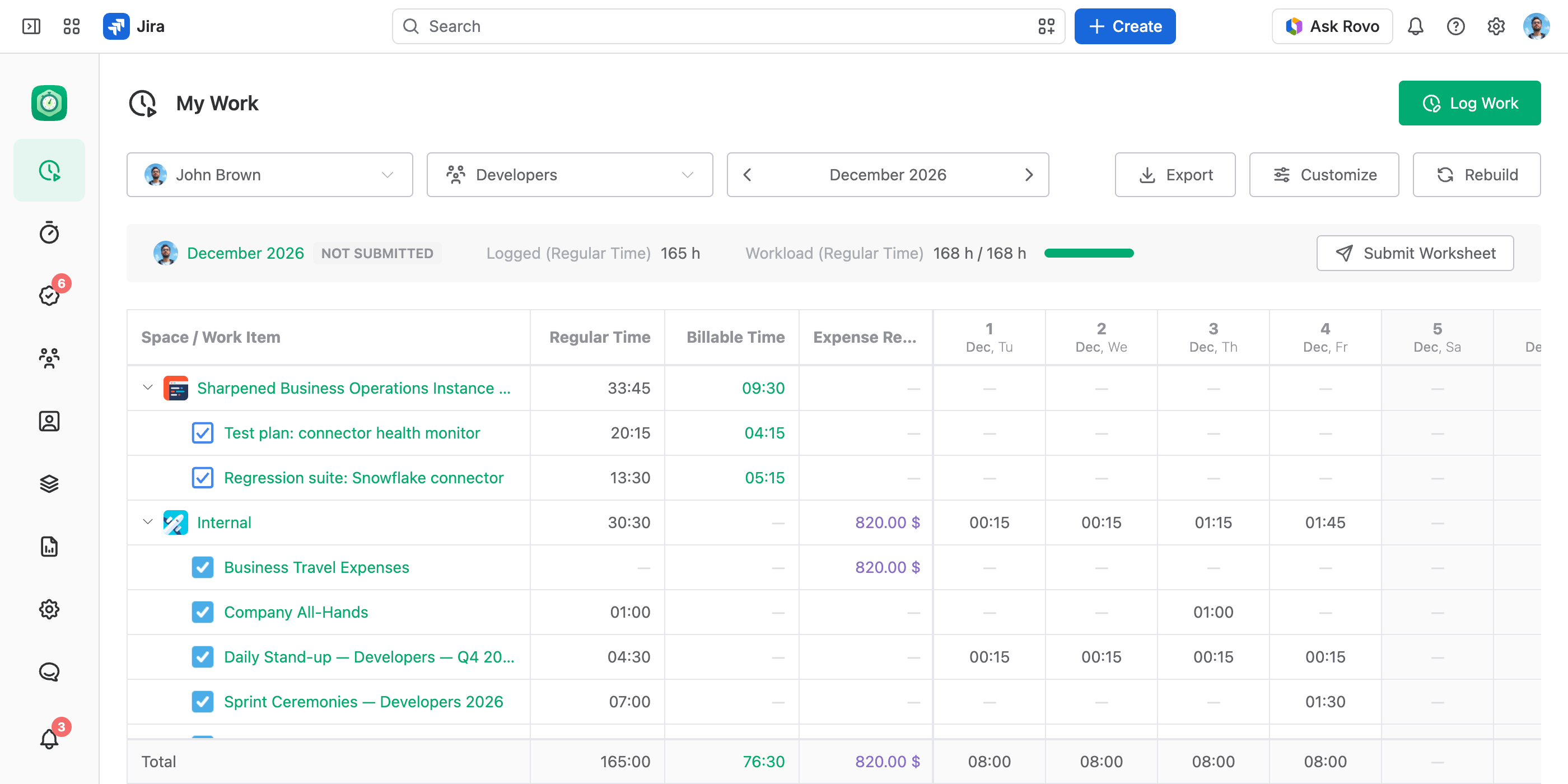
Normally you pick a date range. When the selected team, account or workstream runs approvals — or All Work, while the whole company does — the date range becomes a period picker. Step through the periods with the arrows, or pick one from the list: Current Period jumps back to today, and a Closed tag marks a closed period.
Submit Your Worksheet
While the period picker shows and you owe a worksheet for the period, a card under the toolbar shows that worksheet: its status, what you logged in that place, your workload for the whole period when the approval policy shows it, and the Submit Worksheet button. Select the period on the card to open the submission. See Submitting Worksheets.
See Your Schedule in the Grid
In the Days breakdown, the worksheet paints your weekly days off grey, holidays and short days red, and extra working days green, by your own workload scheme and calendar. See Workload Schemes and Calendars.
View Someone Else's Work
If you can see other people's work logs, a user picker comes first in the toolbar. Pick a person to see My Work as they see it: their teams and accounts in the select, their worksheet, their days. Their submission card shows too, if you can see the approvals of the team, account or workstream you picked — or the company-wide approvals, for All Work.