
Defining Custom Time Categories
Create categories to classify logged time.
Time categories in JetTime enable you to log and organize multiple types of time within a single work log. In addition to the built-in Regular Time category, you can create custom time categories tailored to your organization's needs.
These categories can also be aggregated in reports, allowing you to calculate totals across different time types.
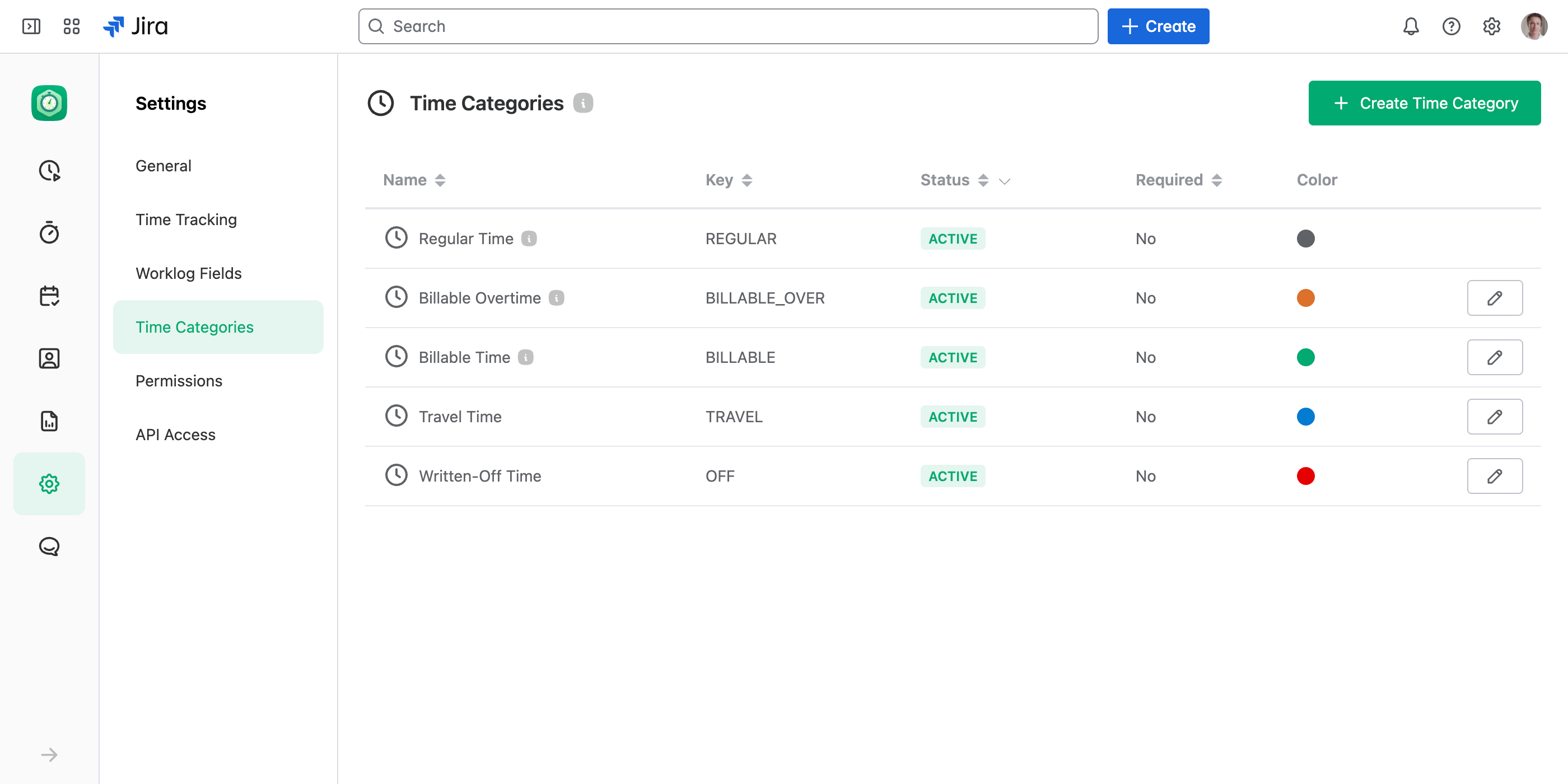
How to Define Custom Time Categories
Access Time Categories
From the JetTime app, navigate to Settings › Time Categories.
Create or Edit Categories
- Select Create Time Category to add a new category.
- To modify or delete an existing category, select the edit icon next to it.
Configure Category Options
When creating or editing a category, fill out the following fields:
- Name. The name of the time category as it will appear in the app.
- Key. A unique identifier for the time category, used in the API.
- Description. Optional – add a brief explanation of the time category's purpose. This will appear as a tooltip for users when filling out the time.
- Color. Assign a unique color for easy identification in reports.
Save Your Changes
Select Save to apply your new or updated category settings.
Examples of Custom Time Categories
Here are some examples of custom time categories you can create:
- Billable Time. Time spent on work that can be billed to clients.
- Billable Overtime. Extra hours that can be invoiced to clients under overtime rates.
- Non-Billable Time. Time used for internal company activities like meetings, training, or administrative work.
- Travel Time. Hours spent traveling for work, which may or may not be billable.
- On-Site Time. Time spent working at the client's location as opposed to remote work.
- Overtime. General overtime hours logged for analysis or payroll purposes.
These categories can help structure time tracking to give better insights and reporting outputs.
Using Custom Time Categories in Reports
- Aggregated values. Custom time categories can be summed up in reports to display the total time spent for each category.
- Worksheets. Generate worksheets that group time data by dates to better understand where time is being allocated.
Additional Notes
- The built-in Regular Time category cannot be modified or deleted.
- Colors assigned to categories help visually distinguish them in reports.
- Field Schemes control which categories appear on the Log Work form and which are required — this is no longer set on the category itself.
By defining custom time categories, you can add structure to your time logs, improve reporting accuracy, and boost overall time management efficiency.