
Submitting Worksheets
Learn how to submit worksheets, one at a time or all at once.
When your team, an account or a workstream you work on runs approvals, you submit your worksheet for each period. This article covers the submitter's side: what you owe, how to submit, and what to do when a worksheet comes back.
Team leads can submit for their people too — when someone forgets, or is on vacation when the period ends. See Submit for Someone Else.
See What You Need to Submit
Select Approvals in the main menu and open Submitting. It lists your worksheets across every team, account and workstream where you submit, and the company-wide approvals, in three groups:
- To Submit. Ended periods whose worksheet you haven't submitted yet, or that came back rejected.
- Ongoing. The current period. You can submit it early — before a vacation, for example.
- Awaiting Approval. Worksheets you submitted that wait for approvers.
Each row shows where the worksheet goes, its status, what you logged there and, when the approval policy shows it, your workload for the whole period. To work through one period everywhere, pick it in the filter at the top.
The two figures count different work. The logged figure is what you submit: only your work for that team, account or workstream, or all of it for the company-wide approvals. The workload is all your work in the period, wherever you logged it, against what your schedule requires. So on a team the workload often shows more hours; for the company-wide approvals, the two count the same work.
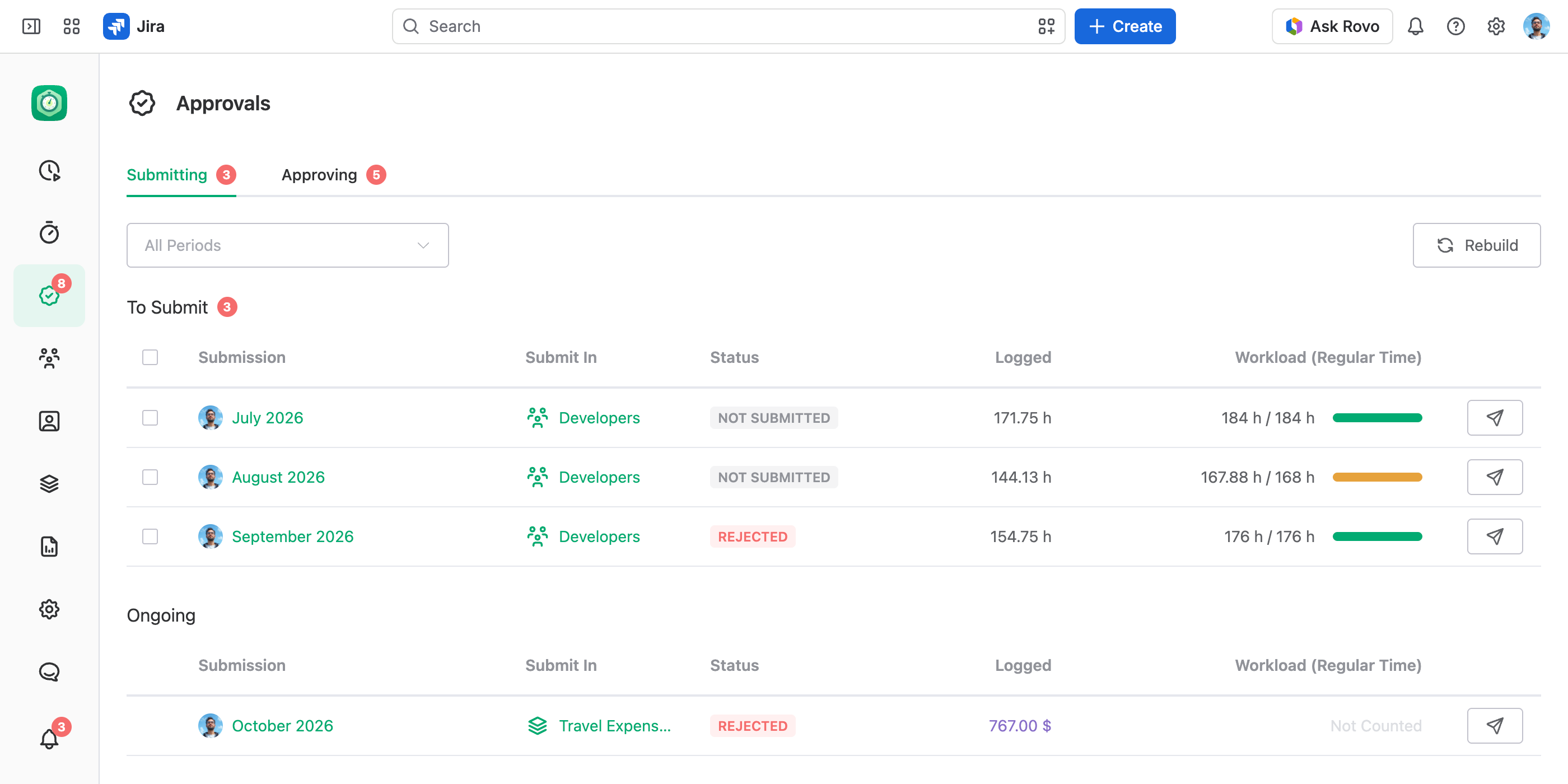
The red count on Approvals in the main menu includes the worksheets in To Submit. Approved worksheets and closed periods leave the list, and Notifications tell you when someone approves yours.
Submit a Worksheet
Open Submitting
Select Approvals › Submitting.
Check the Figures
Make sure what you logged matches what you worked. To see every figure the worksheet carries, open the submission's Details tab — see Open Your Submission.
Select Submit
Select Submit (the send icon) at the end of the row. In the Submit Worksheet dialog, add a Message if the approver should know something, and select Submit.
Your work logs in that period lock — in that team, account or workstream — until the worksheet is rejected or you recall your submission.
Submit Several Worksheets at Once
In To Submit, select the rows, or all of them with the checkbox in the header, and select Submit in the bar that replaces the column titles. A message, if you add one, goes with every worksheet. This is the quick way through a month when you owe a worksheet to each account you worked on. Ongoing periods are submitted one at a time.
Submit from My Work
My Work shows the same worksheet where you log your time. Pick a team, account or workstream at the top, or All Work while the whole company runs approvals. If that team, account or workstream runs approvals and you owe a worksheet for the period, a card under the toolbar shows that period's status, what you logged, your workload when the approval policy shows it, and the Submit Worksheet button. A team's, account's or workstream's Worksheet tab shows the same card to people who don't see its Approvals tab. See My Work Page.
Open Your Submission
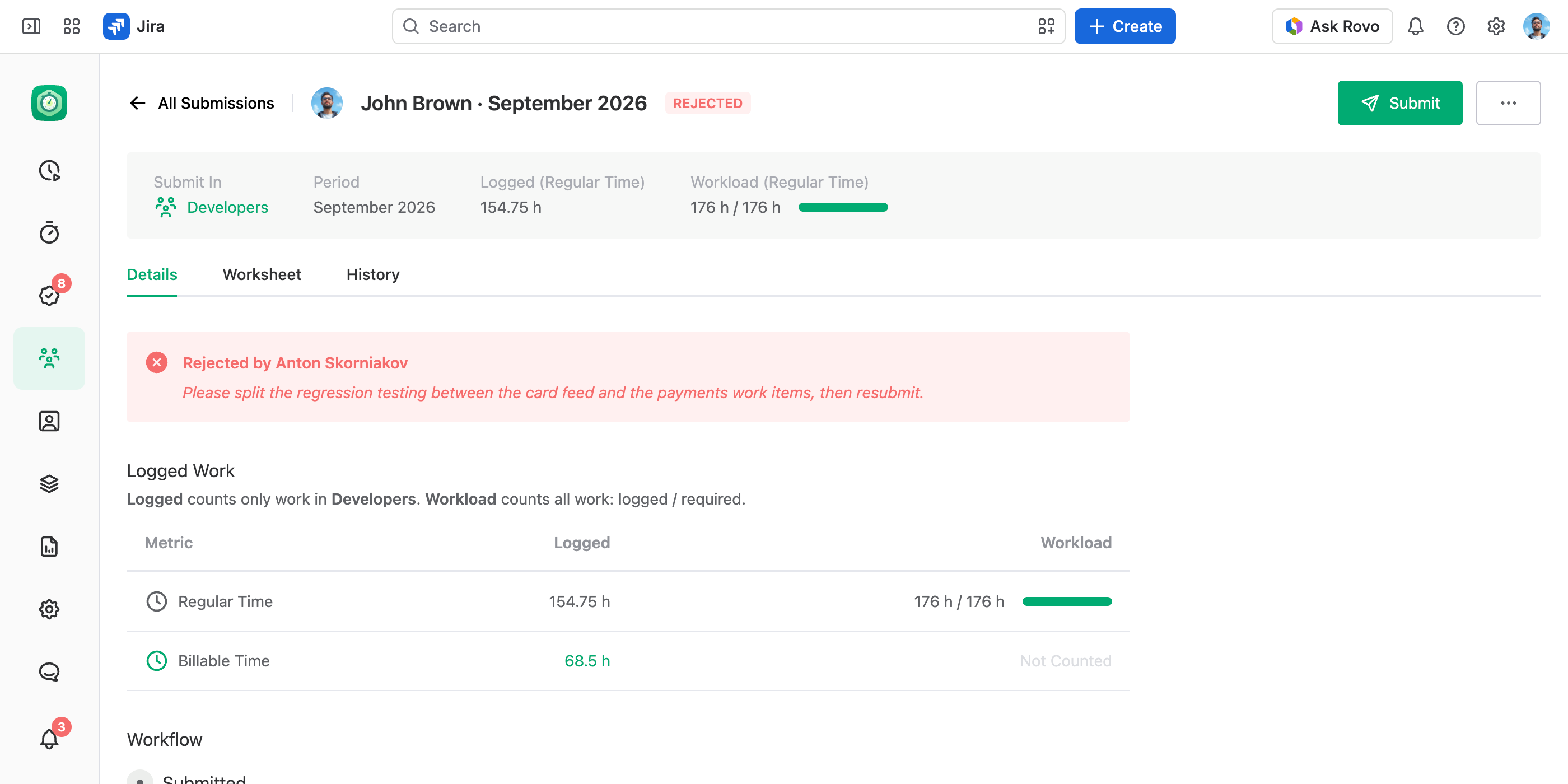
To open a submission, select its period in Approvals › Submitting, or on the card in My Work. Its header shows where it was submitted, the period and your main figures, and three tabs hold the rest:
- Details. When the worksheet was rejected, the approver's message comes first. Below it are every figure the worksheet carries — the lists show only the main one — with your workload beside them when the approval policy shows it, and the approval steps: who approved and whom it is waiting for.
- Worksheet. Your work logs for that period, in that team, account or workstream. While the worksheet is Not Submitted or Rejected and its period is open, fix your hours right here: select Log Work, or select a cell to edit what is in it.
- History. Every action on the submission — submitted, approved, rejected, recalled — with who did it, when, and their message.
Recall a Submission
Submitted too early, or forgot an hour? Open the submission and select … › Recall Submission. It goes back to Not Submitted and your work logs unlock. Recalling the submission works only until the first approval. After that, ask the approver to recall their approval, so you can recall the submission, or to reject the worksheet.
Fix and Resubmit a Rejected Worksheet
A rejected worksheet comes back to To Submit (or Ongoing, while its period runs), with the approver's message on the submission's Details tab. Fix your work logs — on the submission's Worksheet tab, in My Work, or wherever you log time — and submit it again. It then goes through every approval step from the first.
Submit for Someone Else
A team lead can submit a worksheet or recall a submission for someone else — say, after fixing their missing hour. You need one of these:
- The Manage Others Work Logs permission on the team or the account, or the View and Manage Others Work Logs global permission. On a workstream and for the whole company, only the global permission counts.
- A role on a step of the team's, account's or workstream's approval policy.
- The Full Access global permission.
To submit, select Submit on the person's row on the Approvals tab of the team, account or workstream. For the whole company, use Approvals › Approvals. To recall, open the person's submission from that list and select … › Recall Submission. The person is notified.
Good to Know
- Approvals appears in the main menu once you submit or approve somewhere, or can see the company-wide approval list.
- To add work to a submitted period, recall your submission while nobody has approved it yet.