
Teams and Function Roles
Group people into teams and record which function role each hour was worked under.
A team answers "who did this work". It is a reusable group of people, and every person in it belongs under a function role — Developer, Designer, QA, Account Manager, and so on. When someone logs work, they pick the team and the role they worked under, and JetTime records both on the work log. That is what turns a pile of hours into a per-role breakdown: the same person can sit in one team as a Project Manager and a Developer, and their hours split accordingly on a report or an invoice.
Teams also carry access. Each team owns its own worksheet and its own access rules, so a team lead can see and manage their team's hours without seeing anyone else's.
JetTime ships with no teams — you create the ones your company actually has.
How to Create a Team
Open Teams
In the main menu, select Teams. The list shows the teams you have access to, with their Name, Key, and Status. Use the Status column filter to hide archived ones.
Create the Team
Select Create Team and fill in two fields:
- Name. What the team is called, for example Mobile Developers or Support Team.
- Key. A short identifier. The key identifies the team in the API and is recorded on every work log logged under the team. It must start with a letter or underscore and can contain letters, numbers, and underscores.
Select Create.
Add the People
Switch to the People tab and add members under their function roles (below).
A team has these tabs: Worksheet, Approvals (while the team runs work approvals — see Approving Worksheets), People, and Settings. Select the team's name in the header to rename it, and use the … menu to delete it.
What a Function Role Is
A function role describes what a person does, not what they may access. It is picked per member on the People tab, offered in Role on the Log Work form, and recorded on every work log — so it becomes a column, a grouping dimension, and a filter in reports, where it also appears as Role.
JetTime comes with a ready-made set of function roles covering the usual jobs across a company — delivery, client-facing, and back-office alike — so you can start without configuring anything. Rename what doesn't fit, delete what you don't need, and add your own — see Managing Function Roles.
One of them, Contributor, is the default function role: it is pre-selected whenever you add someone to a team, so a company that doesn't track what people do can leave everyone on it and never think about roles again. Being the default also makes it the fallback — it can be renamed to suit your wording, but it can't be deleted, because there always has to be something to fall back on. Delete a custom role and everyone holding it moves to the default.
A function role says what a person does; what they may see and manage is a permission role, assigned on the Access tab. The two meet in one place: holding a function role in a team is what lets someone log work to it, however many permissions they have.
Adding People to a Team
The People tab lists the team members — the people who work under this team and log time to it — with a Name and a Function Role column. That is the list meant whenever a team is granted something as a whole, and it is a different list from the one on the Access tab.
Add a Person
Under the table, use Add User to search for a person. Pick them, choose their Function Role, and select Save in the dialog.
Give Someone a Second Function Role
Add the same person again under a different one. They then appear on two rows, one per role, and both are offered to them in the Log Work form.
Or Add Everyone at Once
Use Add Special and pick Any logged in user. Everyone on the instance becomes a member under one function role, with no member list to keep up to date — handy for a company-wide team.
Save the Tab
Nothing is stored until you select Save.
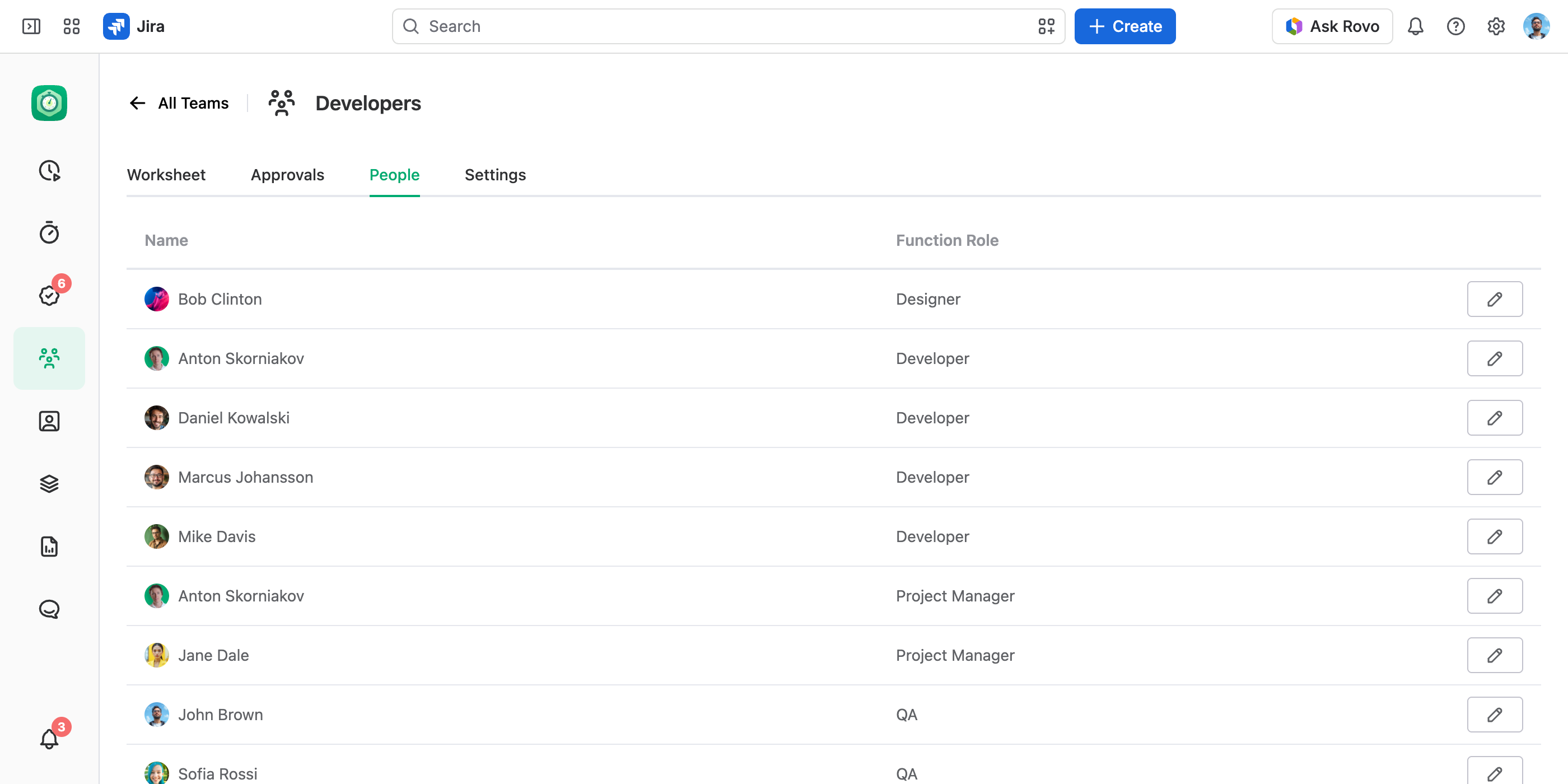
To change or remove a membership, select the pencil at the end of the row: the dialog lets you switch the function role or Delete that row. Removing one of a person's roles leaves their other roles alone.
Membership is what lets a person log work to the team, but it is not the whole condition: they also need permission to manage their own work logs there, from a global permission or from their permission role on this team. Membership alone is not enough either — you can't record a role you don't currently hold. Adding someone to People also gives them access to the team under the default permission role, so a new member can see their own hours immediately.
Logging Work to a Team
In the Log Work form, Team and Role sit directly under User and Date, above the fields your field scheme controls. Someone who holds several function roles in the team picks the one this work was done under, and the hours count toward that role.
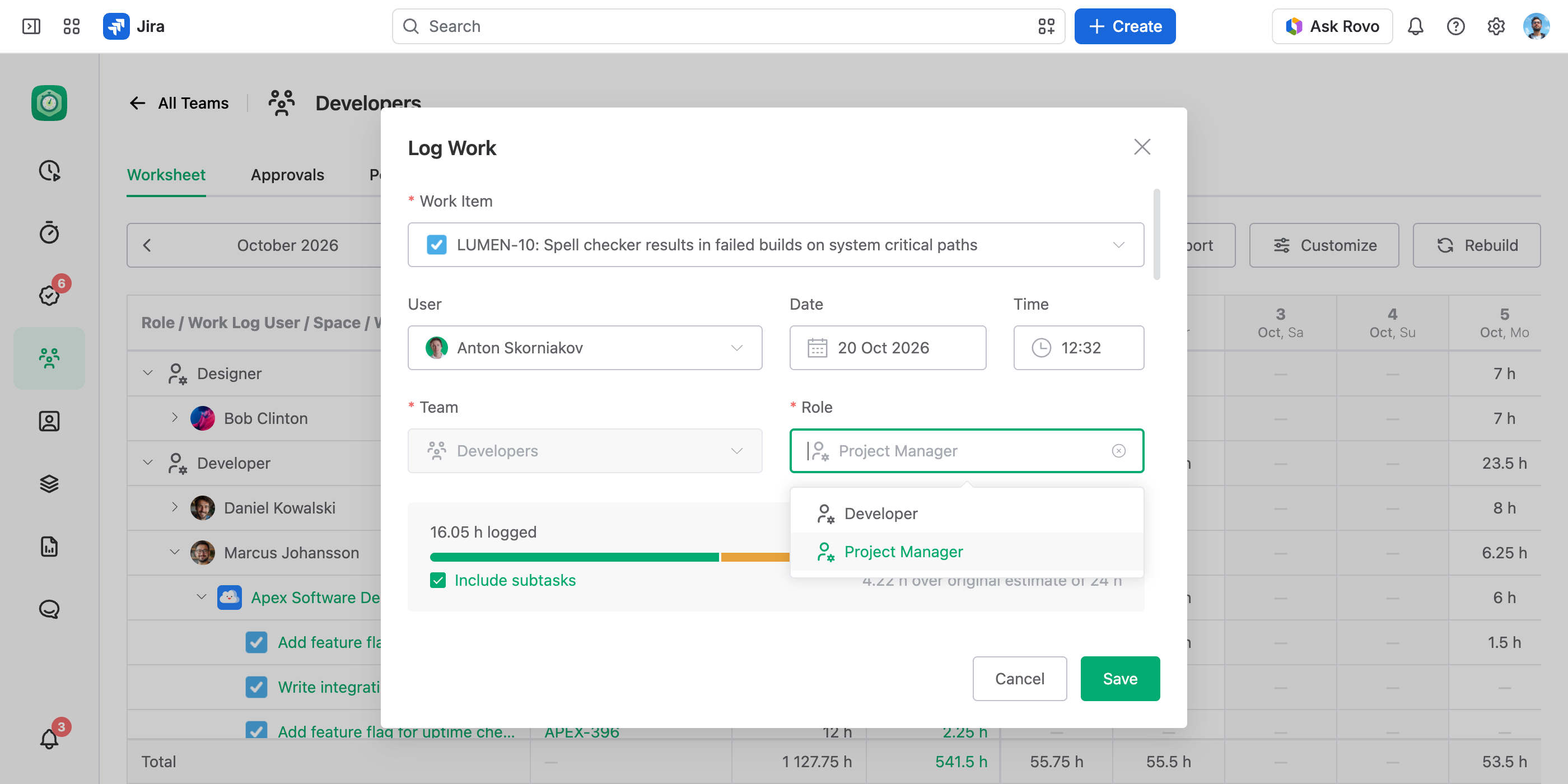
If the author belongs to any team at all, both fields are required — the work log can't be saved without them. That is the guarantee worth knowing: nobody's hours quietly end up outside a team because someone was in a hurry, so a team's numbers are complete when you bill or review them. The one exception is a person who belongs to no team, and that is fixed on the People tab rather than in the form.
Logging Work for Teams covers the rest — how each list is built, what happens when you edit a work log whose team or role the author no longer holds, and how these two fields can change which of the other fields appear.
Reporting on a Team
Every team has a Worksheet tab — the same reporting you use in Reports, already filtered to that team. Pick a date range and read the team's hours: no report to build, no filter to set. It defaults to a Role › Work Log User › Space › Work Item breakdown, which is how a team usually reads its own work: what was done under which function role, by whom, and where. Change the view mode, grouping, columns, totals, and duration format the same way you would in a report, and export the result to PDF, Excel, or CSV.
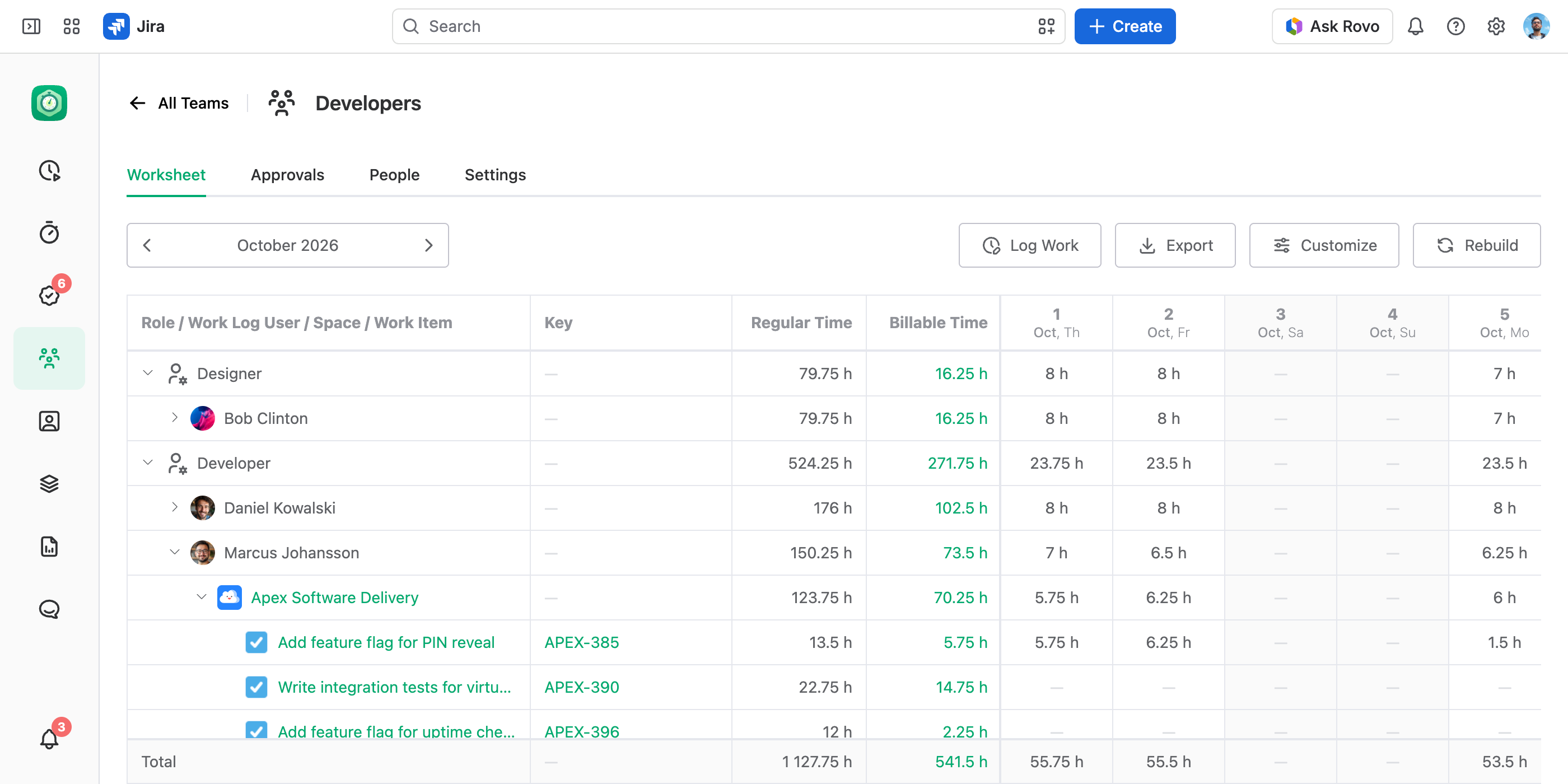
The team filter on this tab can't be removed or widened, and the view settings you pick are saved for this team, in your browser.
While the team runs work approvals, the tab moves by approval period instead of a date range. A team member who doesn't see the Approvals tab finds their own submission card above the worksheet — see Submitting Worksheets.
Outside the tab, the work log's team and function role are ordinary report fields — they appear as Team and Role — so use them as columns, as grouping dimensions, or as filters in any report. Grouping by Role totals the hours worked in each role, whoever worked them — the shape an invoice needs when roles bill at different rates; grouping by Team gives a team's breakdown across every space. See Reporting on Teams and Roles.
Team Settings
The Settings tab holds the configuration you set once, split into General, Access, Work Approval, Lock Date and Audit Log.
General
Key and Status live here. The key stays editable after creation, as long as the new one is unique. Set Status to Archived to take the team out of service: it stops being offered in the Log Work form, grants no access anywhere it was assigned, and disappears from new work — while remaining in reports, so past hours keep their team.
The team's name isn't on this page. Rename it by selecting the title in the header.
Access
The Access tab decides who may see and manage this team's work logs. Choose a Permission Scheme — the matrix that defines what each permission role can do — and then hand out roles. The page previews the selected scheme, so you can see what each permission role allows before assigning anyone.
Two tables share the page:
- Team People. Everyone from the People tab. You can change their permission role here; who is on the list is managed on People.
- Other People. Anyone else: an individual who isn't a member (an auditor or an observer), a whole team, or Any logged in user. Assign a permission role to a whole team and its team members all get it here.
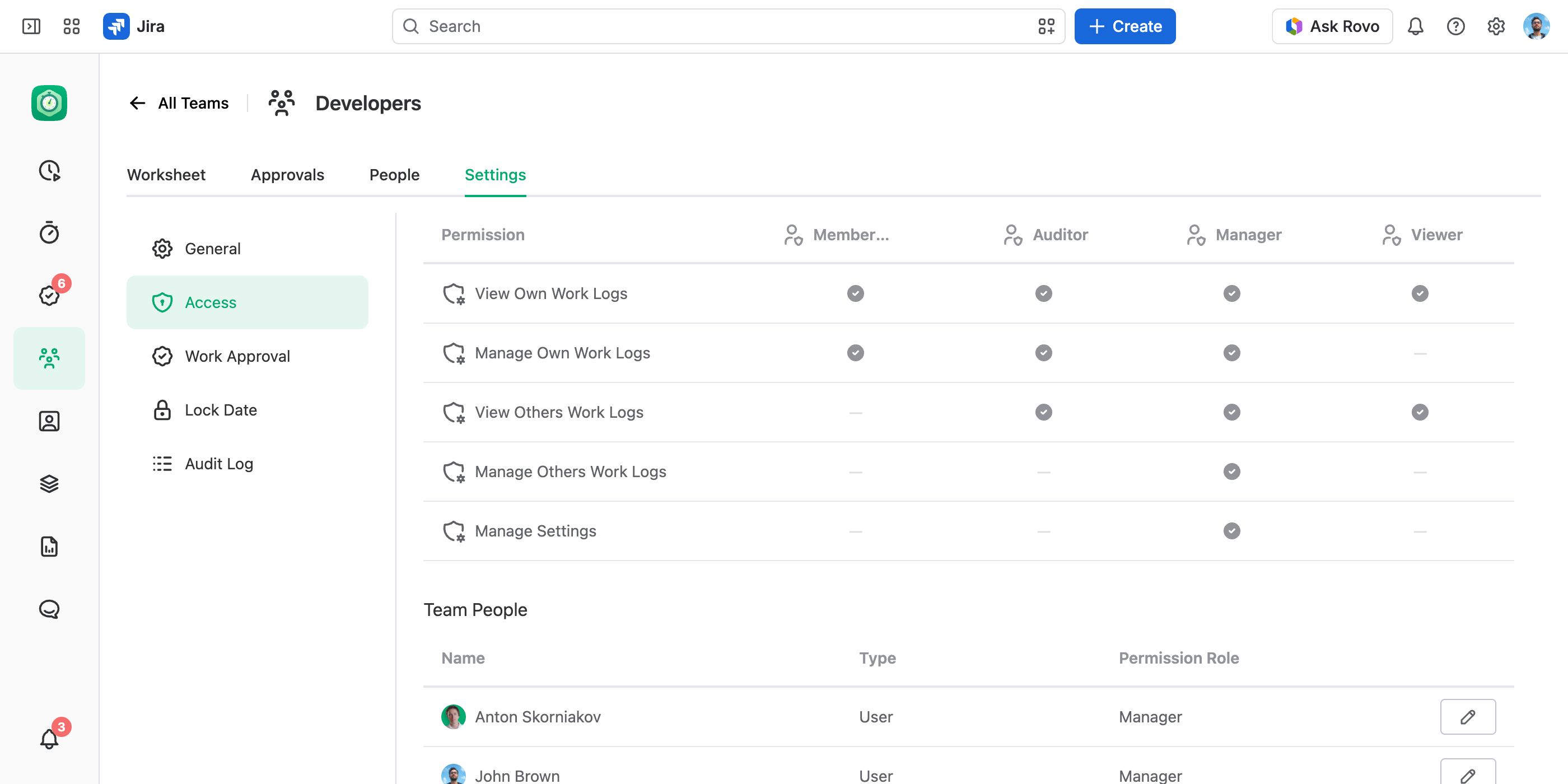
Grants combine. When several rows apply to one person, they get everything those permission roles allow — a row can only add. To give someone less, grant narrowly instead of adding a narrower row.
Nothing is stored until you select Save.
Access is not membership. Someone added under Other People can have full rights over the team's work logs and still not be able to log work to it, because they are not on People.
For the full permission model — the global permissions, the schemes, and how the two layers combine — see Managing App Permissions.
Work Approval
Turn on work approvals for the team: worksheets are submitted each period and approved by the roles its approval policy names. See Setting Up Work Approvals.
Lock Date
Freeze the team's work logs on or before a date — for example once its month is invoiced or payroll is done. Nobody can add, edit or delete them after that. See Locking Work Logs with Lock Dates.
Audit Log
Who submitted, approved or rejected the team's worksheets, closed its periods or moved its lock date, and when. See Audit Log.
Additional Tips
- Seeing a team is not the same as managing it. The Settings and People tabs need Manage Settings on the team, while Create Team and Delete Team need the View and Manage Teams global permission.
- Archive rather than delete. Archiving keeps every past work log's team intact for reporting; deleting the team removes its people and access rows permanently.
- Changing a team's key detaches it from the work logs that already carry the old key. Changing the key back restores them.
- The team's key is what integrations write and read on a work log — see JetTime Work Log Metadata.
- Membership and access are different things, and only one of them takes a team. People holds people, never teams — teams don't nest, so you can't make one team a member of another. Access does take a team: assign a whole team a permission role on any team, account, or workstream, and its team members all get it there. So "give this group of people the same rights" is always an access job, not a membership one.