
Configuring Permission Schemes
Define what each permission role can do, then attach the scheme to an object.
A permission scheme is the granular half of JetTime's access model. Where a global permission grants a capability everywhere at once, a scheme lets you say "on this client's account, she manages the hours and he only reads them" — and say it once for every object that works the same way.
A scheme itself holds no people. It is a matrix of permission roles and permissions, with a tick wherever a role gets a permission. You attach the scheme to a team, an account, or a workstream, and then hand out roles on that object's Access tab. One scheme can serve every account you have.
Where Permission Schemes Live
Open the JetTime app, go to Settings, and under Roles and Permissions select Permission Schemes. Select a scheme's name to open its matrix.
Creating a Scheme
Select Create Permission Scheme
Give it a Name, and select Create. Name it after the access pattern it describes — Client Accounts, Internal Teams — because that is what you'll pick from later.
Fill in the Matrix
Permissions run down the rows, your permission roles across the columns. Tick a cell to grant that role that permission.
Select Save
Nothing is stored until you do.
To rename a scheme, select its title in the header. To delete one, use the … menu in the header — every object using it then moves to the default scheme.
The Default Scheme
One scheme carries a Default tag, and it does two jobs.
It is what every new team, account, and workstream is created with, so an object has working access rules from the first minute rather than none at all. And it is where objects land when the scheme they were using is deleted — which is why the default scheme itself can't be deleted.
Its matrix is editable like any other. If what it ships with doesn't match how your company works, change it here: that is less work than building a second scheme and then moving every object onto it.
What the Matrix Grants
Five permissions make up the rows. Each one applies only to the object the scheme is attached to:
- View Own Work Logs. See your own hours on this object, in reports and on its Worksheet.
- Manage Own Work Logs. Log, edit, and delete your own work logs on this object.
- View Others Work Logs. See everyone's hours on this object, not just your own.
- Manage Others Work Logs. Edit and delete other people's work logs on this object. On a team or an account, also submit their worksheets and recall their submissions.
- Manage Settings. Open the object's Settings and change them: its key, its status, its access, its work approval and lock date, and, on a team, its People. It also closes and opens the object's approval periods and resets its submissions. This is the permission for whoever manages that team or account day to day. It stops short of deleting the object, which needs the matching global permission.

Two things follow from how the rows pair up:
- Manage implies View. Tick a Manage and its View ticks itself; untick a View and its Manage goes with it. Managing what you can't see is meaningless, so JetTime won't let you configure it.
- Own and others are separate axes. Neither grants the other, which is what keeps a pure read-only role possible: tick View Own Work Logs and View Others Work Logs, leave both Manage rows empty, and that role reads everything and changes nothing.
Manage Settings stands alone, with no pair. It also keeps working on an archived object, so whoever manages an archived team or account can still un-archive it.
Every one of your permission roles is always a column here, in every scheme. A role that should mean nothing under this scheme is simply a column with no ticks — there is no list of "roles included in this scheme" to maintain.
Approving isn't a permission in the matrix. An approval can run in several steps, each approved by different people, and a single permission couldn't say who approves which step. So an approval policy names the permission roles for each step of its workflow, and for submitting. Whoever holds those roles on an object's Access tab submits or approves on that object.
Permission Roles
A permission role is a named access level: Manager, Viewer, whatever your organization calls them. It carries no rights of its own — the scheme decides what the role can do, and the object decides who holds it. That is what makes one role reusable across every team and account you have.
Manage the list in Settings › Roles and Permissions › Permission Roles. Select Create Permission Role, give it a Name, and save; a permission role has nothing else to fill in, because everything it means comes from the schemes. Select the pencil at the end of a row to rename a role or delete it.
JetTime ships with Manager, Member, Viewer and Auditor, granted in the Default Permission Scheme the way the names suggest: Manager everything, Member their own work logs, Viewer read-only, and Auditor their own work logs plus read-only access to everyone else's — for an approver who checks work without changing it. In every other scheme, Auditor starts with no ticks. Treat that as a starting point, not a fixed list — rename these, add the levels your organization actually uses, and adjust what each one grants in every scheme.
Member is the default permission role. Two things follow:
- A newly added person gets it. When you assign access to someone on an object, the role starts on the default, so the least-privileged option is the one you have to actively change.
- It can be renamed but not deleted. Something always has to be there to fall back on.
Deleting any other permission role is unblocked and self-healing: everyone holding it, on every object, moves to the default role, and the role's ticks disappear from every scheme.
A permission role is not a function role. A function role says what a person does and is recorded on the work log; a permission role says what they may see and manage, and is never recorded anywhere.
Attaching a Scheme to an Object
A scheme does nothing until an object uses it. Open a team, account, or workstream, go to Settings › Access, and pick the scheme in Permission Scheme. The page previews the matrix underneath, so you can check what each role allows before assigning anyone.
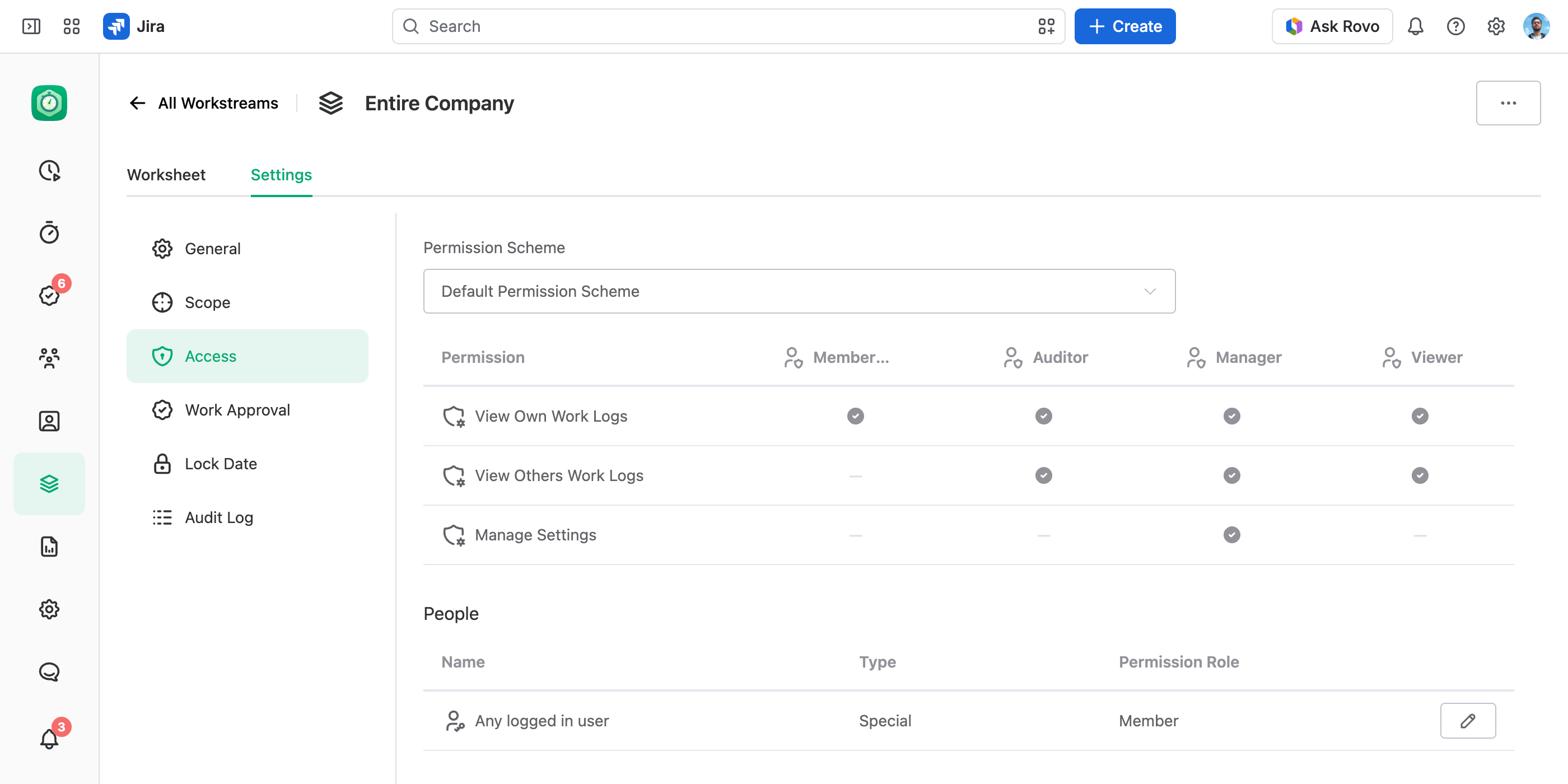
Then hand out the roles:
Pick Who Gets Access
Use Add User for one person, Add Team for a whole team, or Add Special for Any logged in user — everyone on the instance.
Choose Their Level
The dialog's one field is Permission Role. It starts on the default role; change it if this subject should have more.
Save the Tab
Nothing is stored until you select Save.
Select the pencil at the end of a row to change its permission role or remove it.
A team's own Access tab splits the rows in two. Team People lists its team members: you set each one's permission role here, but who is on the list is managed on the team's People tab, so a member row can't be removed here. Other People holds everyone else — an auditor who isn't a member, another team, or Any logged in user — and those rows are yours to add and remove. Accounts and workstreams have no membership of their own, so they show a single People table where every row works that way.
A workstream shows a shorter preview: it never grants the two Manage work-log permissions, because nobody logs work to a workstream. It is a way of looking at work, so viewing and Manage Settings are all it can hand out.
Giving One Group Access to Many Objects
The scheme decides what a role can do. A team is how you avoid repeating who gets it — and at any real scale, that is where the work is.
Take a finance department that has to read every account, and 200 accounts. Adding each person to each account is an afternoon of clicking, and it is wrong again the day somebody joins or leaves.
Make the Group a Team
Create a team — Finance — and add those people as its team members on the People tab.
Attach the Team, Not the People
On each account's Settings › Access, add that one team with the permission role it should have there.
Maintain the Group in One Place
From then on, the team's People tab is the only list you touch.
Someone joining the finance team gets that access on all 200 accounts without anyone opening an account. Someone leaving loses it everywhere the team granted it.
The permission role is picked in the team's own row on each object, so the same team can be attached as Manager on the accounts it owns and as Viewer on the rest. Within one object there is nothing to vary: every team member gets the role in that row.
Grants Combine
When several rows apply to one person — their own row, every attached team they are a member of, the Any logged in user row — they get everything all those roles allow. No row lowers another, and there is no deny.
So a narrower row never restricts someone. To give a person less, remove the row that gives them too much, or don't grant them the wider role in the first place. It is the same rule that governs global permissions, applied within one object.
Additional Tips
- One scheme, many objects. Make a second scheme only when a set of objects genuinely needs a different matrix — a scheme per account is a list to maintain forever.
- Where a person's rights come from a scheme, they are attached to that object. The same person can be a Manager on one account and a Viewer on another, and JetTime resolves each object on its own.
- Editing schemes and roles needs the View and Manage App Settings global permission; assigning roles on one object needs only Manage Settings on that object.
- A global permission wins wherever it is wider. Someone with a global work-log permission sees those hours on every object, whatever any scheme says — see Managing Global Permissions.
- A scheme grants nothing Jira refuses. Work logs are written into Jira as their author, so Jira's own work-log permissions on the space apply first — a Manager here still can't log on a space Jira keeps them out of.