
Customize the Log Work Form per Work Item in Jira
Show different work log fields for different work items, clients, teams, and roles.
A service team rarely logs the same things on every task. On-site work needs mileage and travel time; one client wants a PO number on every entry, another doesn't; internal work needs none of it. Forcing one fixed form on all of them means clutter on some work items and missing data on others.
JetTime, a time-tracking app for Jira from the Atlassian Marketplace, builds the Log Work form per work item — so each kind of work, and each client, gets exactly the fields it needs. It's a level of form customization we haven't seen in any other Jira time tracker.
How It Works
The form is built from Field Schemes. Each scheme lists the fields to show and a rule for when it applies — which work items, and which team and role the time is logged under. When someone logs work, JetTime picks the scheme that matches and builds the form from it — no manual switching. Below is one setup with three schemes.
On-Site Client Work
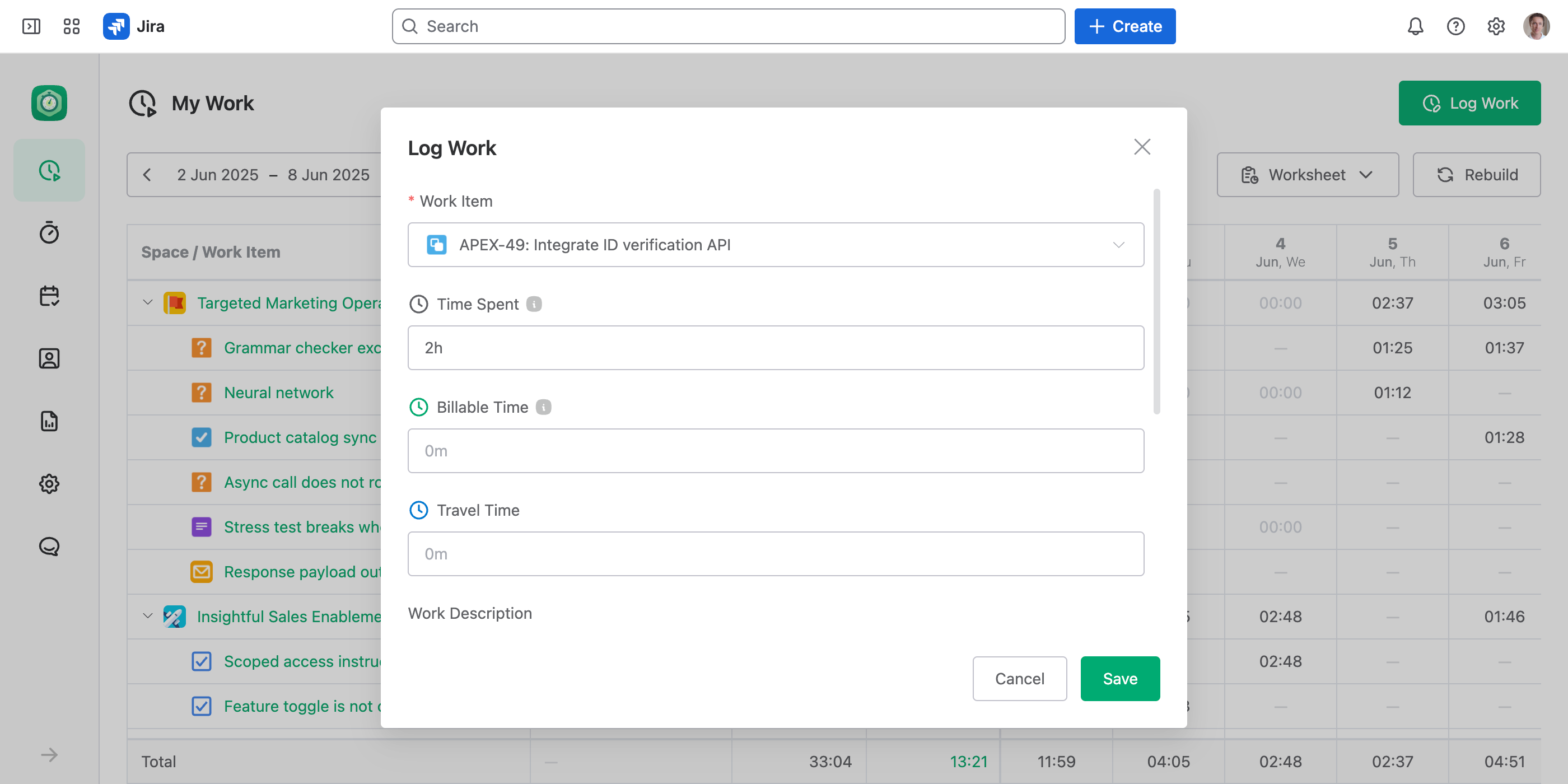
For visits to a client's site, you bill the hours and need the details that go with travel. A scheme scoped to your on-site work shows:
- Time Spent and Billable Time. The hours, and which of them are billable.
- Travel Time. A separate category, so travel is tracked apart from the work.
- Account. The client being billed (required).
- Mileage. A number field for distance driven.
Work for a Client with Their Own Requirements
Different clients have different billing requirements. Say one client won't accept an invoice without a purchase order number and a cost center on every line. A scheme scoped to that client's space adds exactly those, and makes them required:
- Time Spent and Billable Time, with Account.
- PO Number. A text field, required, so no entry is missing it.
- Cost Center. A single-select field with that client's cost centers.
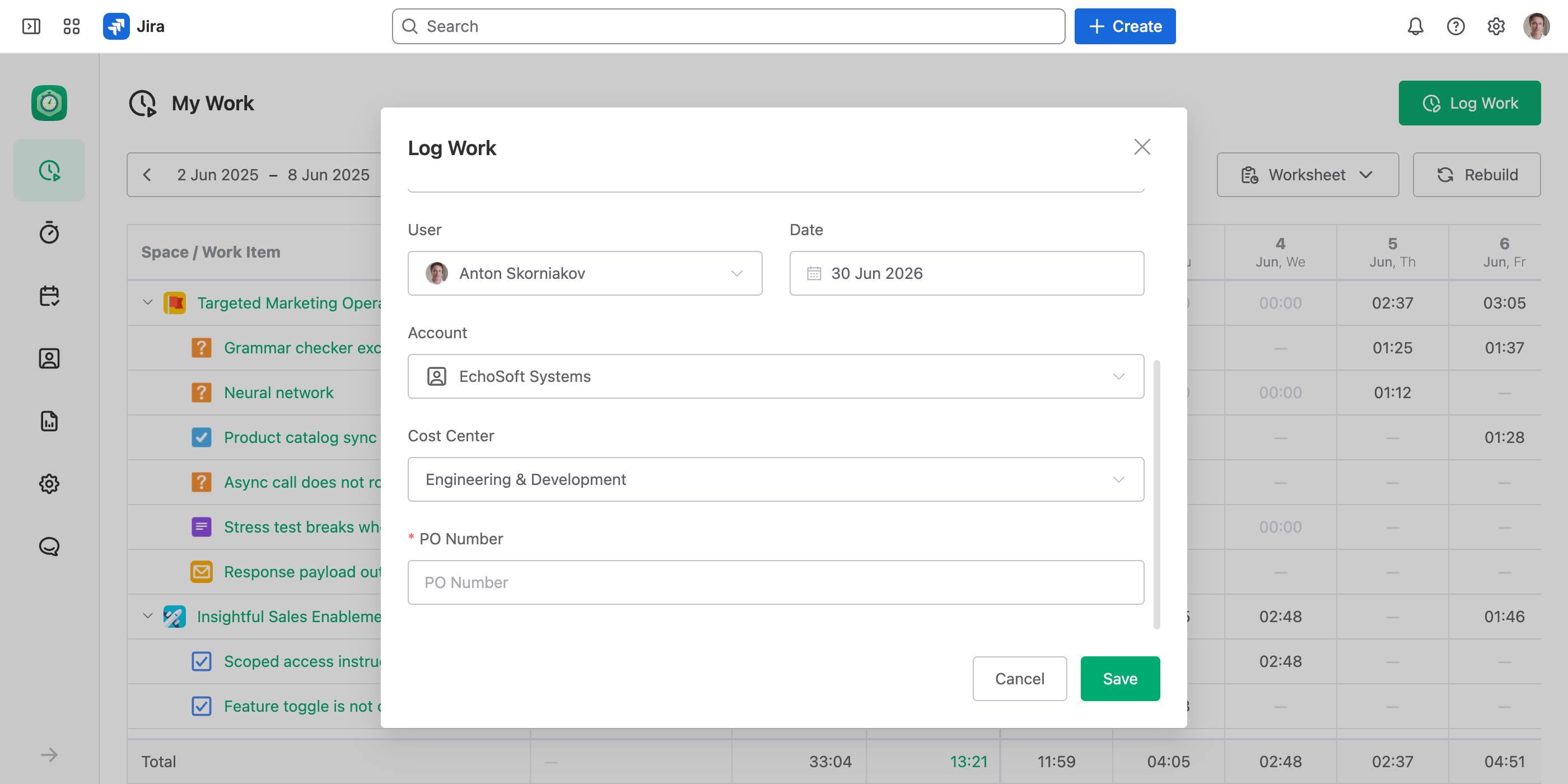
These fields appear only on that client's work — everyone else's form stays clean.
Internal Work
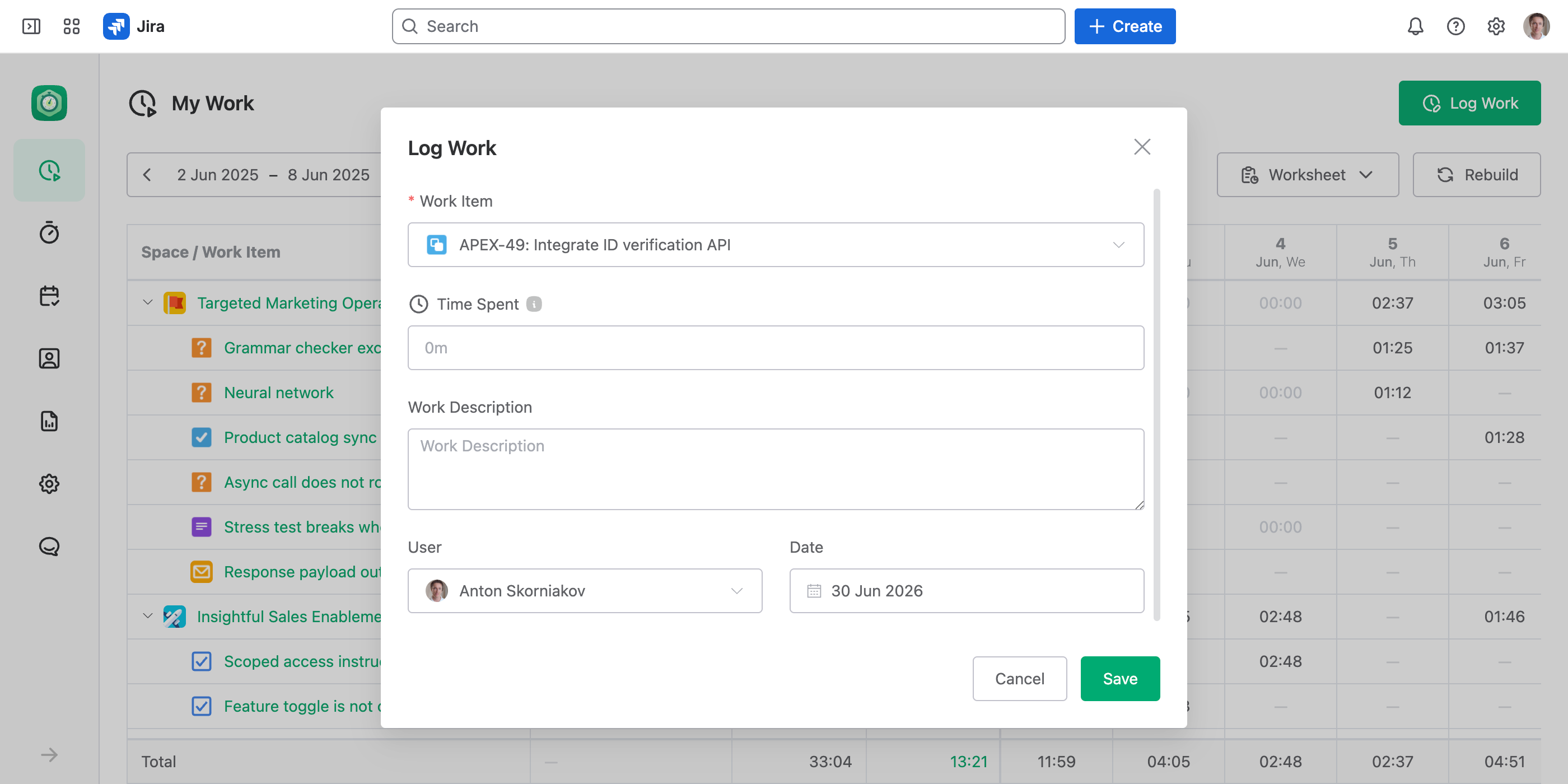
Internal tasks aren't billed, so most of those fields would just be noise. A scheme scoped to your internal space keeps the form to the essentials:
- Time Spent. The hours.
- Work Description. Optional.
A Different Form per Team and Role
The three schemes above are picked by the work item. A rule can also read Team and Role on the form — the function role the person is logging under — so the same work item can show two different forms.
Say your testers have to record a bug number on every entry, and nobody else should see that field. A rule of Team is Mobile Developers and Role is QA adds it for them; everyone else logging to the same work item falls through to another scheme and gets the plain form. Team and Role sit on the Log Work form itself, so switching either one rebuilds the fields below on the spot.
Setting It Up
Each form above is one scheme. To build one:
Add the Fields
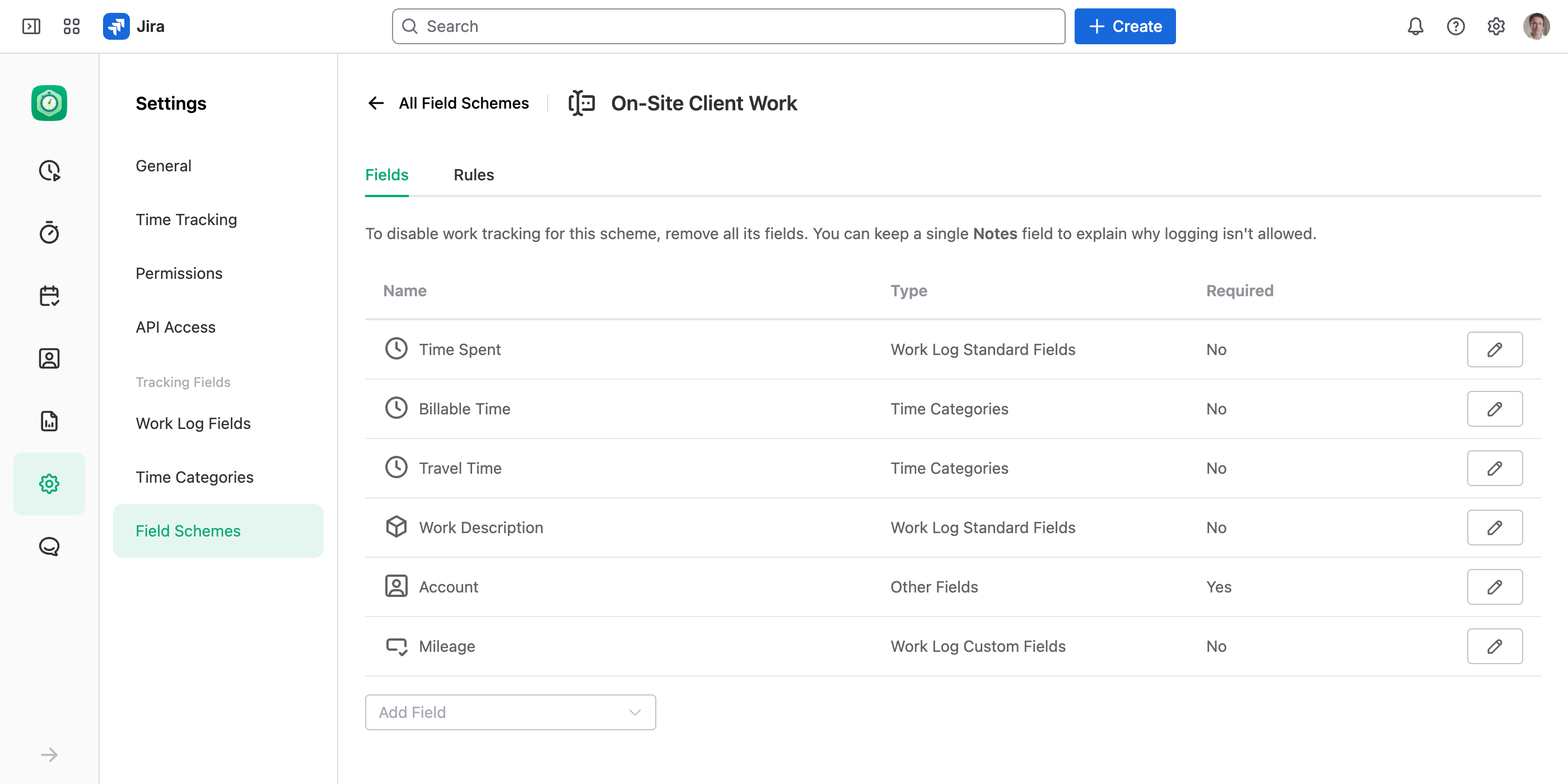
In Settings › Field Schemes, create a scheme and, on the Fields tab, add the fields that kind of work needs. Mark the ones that must be filled in as Required.
Scope It with a Rule
On the Rules tab, point the scheme at the right work — by space, work item type, status, the team and role the time is logged under, or any combination. For example, one scheme for a client's space, another for your internal space.
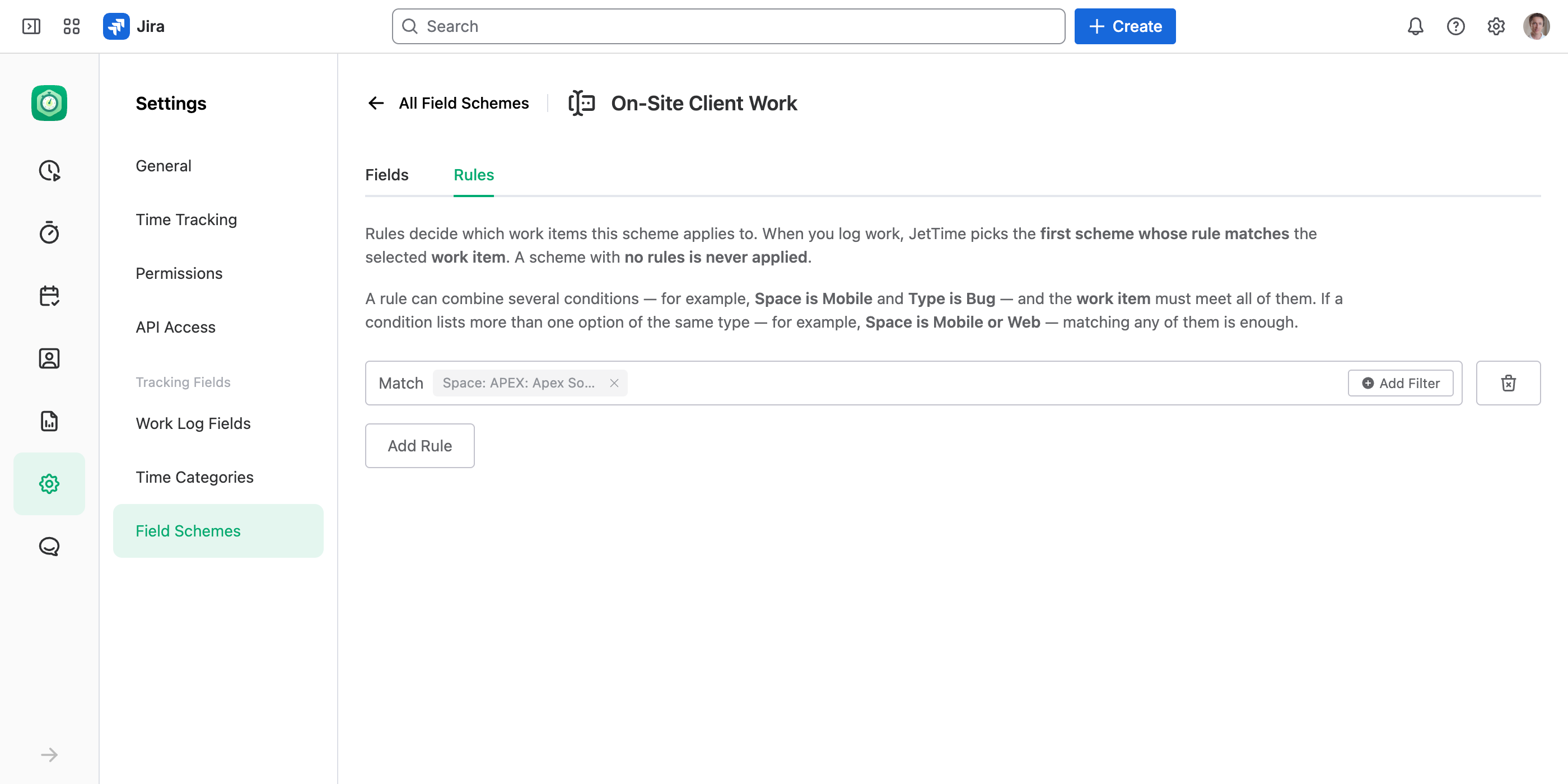
Save
Select Save on the tab you edited — the Fields and Rules tabs save separately. Each work item now shows the form that fits it, automatically.