
Roll Up Time to Epics Across the Jira Hierarchy
Roll up time and metrics from subtasks and stories to any epic or higher hierarchy level.
You want one number: how much time this epic really took. But native Jira keeps a separate total per work item and only rolls time up one level — work logged on a subtask reaches its story, not the epic above it. So the epic's true effort is scattered across the tree, and you add it up by hand.
JetTime, a time-tracking app for Jira from the Atlassian Marketplace, rolls time up the whole hierarchy. Group a report by any level — epic, or a custom level above it — and every work log logged anywhere underneath rolls up to it, however deep the tree goes, across every space.
Group by a Hierarchy Level
The roll-up happens in a report — you tell it which hierarchy level to total work against, and JetTime gathers everything below into it.
Open the report settings
Open a report and click the current view-mode button to open View Settings.
Add a hierarchy level to the grouping
Under Time Grouping, click Add Time Grouping and pick a level from the Hierarchy Levels category — for example Epic (Level 1). Each level is labelled with its name and number. Add several to nest the whole tree — Initiative (Level 3), Portfolio (Level 2), Epic (Level 1), Task/Story (Level 0) — so work rolls up level by level.
Build the report
Hit Build Report. Every work log logged on a story, task, or subtask under an epic now rolls up into that epic's total.
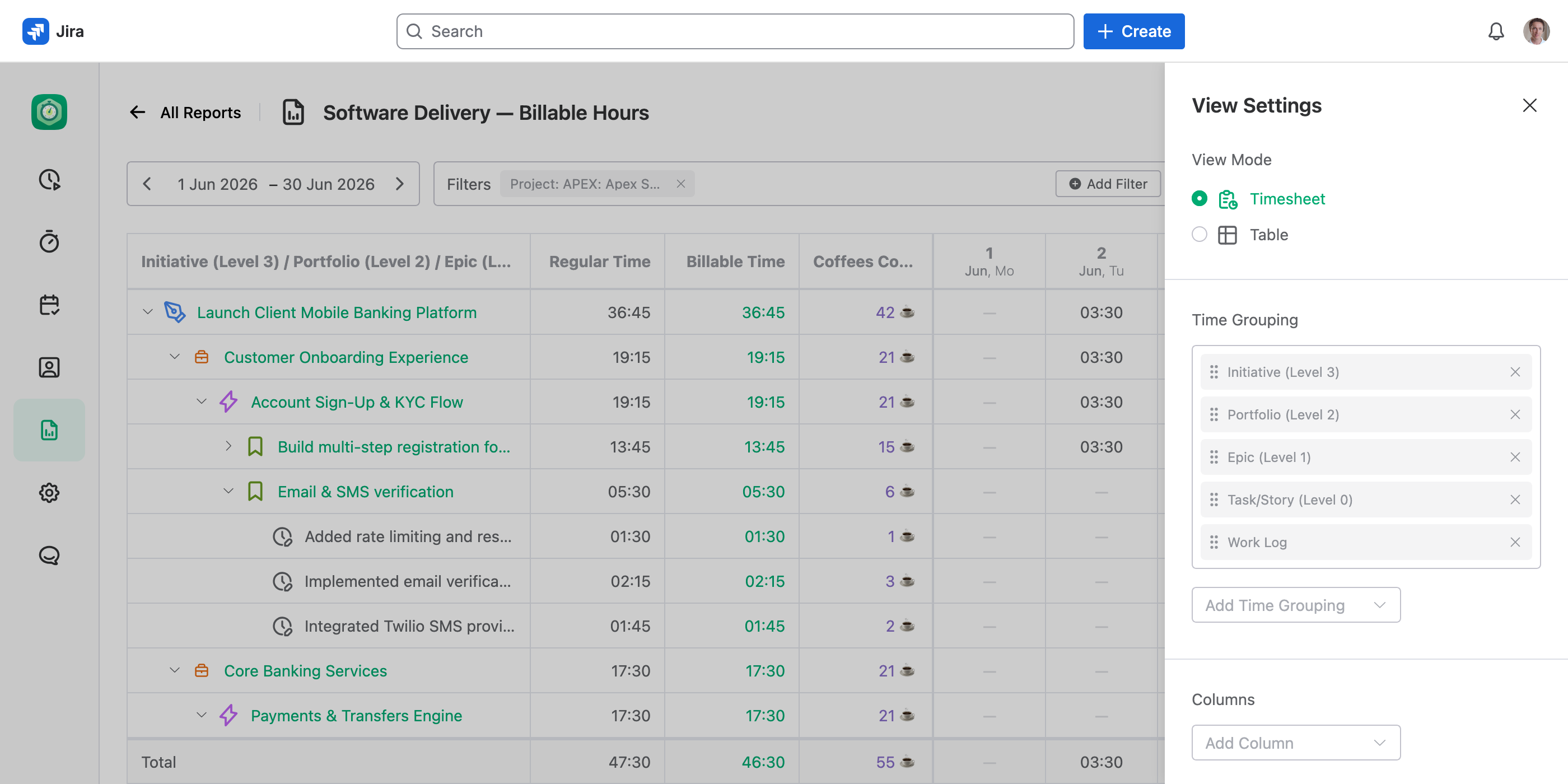
This rolls up the full tree, not just the direct parent. Time on a subtask reaches its epic — and any custom level above it (initiative, portfolio, and beyond), to any depth, across all your spaces. Custom numeric metrics roll up the same way, not only time.
Spread It Across Time
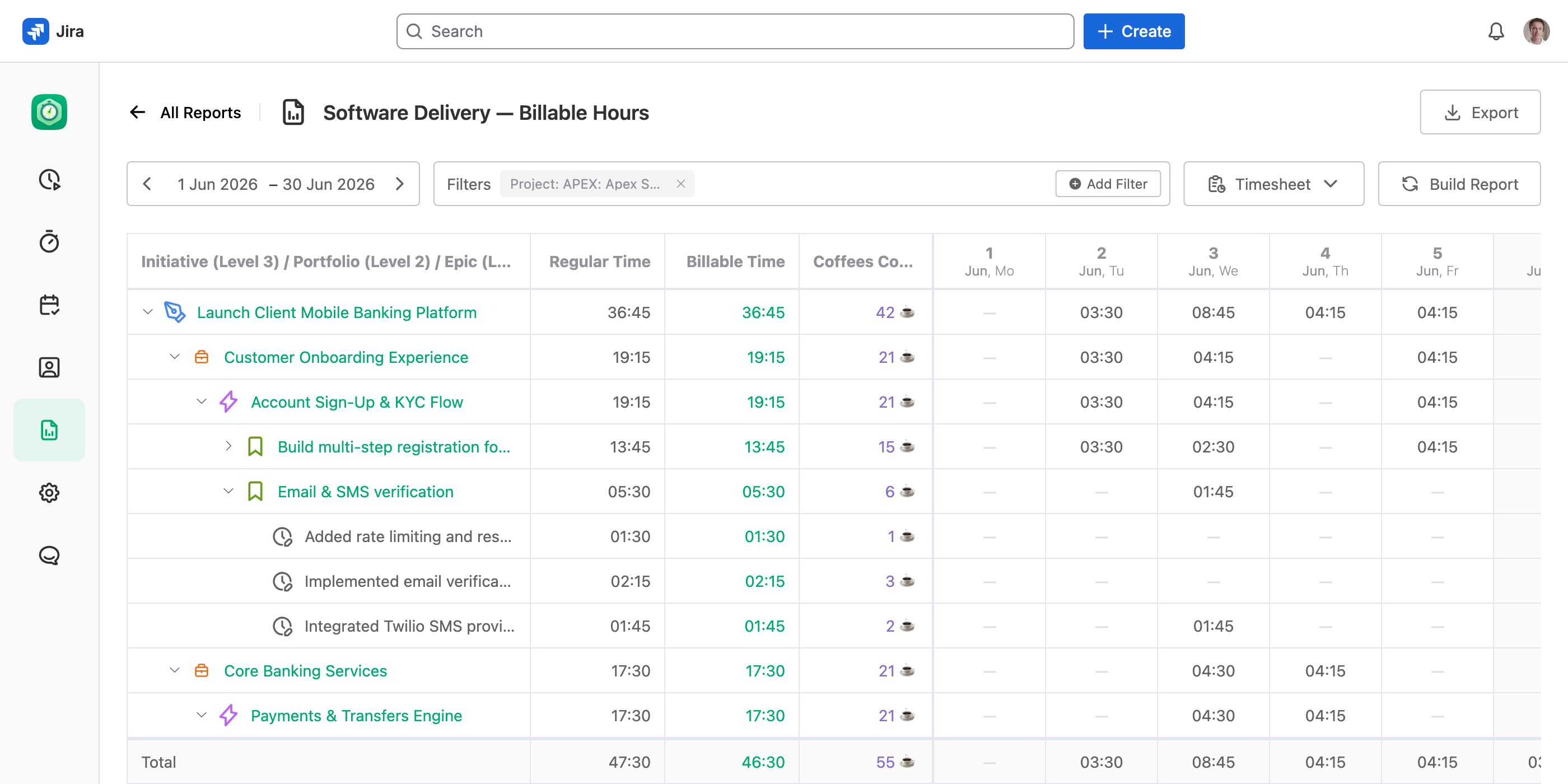
Once the report is grouped by hierarchy, switch to a worksheet to see how that effort spread over time.
Switch to Worksheet view
In View Settings, set the view mode to Worksheet.
Pick a breakdown
Set Worksheet Breakdown to Days, Weeks, Months, or Quarters. Each level of the tree shows its rolled-up total in every period column.
Roll Up More Than Time
The same roll-up works for any custom numeric field you track on work logs — costs, story points, mileage. Add it as a total column or pick it as the worksheet metric, and it sums up the hierarchy just like hours do.